iOS vs Android values: what a screen changes when it moves platforms
Moving a screen from iPhone to Android changes its touch target, safe areas, bar heights, row height, switch and corners. Each value side by side, in pt and dp.

On this page
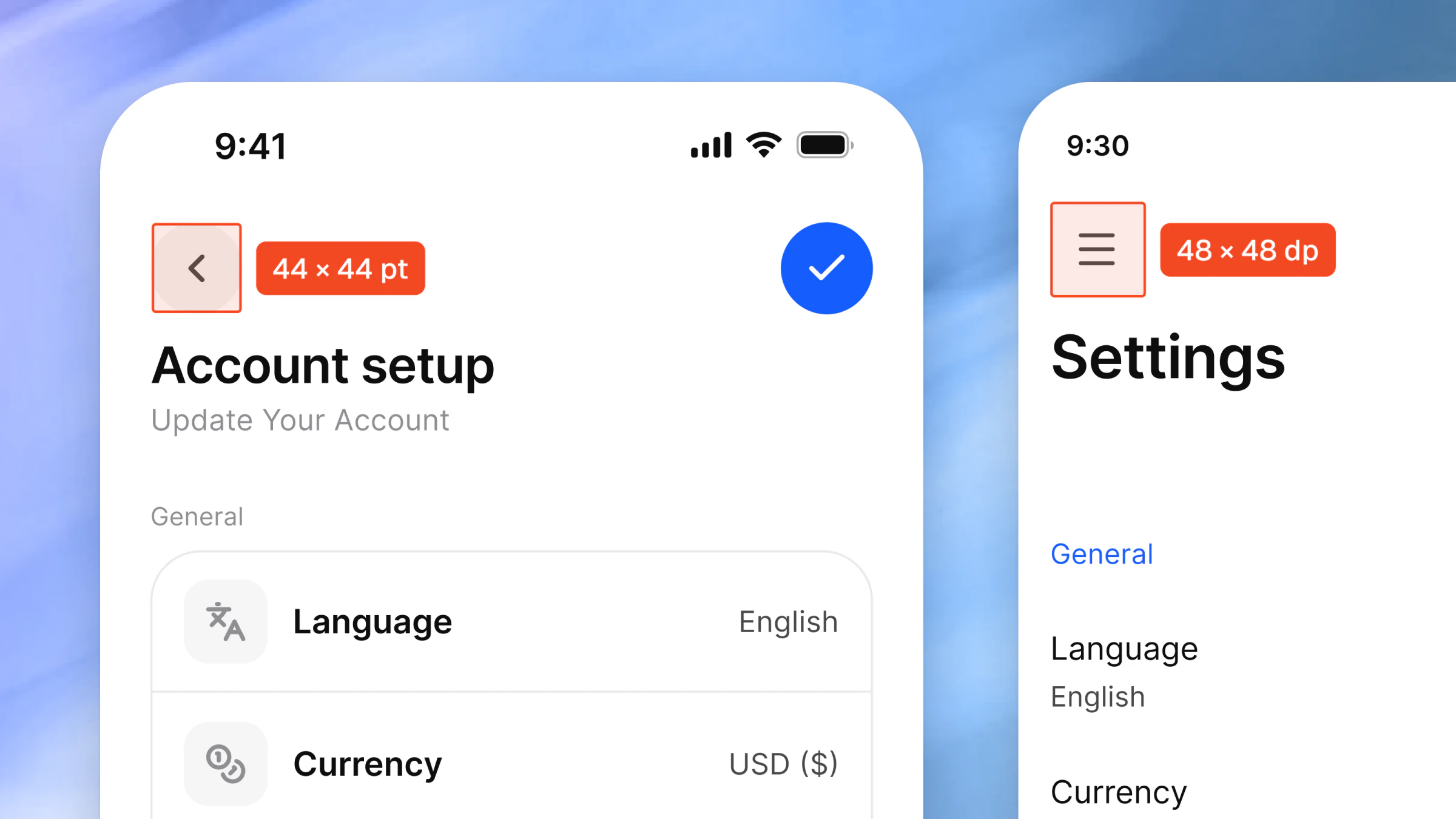
When a screen moves from iPhone to Android, its touch target, its safe areas, its bar heights, its list row height, its switch track and three of its corners change. Its card corner and its side padding stay as they are. Appetite UI keeps each of these numbers in one Figma variable with a value per platform mode, so the touch target variable reads 48 dp in a frame set to the android mode and 44 pt in a frame set to ios-md.
Appetite UI is a Figma UI kit for iOS and Android apps, built like a design system. The values below are its Platform collection, the same numbers Platform Bridge prints, and each row links to the glossary term that explains it.
Which values differ between iOS and Android?
| What it sets | iOS | Android | Variable | Term |
|---|---|---|---|---|
| Minimum touch target | 44 pt | 48 dp | platform/ | Touch target |
| Top safe area | 59 pt | 52 dp | grid/ | Safe area |
| Bottom safe area | 34 pt | 24 dp | grid/ | Safe area |
| Top bar height | 44 pt | 64 dp | platform/ | Top app bar |
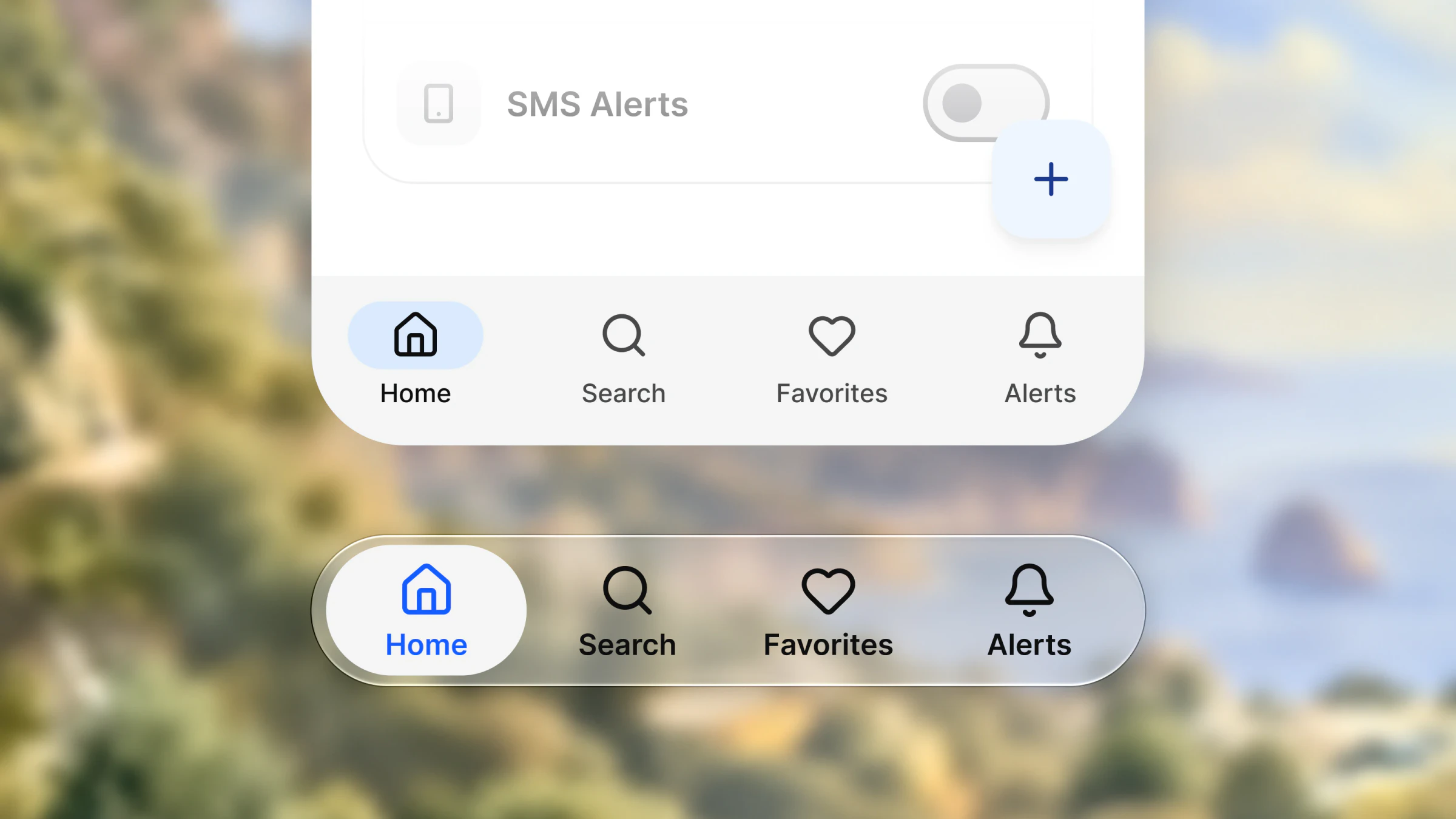
| Tab bar height | 49 pt | 64 dp | platform/ | Tab bar |
| List row, minimum height | 44 pt | 56 dp | platform/ | List row |
| Switch track width | 64 pt | 52 dp | platform/ | Toggle and switch |
| Switch track height | 28 pt | 32 dp | platform/ | Toggle and switch |
| Control corner | 8 pt | Fully round | platform/ | Corner radius |
| Sheet corner | 12 pt | 28 dp | platform/ | Bottom sheet |
| Dialog corner | 12 pt | 28 dp | platform/ | Corner radius |
iOS is the ios-md mode, Android the android mode of the Platform collection in the Appetite UI Figma file. Fully round is how the file stores a full radius, 9999.
The Android column is larger in every height on the list. A top bar grows from 44 to 64 and a list row from 44 to 56, so a screen that fits on iPhone loses rows on Android unless it scrolls. The switch turns from a wide, low track into a narrower, taller one, and buttons and fields go from an 8 point corner to a full pill.
Which values stay the same on both platforms?
The card corner is 12 and the side padding of a screen is 16 in every mode, so a card list keeps its edges when the screen changes platform. The ios-lg mode, for the larger iPhones, differs from ios-md in one value only: the top safe area is 62 pt instead of 59. The two iPhone Duo modes set the tab bar height to 0 and add a trailing safe area of 96, which the iPhone Duo article explains.
How do you hand these values to a developer?
Name the variable, not the number. A spec that says the row is platform/ holds on both platforms, while a spec that says 44 is right on one of them. In the file the variable returns the iOS column in a frame set to ios-md and the Android column in a frame set to android, so the spec and the frame name the same thing. For the touch target the two numbers come from Apple and Google, and the touch target article quotes both with the controls of the file measured against them.