Claude Code and Figma: one screen from Appetite UI, step by step
Connect Figma's MCP server to Claude Code, add the Core Skill and Swift tokens, and build the Appetite UI Finance home screen in SwiftUI, dark mode included.

On this page
To build an Appetite UI screen in SwiftUI with Claude Code, connect Figma's MCP server, copy the Core Skill into .claude/, add AppetiteTokens to your Xcode target, paste the link to the frame and ask. Then read the diff for token names before you run it. This article walks one screen through all of it: the Finance home screen of the Appetite UI Figma file, built from the same sentence the AI page runs, "Build the wallet home screen in dark mode."
Appetite UI is a Figma UI kit for iOS and Android apps, built like a design system. One token source drives Apple and Material components in light and dark mode, and exports to SwiftUI, Jetpack Compose, Flutter and CSS. That is why the setup is short: the frame already names every value, and the agent only has to keep the names.
Claude Code needs the frame and the rules, and they come from two places.
A Figma frame tells an agent what is on the screen. It does not tell the agent what your project calls those values in code, or that a 24 point padding is dimensions/ and must stay that. The Figma MCP server answers the first question. Figma describes the remote server as link based: you copy the link to a frame and paste it into the prompt. The server then returns the frame's structure, a picture of it and the variables bound to its layers.
The Core Skill answers the second. It is a Markdown file that opens with "You are building inside a system. The values are already decided." Its first rule is to read the tokens before producing anything, the second is to apply semantic tokens only and never type a hex value. It is included in the Appetite UI file you buy, beside a slop linter skill and an AGENTS for repositories.
Figma's own numbers say the first half is no longer a niche setup. Figma reported on May 14, 2026 that "MCP weekly active users in Figma Design grew five times quarter-over-quarter" in the three months ended March 31, 2026. More people now hand frames to agents, which makes the second half the part that decides whether the code is usable.
Seven steps take one frame to a reviewed SwiftUI view.
Each step below is checked against the documentation of the tool it touches, read on October 7, 2026, and against the README in the package that comes with the Appetite UI file. The paths are the package's own.
Connect the Figma MCP server to Claude Code.
Figma recommends its plugin,
claude plugin install figma@claude-plugins-official, which brings the server settings and Figma's own skills. The manual route isclaude mcp add --transport http figma https:/. Then type/ mcp .figma .com/ mcp /in Claude Code, select figma, choose Authenticate and click Allow Access in the browser. Claude Code confirms with "Authentication successful. Connected to figma".mcp Give Claude Code the Appetite UI rules.
Copy
AI-context/andskills/ appetite-core AI-context/from the package intoskills/ appetite-slop-linter .claude/in your repository, so each skill sits atskills/ .claude/. If your team already keeps one instruction file for several agents, copyskills/ <name>/ SKILL .md AI-context/to the repository root instead, withagents/ AGENTS .md designand.md tokens/beside it.tokens .md Put the tokens in the repository and the Swift file in the target.
Keep the package's
tokens/folder next to your code, so the agent can look a value up intokens/. Addtokens .md tokens/to the Xcode app target, and add Inter and Inter Display to the target with both listed underswift/ AppetiteTokens .swift UIAppFontsinInfo..plist Copy the link to the frame.
In the Appetite UI file, open the Finance page, right-click the Finance / Dashboard frame and choose Copy link to selection. The server cannot browse to the link; it reads the node id from it.
Prompt with the link.
Start the message with
/, so the skill loads for certain, then write "Build the wallet home screen in dark mode." and paste the link.appetite-core Review the diff against the tokens.
No hex, no literal spacing, no hand-set font, and dark mode from the same tokens. The section on review below lists what to look for.
Run the slop linter on the diff.
Start a message with
/and ask it to audit the changed files. It reports, and fixes only when you ask.appetite-slop-linter
The first three steps run once per project. In a terminal, from the root of your app repository, with APPETITE pointing at the unpacked package:
claude mcp add --transport http figma https://mcp.figma.com/mcp

mkdir -p .claude/skills
cp -r "$APPETITE/AI-context/skills/appetite-core" .claude/skills/
cp -r "$APPETITE/AI-context/skills/appetite-slop-linter" .claude/skills/
cp -r "$APPETITE/tokens" .
The claude mcp add line installs the server at local scope, for you in this project. Add --scope project to write it to .mcp in the repository, so your team gets the same server. Claude Code reads an AGENTS only when the project has no CLAUDE, from version 2.1.277; with a CLAUDE, add an @AGENTS line to it.
The Finance home frame already names every value.
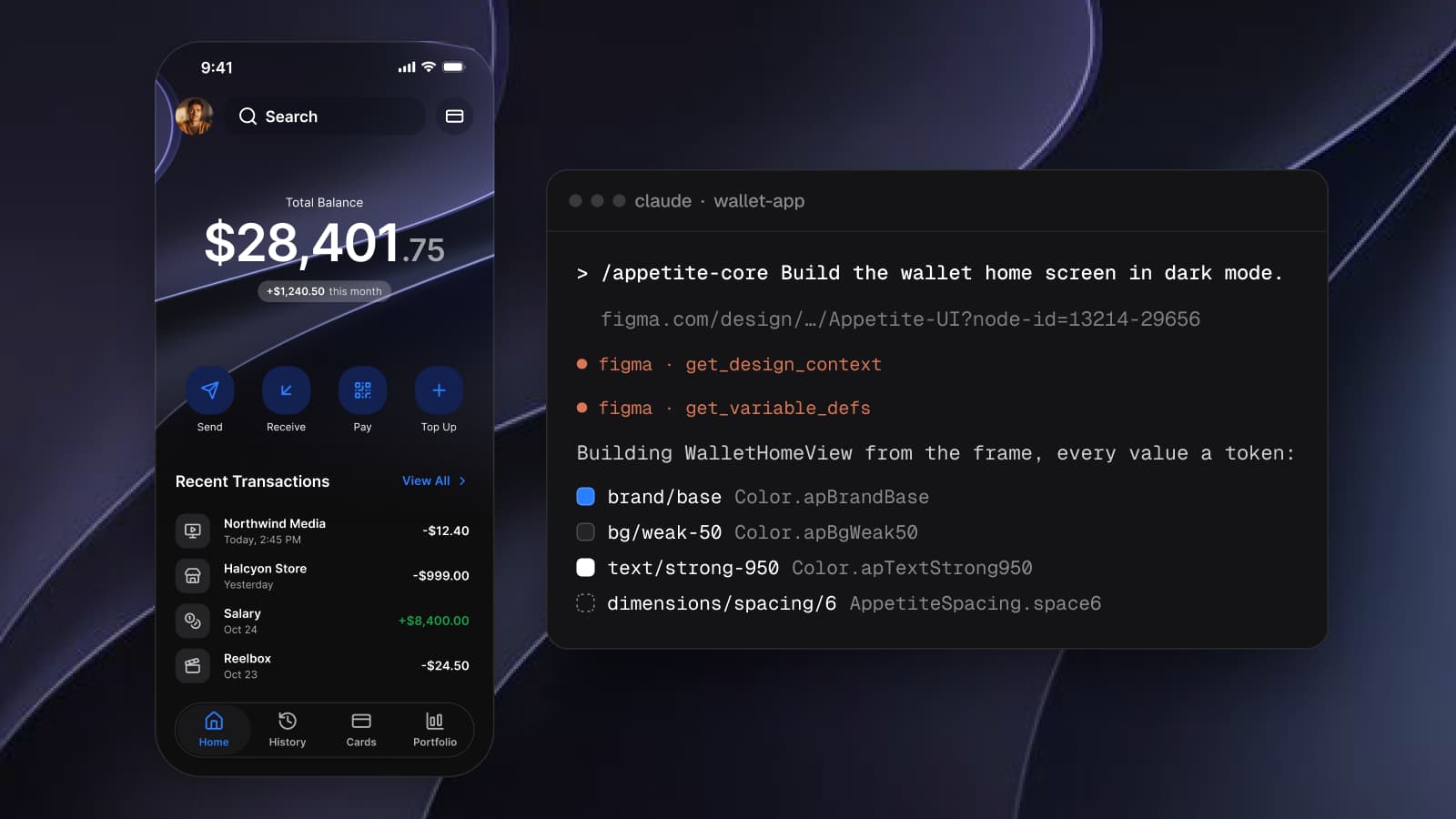
The screen is Finance / Dashboard on the Finance page of the Appetite UI Figma file, the Home tab of the Finance app. It holds a header over a background image, with a search field and the total balance, four quick actions (Send, Receive, Pay, Top up), a Recent transactions list and a tab bar. The file draws it twice, once in Light and once in Dark, and both frames bind the same variables.
When I read the dark frame through the MCP server for this article, get_variable_defs returned the variables below, among others. The server reports each one by its CSS code name; the Figma path and the SwiftUI name come from tokens/, where every token is listed with all of its code names.
| Figma variable | SwiftUI name | Where it sits on the screen |
|---|---|---|
| bg/white-0 | Color | The page and the tab bar surface |
| bg/weak-50 | Color | The 40 point tile behind each transaction icon |
| brand/base | Color | The View all link and the active Home tab |
| brand/lighter | Color | The quick action tiles |
| text/strong-950 | Color | Transaction names, amounts and the section title |
| text/soft-500 | Color | Dates and the inactive tab labels |
| fg/sub-700 | Color | The icons inside the transaction tiles |
| state/success/base-500 | Color | The incoming amounts, Salary +$8,400.00 |
| border/soft-100 | Color | The outline of the tab bar |
| dimensions/spacing/6 | AppetiteSpacing | The padding of the transactions block |
| dimensions/radius/lg | AppetiteRadius | The corners of the transaction tiles |
| dimensions/radius/2xl | AppetiteRadius | The corners of the quick action tiles |
| sm/emphasized | AppetiteFont | Transaction names and amounts |
| 6xl/emphasized | AppetiteFont | The balance, $28,401 |
One binding deserves a second look before you hand it to an agent. The balance and the search label over the header image bind static/, a white that does not flip. That is correct here, because the image behind them is a deep blue in Light and near black in Dark, white reads on both, and the token's own description says to use it "only where the value must survive a theme switch". An agent that reads the variables keeps it as Color. An agent that reads only the picture writes .white and gets the same pixels for the wrong reason.
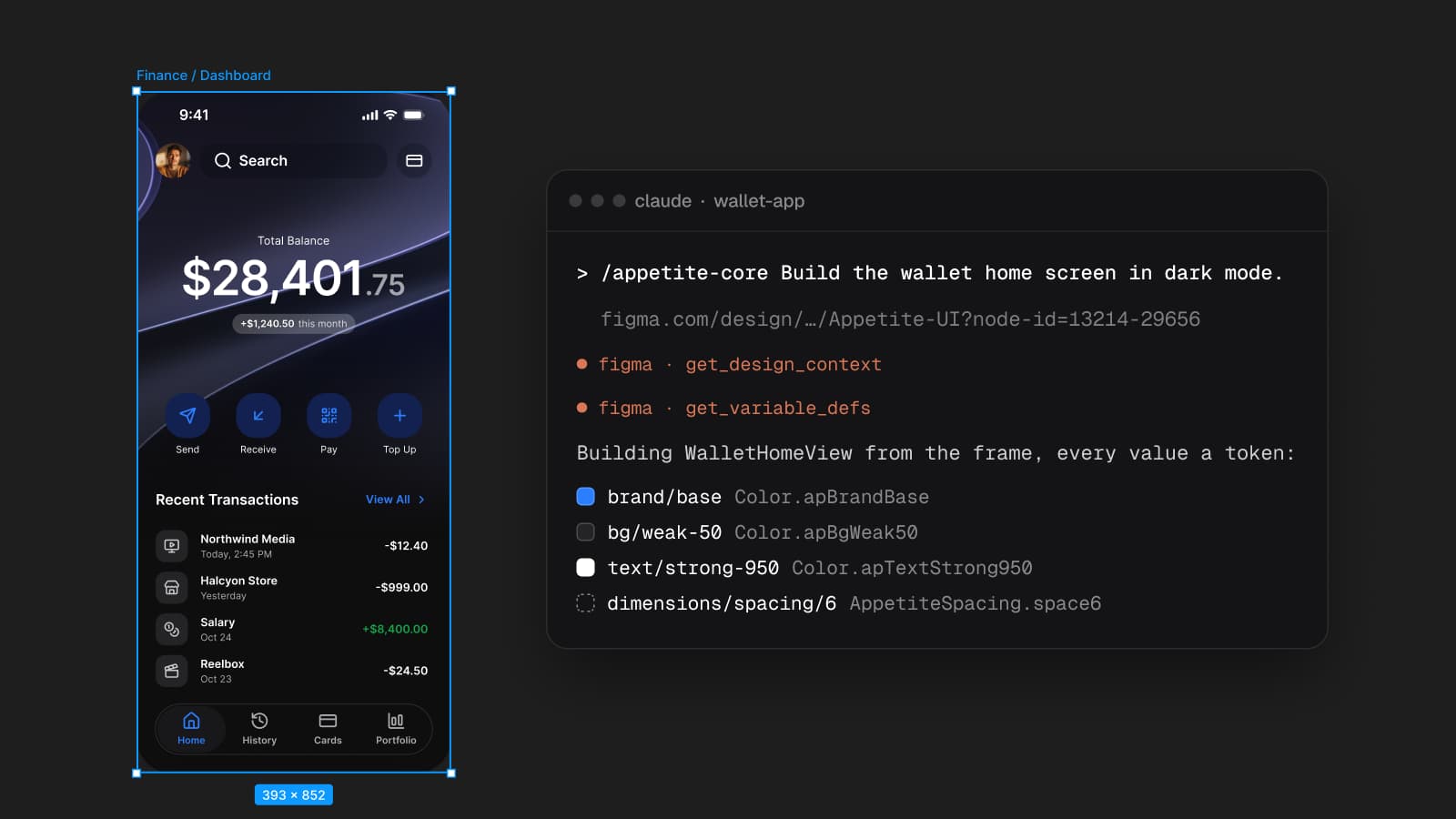
The view the agent should return reads like the token table.
Here is the Recent transactions block as the agent should write it: a section header with the View all link, and one row per transaction with a tile, a name, a date and an amount. Every number is a token, and every color is a dynamic token color.
import SwiftUI

struct Transaction: Identifiable {
    let id = UUID()
    let title: String, date: String, amount: String, icon: Image, isIncome: Bool
}

struct RecentTransactions: View {
    let transactions: [Transaction]

    var body: some View {
        VStack(alignment: .leading, spacing: AppetiteSpacing.space5) {
            HStack {
                Text("Recent transactions").appetiteText(.lgEmphasized)
                    .foregroundStyle(Color.apTextStrong950)
                Spacer()
                Button("View all") { }.font(AppetiteFont.smEmphasized)
                    .foregroundStyle(Color.apBrandBase)
                    .frame(minHeight: AppetiteSpacing.space11) // 44pt hit area
            }
            VStack(spacing: AppetiteSpacing.space3) {
                ForEach(transactions) { item in
                    HStack(spacing: AppetiteSpacing.space4) {
                        item.icon.frame(width: AppetiteIcon.sizeMd, height: AppetiteIcon.sizeMd)
                            .foregroundStyle(Color.apFgSub700)
                            .frame(width: AppetiteSpacing.space10, height: AppetiteSpacing.space10)
                            .background(Color.apBgWeak50, in: .rect(cornerRadius: AppetiteRadius.lg))
                        VStack(alignment: .leading) {
                            Text(item.title).font(AppetiteFont.smEmphasized)
                                .foregroundStyle(Color.apTextStrong950)
                            Text(item.date).font(AppetiteFont.xsDefault)
                                .foregroundStyle(Color.apTextSoft500)
                        }
                        Spacer()
                        Text(item.amount).font(AppetiteFont.smEmphasized)
                            .foregroundStyle(item.isIncome ? Color.apStateSuccessBase500 : Color.apTextStrong950)
                    }
                }
            }
        }
        .padding(AppetiteSpacing.space6)
        .background(Color.apBgWhite0)
    }
}
Typechecked on October 7, 2026 with swiftc -typecheck against the package's AppetiteTokens.swift, for macOS and for the iOS 17 simulator. The .rect(cornerRadius:) shape needs iOS 17.
The gaps in the code match the gaps in the frame: 20 between the header and the list is space5, 12 between rows is space3, 16 between the tile and the text is space4, and the block's 24 padding is space6. The one value the frame does not draw is the 44 point hit area on View all. The Button component's description in the file asks for it in code, whatever the visual size, and AppetiteSpacing is 44.
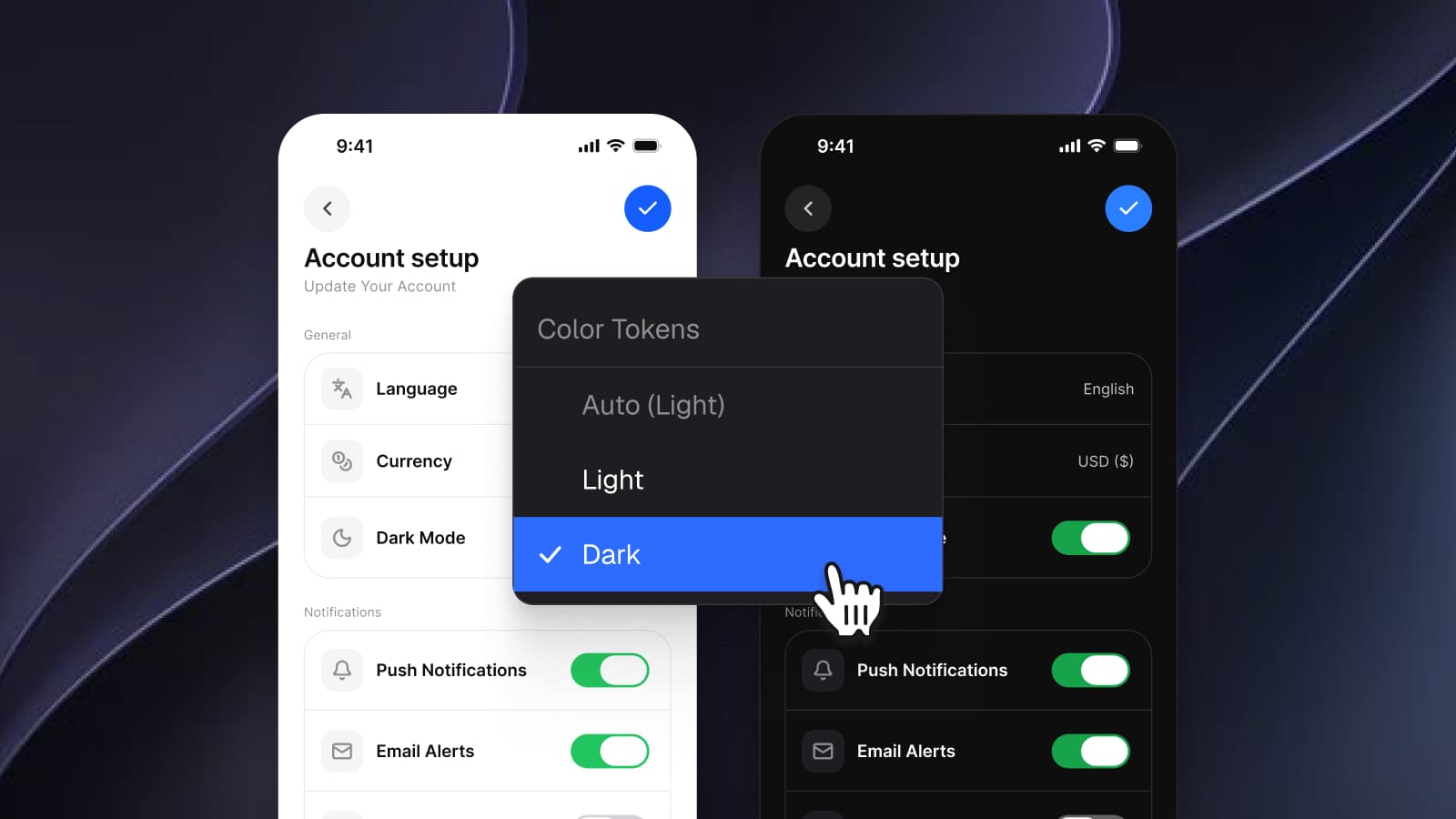
There is no colorScheme in the file. The README says it plainly: "Colors are dynamic: they follow the system appearance with no branching." Color resolves to one blue in Light and a lighter blue in Dark because the token has two values, so "in dark mode" in the prompt is a preview setting, .preferredColorScheme(, and not a second implementation. How those two values are set up in Figma is in Dark mode with Figma variables, not duplicate frames.
Review the diff for three things before you run it.
A generated view can look right in the simulator and still be wrong in the source. The test is the source. Read the diff and check three things.
First, no hex and no raw color. Color(red:green:blue:), a hex initializer, .white, .gray or Color on a surface means the agent took a value from the picture. The exception is the one you saw above: white on the header image, which the frame binds to static/.
Second, no literal geometry. .padding(24) is the right number today and a stale one after the first change to the scale. The Core Skill's third rule is blunt about it: "Any value that is not on the scale is wrong." A number on the scale is still a literal unless it is written as AppetiteSpacing.
Third, dark mode from the same tokens. An if colorScheme == branch with its own colors is a second palette, which is exactly what the token's second value replaces. The Core Skill's sixth rule says it in one line: "If you typed a value, dark mode is already broken."
A quick search over the diff catches most of the first two before you read a line:
git diff -U0 -- '*.swift' | grep -nE '#[0-9A-Fa-f]{6}|Color\(red|\.padding\([0-9]|cornerRadius: [0-9]|size: [0-9]'An empty result does not mean the view is right. It means the remaining review is about layout and intent, which is the part you want a person for.
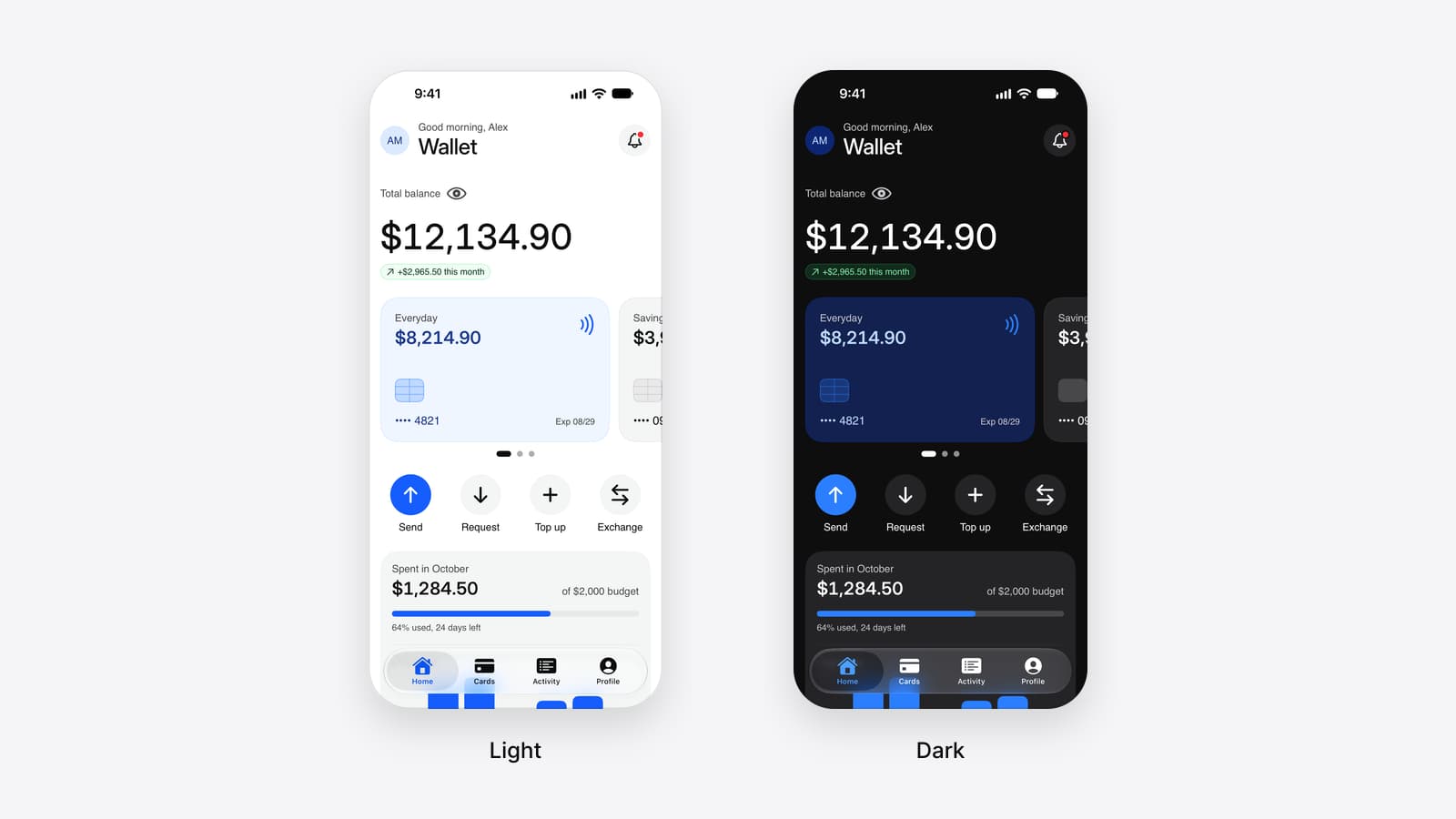
The slop linter reads the diff against the same rules.
The second skill in the package audits work against the system instead of producing it. Start a message with / and point it at the changed files. It loads tokens/ first, and its first instruction says that if the tokens are unavailable it says so and stops, because "You cannot lint against a system you have not read."
It then sorts what it finds into Blocking, Major, Minor and Platform. A raw color with no token binding is Blocking (raw-color), and so is white text on a state fill that fails contrast. Off-scale spacing and radii, hand-set type and a detached copy of a component are Major. Every finding names where it is, what the value is and which token replaces it; the skill's own rule is that "A finding with no replacement is not a finding, it is a complaint." The report ends with what is clean, so you see whether the screen is mostly on the system or mostly off it.
It offers the fix and does not apply it unless you ask. When you do, it fixes bindings first, then geometry, then type, then structure.
A gap report is a correct answer.
Sometimes the right response from the agent is not code. The Core Skill's last rule is "When no token fits, stop and say so": report what you needed, the closest token and what you would add. The skill's own example is a dialog exit, which has no motion preset.
Treat that answer as the setup working. An agent that invents a value to finish the screen hands you a review problem; an agent that names the gap hands you a decision, and it belongs to you or to whoever owns the tokens. If a gap comes up twice, add the token to the source and rebuild the outputs, as the package README describes, so the next run has a name to reach for. How one Figma token becomes SwiftUI, Compose, Flutter and CSS follows that path for one variable.
The same steps work on any frame in the file. The Finance home screen is a good first one because it mixes an image header, a list and a tab bar on one screen. How Appetite UI works with AI agents covers what the Core Skill contains and where other tools read it, and the Figma MCP server for mobile apps covers the server side in more depth. To see the whole file before you set anything up, open the read-only Figma preview; to see this prompt run start to finish, the AI page plays it.
Questions
Do I need a paid Figma plan to use the Figma MCP server with Claude Code?
No, not for the remote server. Figma's guide lists the remote server for all seats and plans, and its setup article adds that seats other than Full and Dev may have usage limits. The Appetite UI library itself needs a paid Figma plan, because variable modes and team libraries both need one.
Does Claude Code read AGENTS.md?
Yes, when the project has no CLAUDE.md. Claude Code reads AGENTS.md directly from version 2.1.277. If your project has a CLAUDE.md, put an @AGENTS.md line in it and Claude Code reads both.
Can I select the frame in Figma instead of pasting a link?
The remote Figma MCP server works from a link. Select the frame, choose Copy link to selection and paste the link into the prompt; the server reads the node id from it.
Does the same setup work for Jetpack Compose or Flutter?
Yes. Only the third step changes: add AppetiteTokens.kt for Compose or appetite_tokens.dart for Flutter. Both come in the same package with the same token names, such as AppetiteTheme.colors.brandBase and apBrandBase.
Is the Appetite UI Core Skill free?
No. The Core Skill, the slop linter skill and AGENTS.md are included in the Appetite UI file you buy; pricing lists what comes with it. The docs as Markdown, /llms.txt and /tokens.json are public for any agent to read.
What if the agent still writes a hex value?
Run the slop linter on the diff. A color with no token binding is its first Blocking check, raw-color, and the report names the token that replaces it. If it keeps happening, start the prompt with /appetite-core so the skill is loaded before the agent writes anything.
Sources
- Figma Developer Docs, Set up the remote server, read October 7, 2026
- Figma Learn, Claude Code and Figma: Set up the MCP server, read October 7, 2026
- Figma Learn, Guide to the Figma MCP server, read October 7, 2026
- Figma Learn, How to set up the Figma remote MCP server, read October 7, 2026
- Figma, Figma Announces First Quarter 2026 Financial Results, read October 7, 2026
- Claude Code documentation, Connect Claude Code to tools via MCP, read October 7, 2026
- Claude Code documentation, Extend Claude with skills, read October 7, 2026
- Claude Code documentation, How Claude remembers your project, read October 7, 2026