Updated
Install the library
Duplicate the Appetite UI file for one project, or publish it as a Figma library for a team. Either way the variables, styles and components arrive in the Assets panel, and you can bind your first screen to a token.
Updated
On this page
What do I need before I start?
A paid Figma plan, because variable modes and team libraries both need one. You also need a working knowledge of Auto Layout, components, variants and Variables. Light and dark mode switch through Figma's variable modes.
If you are still getting familiar with Figma, these two resources cover the basics:
- Figma tutorials on YouTubeFigma for beginners tutorials
- More about Figma’s Best PracticesFigma’s Best Practice Guides
How do I install Appetite UI in Figma?
Duplicate the file for one project, or publish it as a Figma library for a team. Either way you work from a copy you own, with no plugin, no account and no setup call.
| Topic | Duplicate per project | Shared library |
|---|---|---|
| Best for | A solo designer or a one-off project | A team, or several projects on one system |
| You get | A standalone copy you can strip down | One source file that every project pulls from |
| Updates | None by themselves, duplicate the new version again | Figma notifies every file that uses the library |
Option 1: duplicate per project
Right-click the Appetite UI file in the Figma file browser and hit Duplicate. You get a standalone copy. Strip out the components you do not need, customize the tokens, and start designing. It is faster for a single app, because there is nothing to publish.
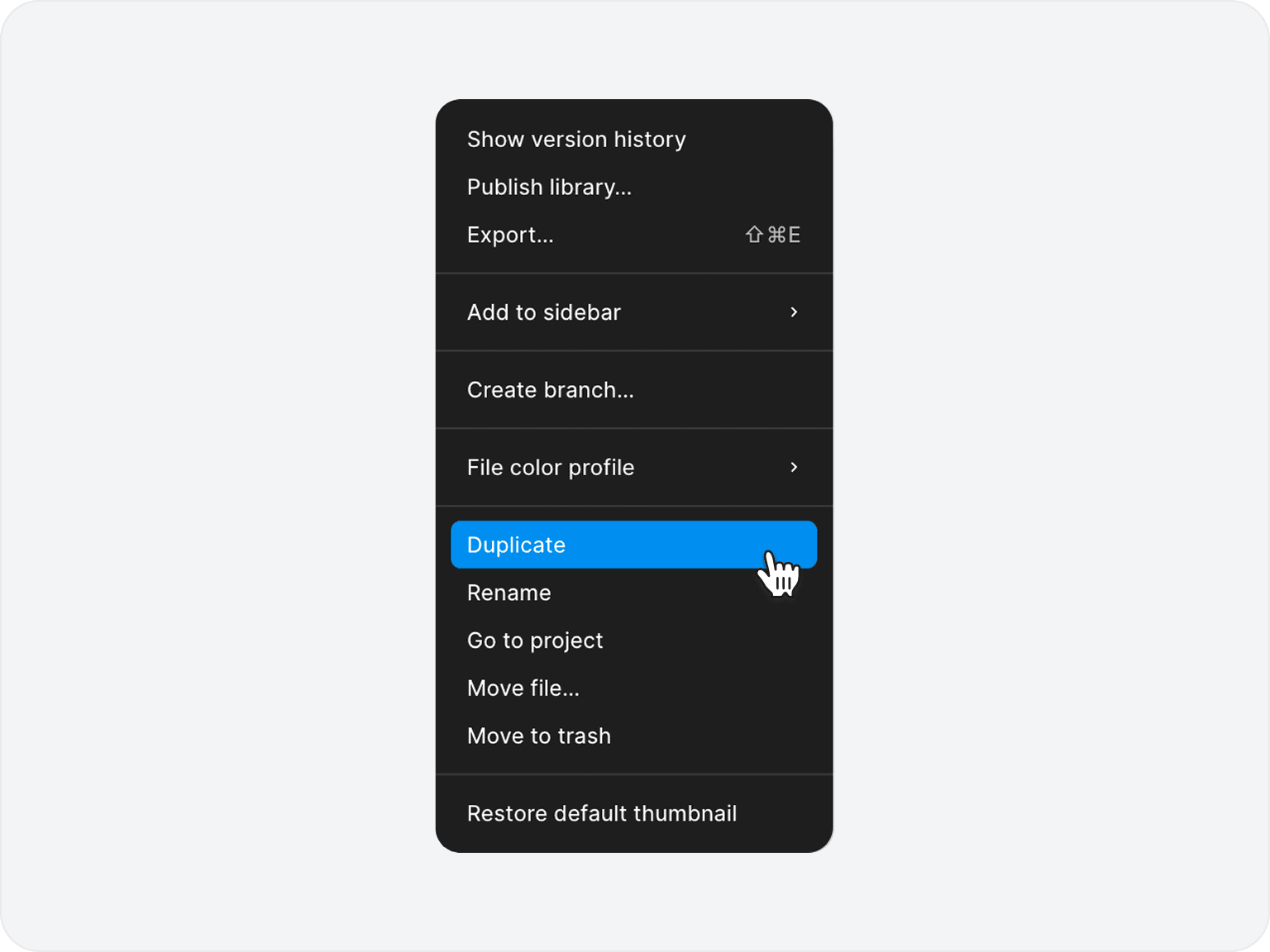
Option 2: use it as a shared library
Keep Appetite UI as a single source file and publish it as a Figma library. Every project pulls components from the same place, and updates flow through Figma's notifications.
How do I publish and use it as a library?
Choose Publish library in the file menu, then enable Appetite UI from the Assets panel of any other file. Components, styles and variables all become available there.
To publish, go to the file menu and select “Publish library.”
Once published, open any other file, switch to the Assets tab in the left sidebar, and enable Appetite UI from the library list.
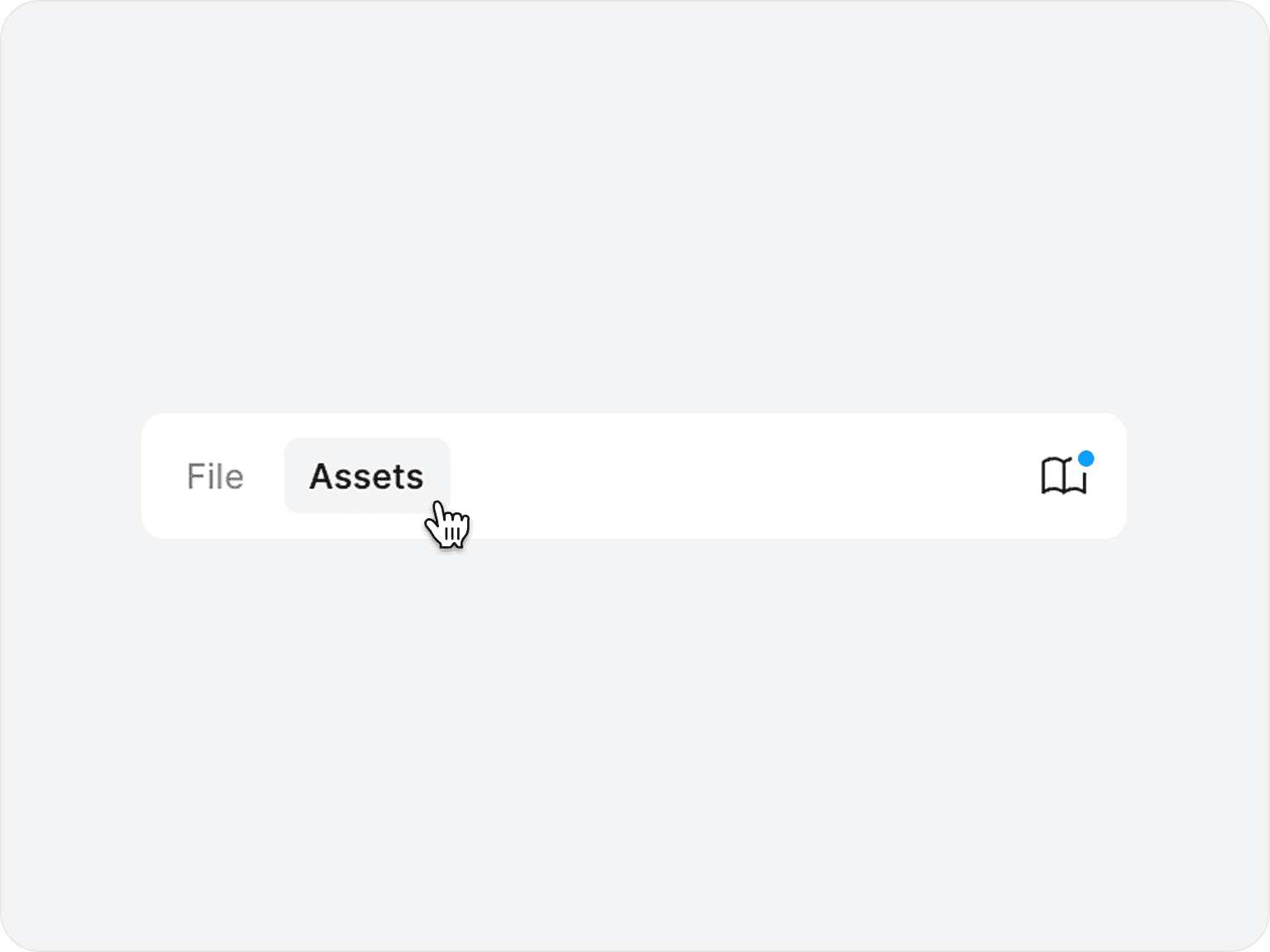
Switch to the Assets tab and enable Appetite UI from the library list.
When you update a component or token in the source file and re-publish, every file using that library gets a notification. Your team decides when to accept it, and nothing changes without explicit action.
How do I check that it worked?
Open the Variables panel and count: six collections and 589 variables. Then open the Assets panel and place a component.
Open the local variables panel in the Appetite UI file, or in a file that enables the library. It lists six collections: Foundations, Color Tokens, Platform, Typography, Platform Bridge and Motion.
Open the Assets panel, search for Button and drag it into a frame. The component and its variants appear with Default, Pressed, Loading, Disabled and Focused states.
Set the frame's mode for the Color Tokens collection to Dark. The Button follows, because its fills are variables.
Select a rectangle and apply the fill variable
bg/white-0. That is your first screen bound to a token.
Setting your own brand color and type takes about ten minutes, because you edit a handful of primitives and every component follows.
How do I update from an earlier version?
Every future release is included in your license, and each release comes with an email. A duplicate is a standalone copy and does not update itself, so duplicate the new version again. A published library updates through Figma: publish the new version and each file that uses it gets a notification.
Accepting an update can change values you have already placed, such as a radius, a glass style or a state. The changelog lists what each release changes, with dates, and the introduction names the page that explains each area.
If you publish the file as a library, your team decides when to accept the update, and nothing changes in a project file until someone does.
How do I keep the file small?
Delete the pages you will not use. Appetite UI ships with many components, and a lean file publishes faster and is quicker to browse in the Assets panel.
Go through the file at the start of each project and delete the pages and components you know you will not use. Right-click any page in the left sidebar and hit “Delete page.”
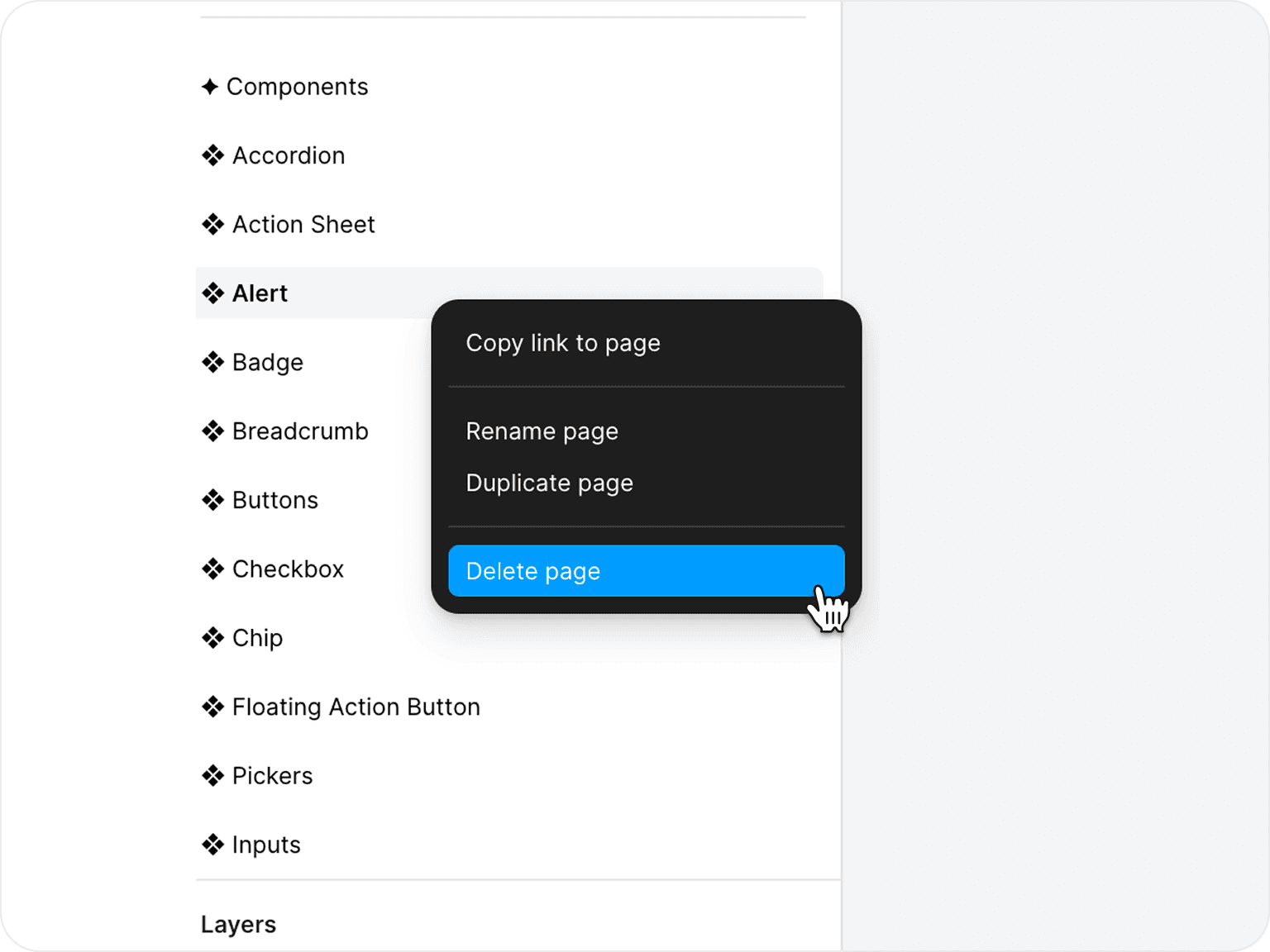
You can always duplicate again from the original if you need something back.