By Bob Poláček, updated
App Store
Appetite UI's App Store page in Figma holds the app icon in 6 appearances, 6 iPhone screenshots per mode and an iPhone Duo pair, in light and dark, each exported at the size App Store Connect takes. This page adds what Apple requires for the icon, screenshots, previews and listing text, read at Apple's own pages.
By Bob Poláček, updated
On this page
What does the App Store page of the kit hold?
The App Store page sits in the Stores section of the Appetite UI Figma file. It holds the app icon, the iPhone and iPhone Duo screenshot sets in light and dark and an upload checklist, and every frame carries the export setting that writes the size App Store Connect takes.
| Asset | Store size | Format | In the kit | Where in the file |
|---|---|---|---|---|
| App icon | 1024 x 1024 px | PNG, square corners | 6 appearances | App Icon / Default to App Icon / Tinted Dark, 256 x 256, PNG 4x |
| iPhone screenshots | 1320 x 2868 px | JPEG, no alpha | 6 light and 6 dark | iPhone 6.9 / Light / 01 to iPhone 6.9 / Dark / 06, 440 x 956, JPG 3x |
| iPhone Duo screenshots | 1398 x 2034 outer, 2853 x 2007 inner | JPEG, no alpha | 2 light and 2 dark | iPhone Duo / Outer / Light to iPhone Duo / Inner / Dark, 466 x 678 and 951 x 669, JPG 3x |
| iPad 13-inch screenshots | 2064 x 2752 or 2048 x 2732 px | JPEG or PNG, no alpha | Not in the file | Only when the app runs on iPad |
| App preview | 886 x 1920 px, 15 to 30 seconds | .mov, .m4v or .mp4 | Not in the file | Recorded from the app |
| Listing text | Name and subtitle 30 characters, promotional text 170, description 4000 | Plain text | Not in the file | Written in App Store Connect |
The screenshots show a fitness app built from the kit's own components and variables, so they are live layers rather than flat pictures: change a token or swap a screen and the store set follows. The light set sits on the brand background and the dark set on a neutral one, as the row labels in the file say. The Google Play page holds the same app for Play Console, and the brand marks, flags and store badges are on Assets. The Stores pages are part of the Appetite UI Figma file; pricing shows which plans include it.
Read from the App Store page of the Appetite UI 2.6 Figma file and from Apple's App Store Connect Help on November 19, 2026.
What does the App Store app icon need?
One square image of 1024 x 1024 pixels for iPhone, iPad and Mac. The system masks it to a rounded rectangle, so the layers stay square, and people can show it as default, dark, clear or tinted.

Apple's Human Interface Guidelines give the icon one canvas of 1024 x 1024 px on iOS, iPadOS and macOS, masked by the system to a rounded rectangle. Provide square layers and let the system apply the rounded corners, and keep the primary content centred, since the mask cuts what sits near the corners.
People choose a default, dark, clear or tinted Home Screen, and the guidelines list six variants: default, dark, clear light, clear dark, tinted light and tinted dark. You can design all six, and the system generates the ones you leave out. The kit draws all six as frames of 256 x 256 that export at 4x, so each writes 1024 x 1024.
| Frame | What it draws | Mode |
|---|---|---|
App Icon / Default | White mark on brand/base | Light |
App Icon / Dark | brand/base mark on bg/weak-50 | Dark |
App Icon / Clear Light | White mark on bg/soft-100 | Light |
App Icon / Clear Dark | White mark on bg/soft-100 | Dark |
App Icon / Tinted Light | text/soft-500 mark on bg/white-0 | Light |
App Icon / Tinted Dark | White mark on bg/white-0 | Dark |
Each frame is a fill bound to a Color Tokens variable, a Sheen gradient layer and a Glyph group. The glyph is 126 of the 256, centred. Replace it with your logo in all six frames and the colours follow your tokens.
There are two ways to hand the icon to Xcode. The guidelines prefer a layered Icon Composer file: a full bleed, opaque background layer and foreground layers above it. Export the Glyph group for the foreground and set the background in Icon Composer. The other way is a PNG per appearance in the app icon set of an asset catalog. There, Apple's Xcode guide asks for the tinted icon as a grayscale image and the dark icon with a transparent background, so the system background shows through: hide the frame fill and the Sheen layer of App Icon / Dark before you export it for the catalog.
The App Store takes its icon from that app icon set, which is why the kit holds no separate upload size. For a placeholder mark while the logo is not ready, any glyph of the kit's icon set fits the Glyph slot.
Sizes and variants from the Human Interface Guidelines, App icons, and the Xcode guide Configuring your app icon, read November 19, 2026. Frames, fills and layers read from the App Store page of the Figma file the same day.
What iPhone screenshot sizes does App Store Connect accept?
One to ten images per device size, in JPEG or PNG without alpha. Apple names one iPhone set as required, iPhone with Dynamic Island (medium display), and the kit draws the largest iPhone size, 1320 x 2868, which belongs to the large display group.
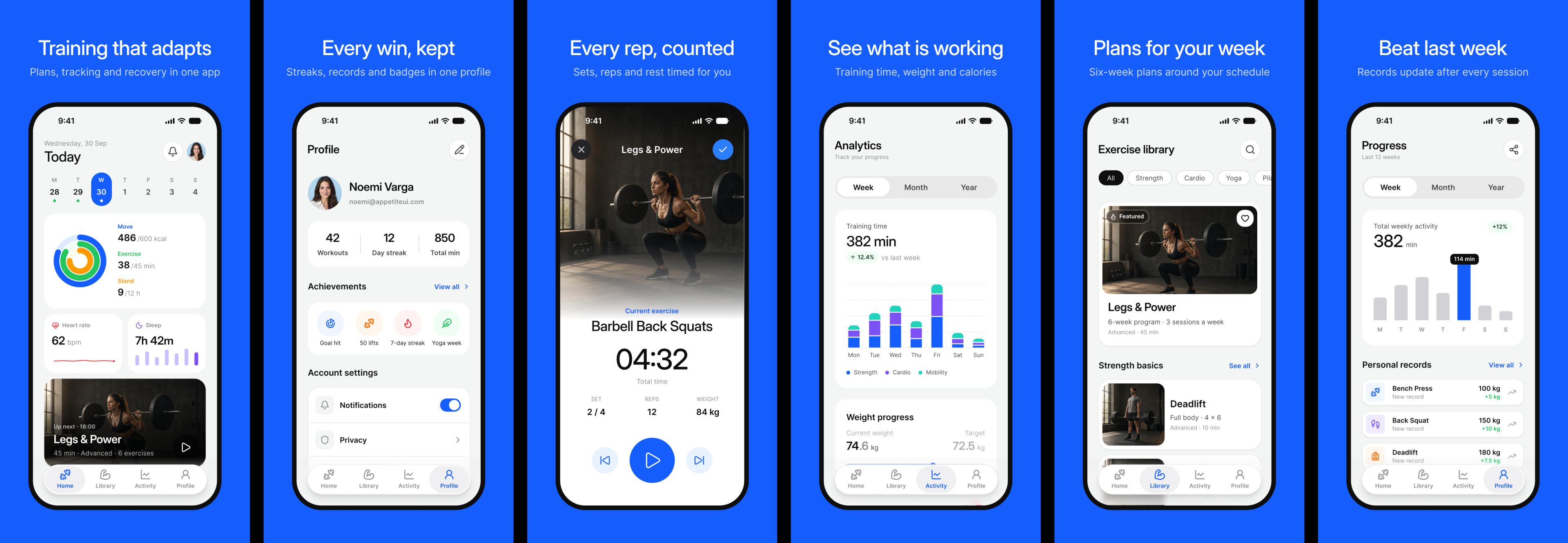
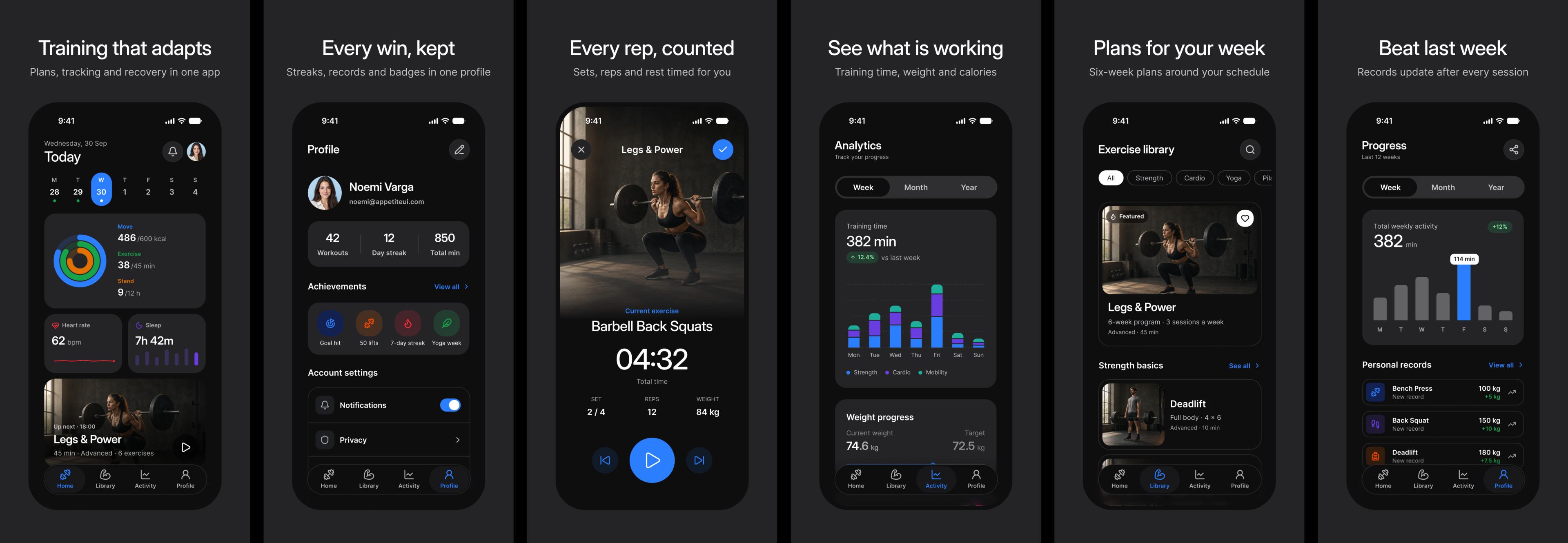
App Store Connect asks for at least one screenshot and takes up to ten per device size, in .jpeg, .jpg or .png. Images can't include alpha channels or transparencies, which is why the kit's frames export JPG. Apple groups iPhones by display, and these are the groups a new app meets:
| Group | Portrait sizes, px | What Apple says |
|---|---|---|
| iPhone with Dynamic Island (medium display) | 1206 x 2622, 1179 x 2556 | Required: at least one screenshot. Scaled from the Face ID large set if absent. |
| iPhone with Dynamic Island (large display) | 1320 x 2868, 1290 x 2796, 1260 x 2736 | Scaled from the Face ID large set if absent. The kit draws 1320 x 2868. |
| iPhone with Face ID (large display) | 1284 x 2778, 1242 x 2688 | Required if the app runs on iPhone and the Dynamic Island large set is missing. |
Landscape is the same pair of numbers swapped. Apple adds that if the interface is the same across device sizes and localizations, you only provide the highest required resolution and App Store Connect scales it down for smaller devices. The kit draws no frame at the medium display size: for a set of your own pixels there, draw a frame of 402 x 874 pt and export it at 3x for 1206 x 2622. The screenshot size tool lists every iPhone and iPad group with the frame and the scale.
The order matters most at the front: the first one to three images appear in search results when the app has no preview, so they carry the app. The kit follows that: frame 01 sells the app, and frames 02 to 06 sell one feature each. Every frame is a caption above a device: a Headline on the 4xl/emphasized text style and a Caption on lg/default, both in static/static-white-0, over a 340 x 718 device frame with a 52 radius that holds the screen.
| Frame | Headline | Caption | Screen |
|---|---|---|---|
| 01 | Training that adapts | Plans, tracking and recovery in one app | Fitness / Dashboard |
| 02 | Every win, kept | Streaks, records and badges in one profile | Fitness / Profile |
| 03 | Every rep, counted | Sets, reps and rest timed for you | Fitness / Exercise |
| 04 | See what is working | Training time, weight and calories | Fitness / Analytics |
| 05 | Plans for your week | Six-week plans around your schedule | Fitness / Library |
| 06 | Beat last week | Records update after every session | Fitness / Progress |
The screens are the kit's Fitness flow. If the app runs on iPad, App Store Connect also needs an iPad set at 13-inch size, 2064 x 2752 or 2048 x 2732; the file draws none.
Groups, sizes and rules from Apple's Screenshot specifications and Creating your product page, read November 19, 2026. Frames, captions and styles from the App Store page of the Figma file the same day.
Do you need iPhone Duo screenshots?
Not yet. Apple's page says that from April 2027 screenshots will be required for any app using the iOS 27.1 SDK or later. The kit draws both displays in light and dark.
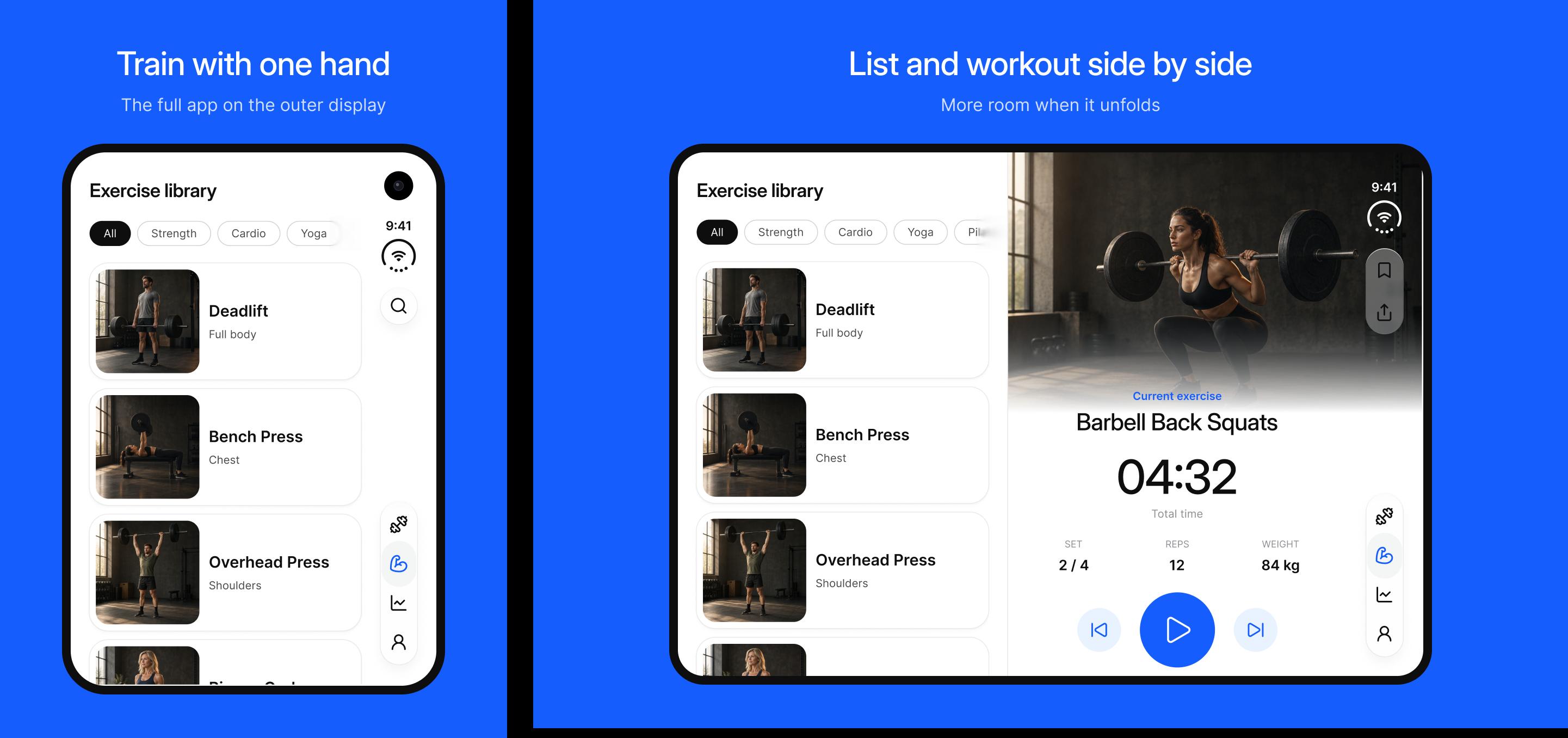
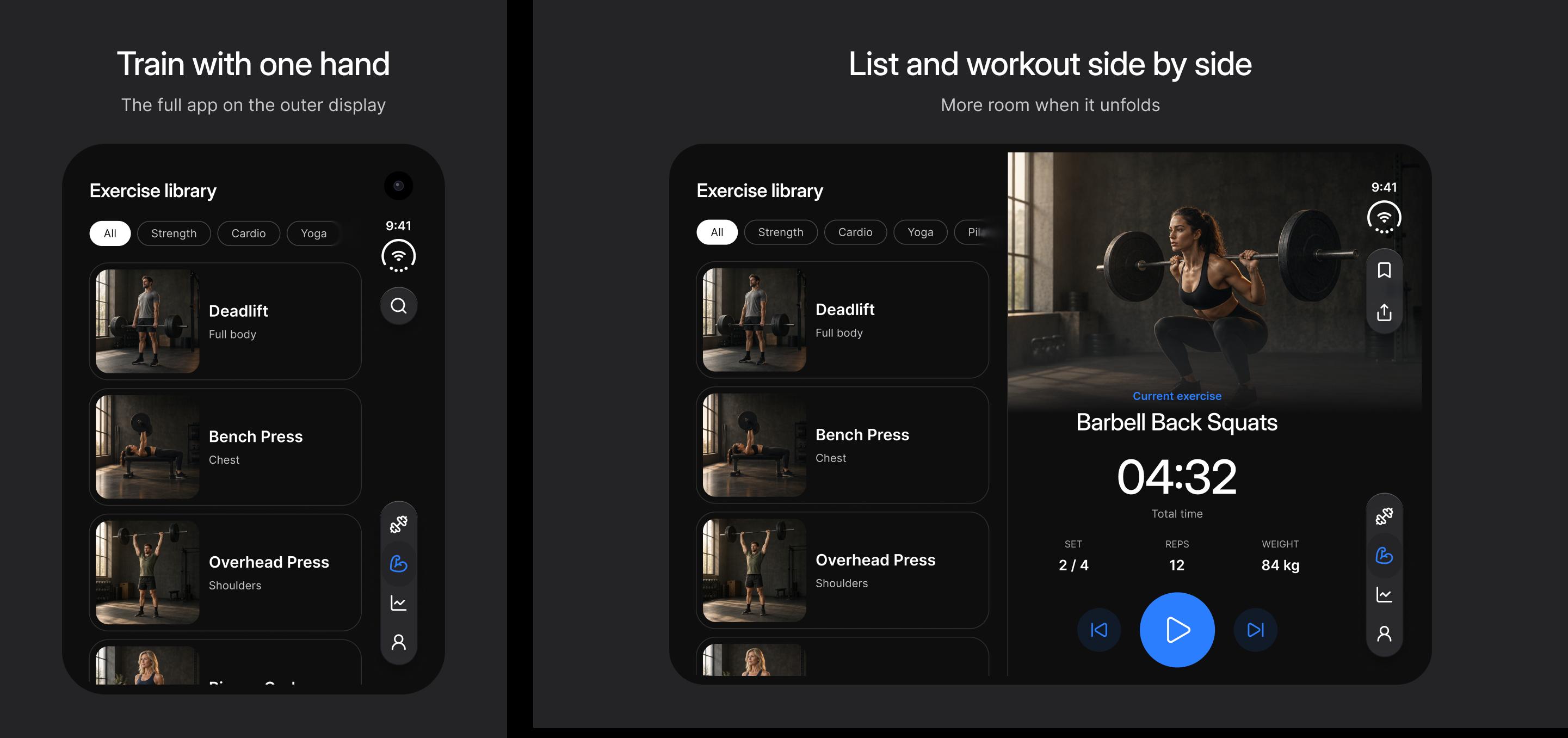
iPhone Duo takes its own screenshots, one size per display. Apple accepts 1398 x 2034 portrait or 2034 x 1398 landscape for the outer display, and 2007 x 2853 portrait or 2853 x 2007 landscape for the inner one. Screenshots you submit for iPhone Duo show a badge on the product page that tells people the app is made for it.
The kit's frames are 466 x 678 and 951 x 669, the two displays of the iPhone Duo screens, and export at 3x: 1398 x 2034 for the outer display and 2853 x 2007 for the inner one, open flat. Their captions are 3xl/emphasized and base/default, and the device frames are 352 x 506 at radius 40 and 701 x 497 at radius 32.
Read from Apple's Screenshot specifications and the iPhone Duo frames of the App Store page on November 19, 2026.
What are the app preview video specs?
Up to three previews per device size and language, 15 to 30 seconds each, at most 500 MB. iPhone previews, iPhone Duo included, are 886 x 1920 in portrait. The kit holds no video; record it from the app.
| Property | Value |
|---|---|
| Count | Up to three per supported device size and language |
| Length | 15 to 30 seconds |
| File size | Up to 500 MB |
| Format | .mov, .m4v or .mp4 in H.264, or .mov in ProRes 422 (HQ only) |
| Frame rate | Up to 30 frames per second |
| iPhone, iPhone Duo included | 886 x 1920 portrait, 1920 x 886 landscape |
| iPad 13-inch | 1200 x 1600 portrait, 1600 x 1200 landscape |
| Audio | Stereo, AAC at 256 kbps for H.264, 44.1 or 48 kHz |
| Poster frame | You choose it; the default is the frame at 5 seconds |
Previews autoplay with the sound off when people view the product page, so the first seconds have to work without audio.
From Apple's App preview specifications and Creating your product page, read November 19, 2026.
How long can the name, subtitle and description be?
The name and the subtitle are 30 characters each, the promotional text 170, the keywords 100 bytes and the description 4000 characters. Only the promotional text changes without a new version.
| Field | Limit | Rule |
|---|---|---|
| Name | 2 to 30 characters | Localized: one name per language. |
| Subtitle | 30 characters | Shown under the name. Changes with a new version. |
| Promotional text | 170 characters | Changes at any time without a new version, and does not affect search ranking. |
| Keywords | 100 bytes | Required. Separated by commas, each longer than two characters. |
| Description | 4000 characters | Required, plain text. Apple calls the first sentence the most important. |
| What's New | 4000 characters | What changed in the version. |
Keywords count bytes, so a language with multibyte characters fits fewer of them. The kit's captions are a useful start for the subtitle and the promotional text: each one is a single claim about a feature.
From Apple's App information and Platform version information pages and Creating your product page, read November 19, 2026.
How do you localize the App Store listing?
Each language gets its own name, description, keywords, screenshots and previews. In the kit, duplicate the screenshot rows per language and translate the Headline and Caption layers.
App Store Connect marks the description, the keywords and the screenshots as required and localizable, and the name is the localized name of the app. Apple's product page guide asks you to localize the description, keywords, app previews and screenshots for each market, and to translate the name.
In the file, the captions are two text layers per frame, Headline and Caption, in a frame 376 wide that wraps, so a longer language grows down rather than out. Duplicate the Screenshots row of each set, translate the two layers, and add the language to the frame names so the exports do not overwrite each other. Localize the screens only where the app's own copy is translated.
From Apple's App Store Connect Help pages and Creating your product page, read November 19, 2026.
How do you edit the App Store templates in Figma?
Change the tokens, not the frames. The backgrounds, captions, device frames and screens read the kit's variables, so a brand change in Color Tokens reaches every store frame, and a screen from any flow drops into the device.
Set your brand. The light frames and the default icon read
brand/base, and the dark framesbg/weak-50. Change the brand in the Color Tokens collection, as Colors describes, and every frame, icon and screen on the page follows. Through Platform Bridge in its default Brand mode the Apple color slots of the screens read the same tokens.Pick the mode per frame. Every screenshot frame pins Color Tokens to Light or Dark, and the screen inside it pins the Platform collection to
ios-md. Switch the Color Tokens mode on a frame to move it between the light and the dark set.Write the captions. Edit the
HeadlineandCaptionlayers; the text styles and the white ink stay bound, and the padding and gaps read thedimensions/spacingvariables.Swap a screen. Copy a screen from any flow, for example Onboarding or Paywall, paste it into the
Deviceframe, scale it with the Scale tool (K) to 324 wide, the width of the screen it replaces, and delete the old one. The app screens are built from the kit's components, so the status bar, navigation and Scroll Edge come along.Replace the icon. Put your mark in the
Glyphgroup of all six icon frames, centred, and check each appearance.
Bindings, modes and layer names read from the App Store page of the Figma file on November 19, 2026.
How do you export the App Store assets at store size?
Every frame already carries its export setting, so Export in Figma writes the size App Store Connect takes. Nothing needs scaling by hand.
| Frame | Setting | File it writes |
|---|---|---|
App Icon / Default to App Icon / Tinted Dark | PNG 4x | 1024 x 1024 |
iPhone 6.9 / Light / 01 to iPhone 6.9 / Dark / 06 | JPG 3x | 1320 x 2868 |
iPhone Duo / Outer / Light and Dark | JPG 3x | 1398 x 2034 |
iPhone Duo / Inner / Light and Dark | JPG 3x | 2853 x 2007 |
Select the frames of one set by name, for example every iPhone 6.9 / Light frame, and press Export in the right panel; each frame writes its own file. Upload them in the order of their numbers. The icon frames write PNG for the app icon set or for Icon Composer, and Xcode, not App Store Connect, takes them.
Export settings read from every frame of the App Store page on November 19, 2026.
What should you check before you submit?
The file ends on an upload checklist of what it holds and what App Store Connect needs from elsewhere. This list adds Apple's rule to each line.
| Check | Apple's rule | In the kit |
|---|---|---|
| App icon | 1024 x 1024, square layers, the system rounds them | Ready, 6 appearances |
| Dark and tinted icon in an asset catalog | Dark on a transparent background, tinted in grayscale | Hide the fill and Sheen of the dark frame |
| iPhone set, medium display | Required: 1206 x 2622 or 1179 x 2556 | Not drawn; the kit draws 1320 x 2868 |
| iPhone set, large display | 1320 x 2868 and two other sizes | Ready, 6 light and 6 dark |
| Count and format | 1 to 10 per device size, JPEG or PNG, no alpha | JPG 3x |
| iPhone Duo | Required from April 2027 with the iOS 27.1 SDK | Ready, outer and inner, light and dark |
| iPad 13-inch | Required if the app runs on iPad | Not in the file |
| First images | The first one to three show in search without a preview | Frame 01 sells the app |
| App preview | 15 to 30 seconds, up to 500 MB, up to three | Not in the file |
| Listing text | Name 30, subtitle 30, promotional text 170, keywords 100 bytes, description 4000 | Not in the file |
| Apple Watch, Mac, Apple TV, Vision Pro | Their own sizes, only when the app ships there | Not in the file |
The file's checklist read from the App Store page, Apple's rules from the pages named above, all on November 19, 2026.
What do people ask about App Store assets?
Short answers, each from Apple's pages read on November 19, 2026.
What size should App Store screenshots be?
At least one set for iPhone with Dynamic Island (medium display), 1206 x 2622 or 1179 x 2556 pixels, is the size Apple names as required. The kit's frames export 1320 x 2868, the largest iPhone size, and the size tool gives the frame for every other group.
How many screenshots can you upload?
Up to ten per device size, and at least one. Each localization can carry its own set.
Can App Store screenshots have a transparent background?
No. Apple's page says images can't include alpha channels or transparencies, so export JPEG or a flattened PNG; the kit's frames export JPG.
Do you need dark and tinted app icons?
No, the system generates the variants you don't provide. You can design each one, and the kit draws all six appearances, default, dark, clear light, clear dark, tinted light and tinted dark.
Where does the App Store icon go?
Into the app icon set of the app's asset catalog in Xcode, or into an Icon Composer file in the project. Apple's Xcode guide places the App Store icon in that app icon set, so it travels with the build.
Does App Store Connect scale screenshots for smaller iPhones?
Yes, when the interface is the same across sizes. Apple's page says you only need to provide the highest required resolution and App Store Connect scales it down for smaller devices; a set made for one size replaces the scaled one.