Updated
Paywall
A paywall UI kit for Figma, drawn as 12 screens in light and dark: the plan cards, a trial timeline and a comparison that sell the upgrade, a checkout with a Slide Button, and the screens after it, from success and a failed payment to managing and cancelling the subscription. Every control is an instance of an Appetite UI component, so one token change moves every screen.
Updated
Preview
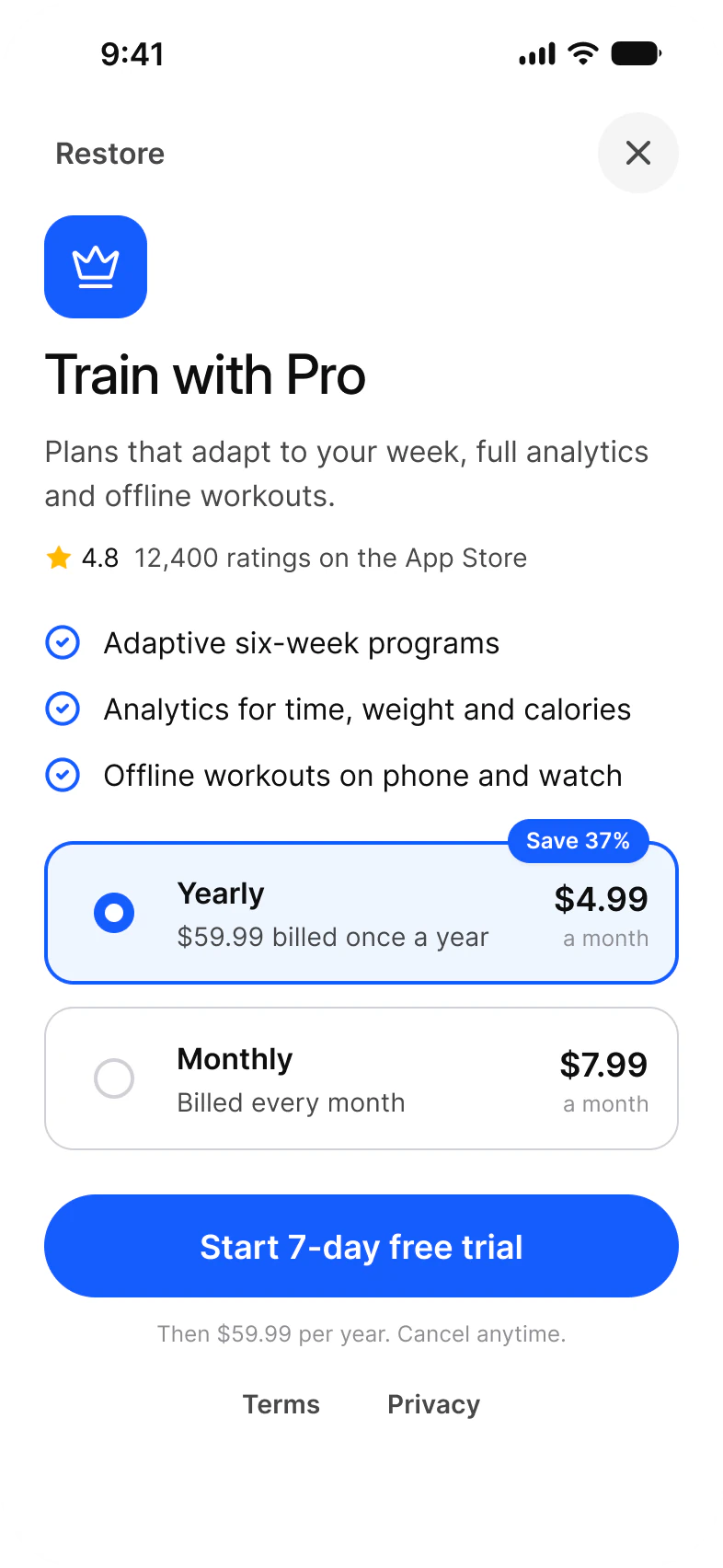
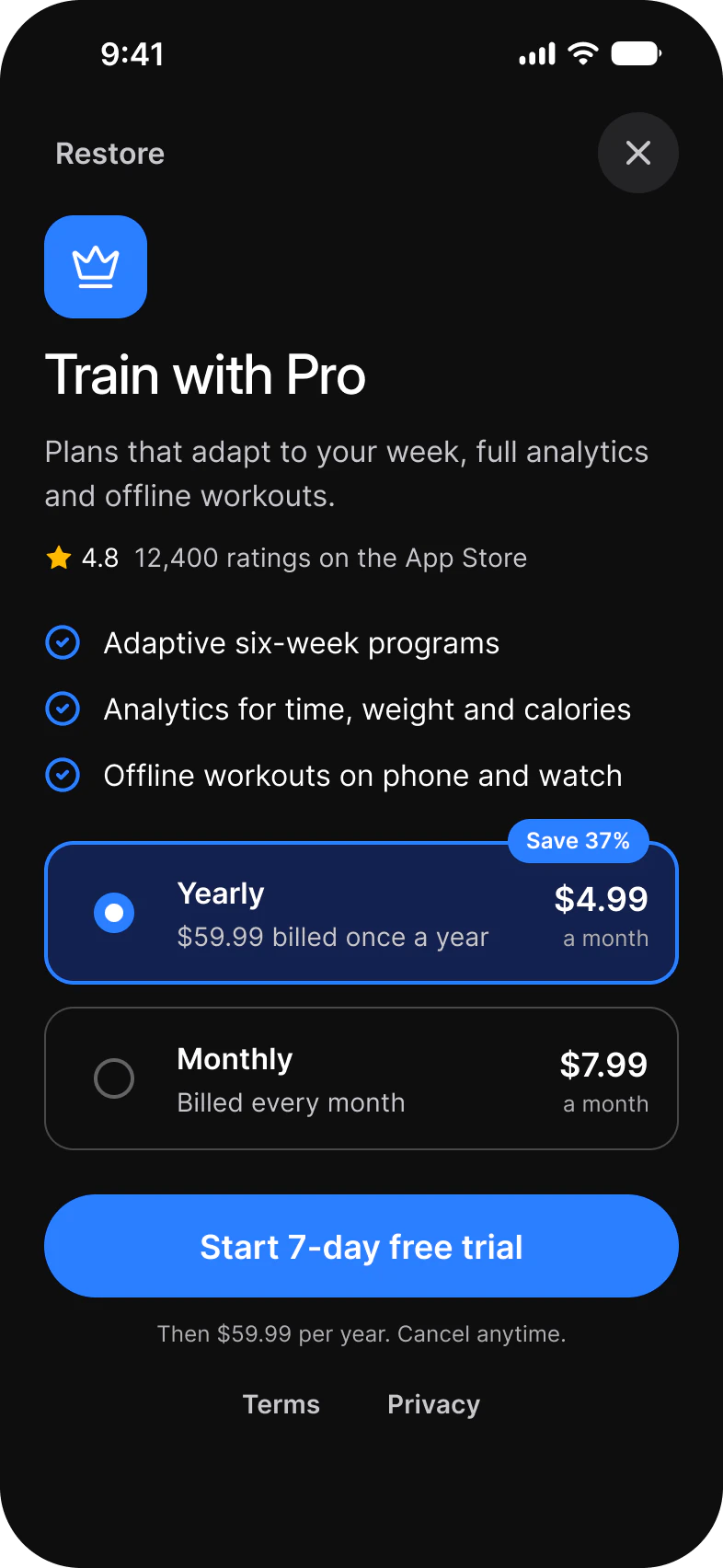
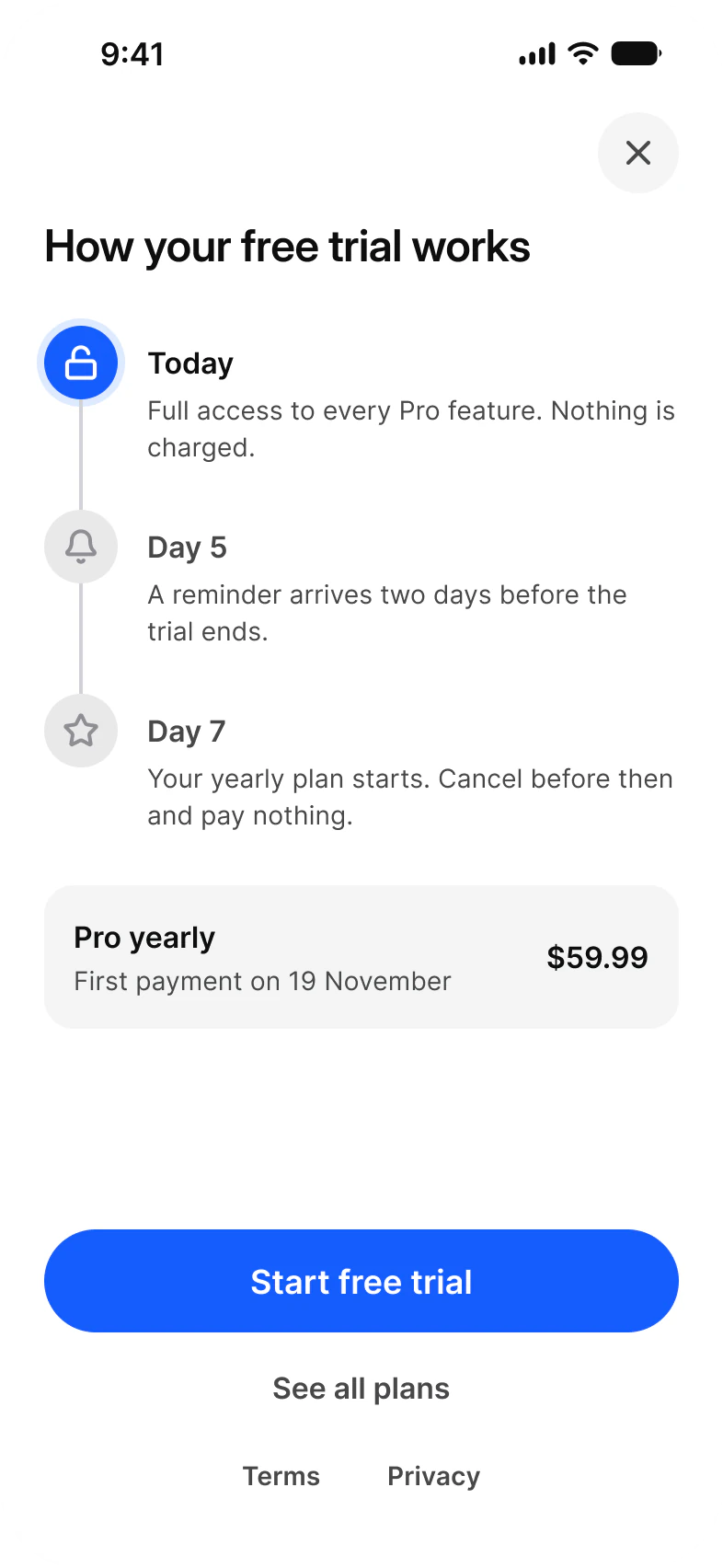
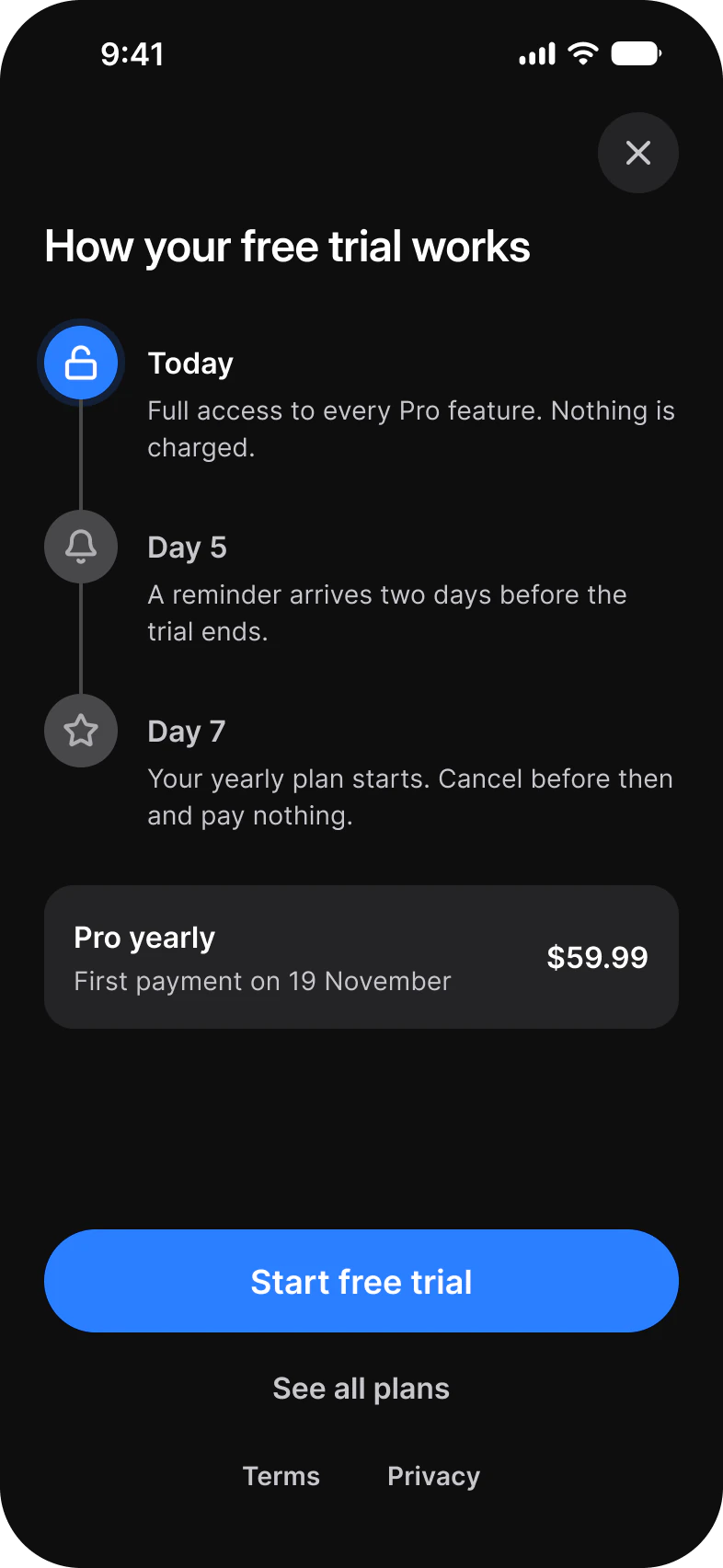
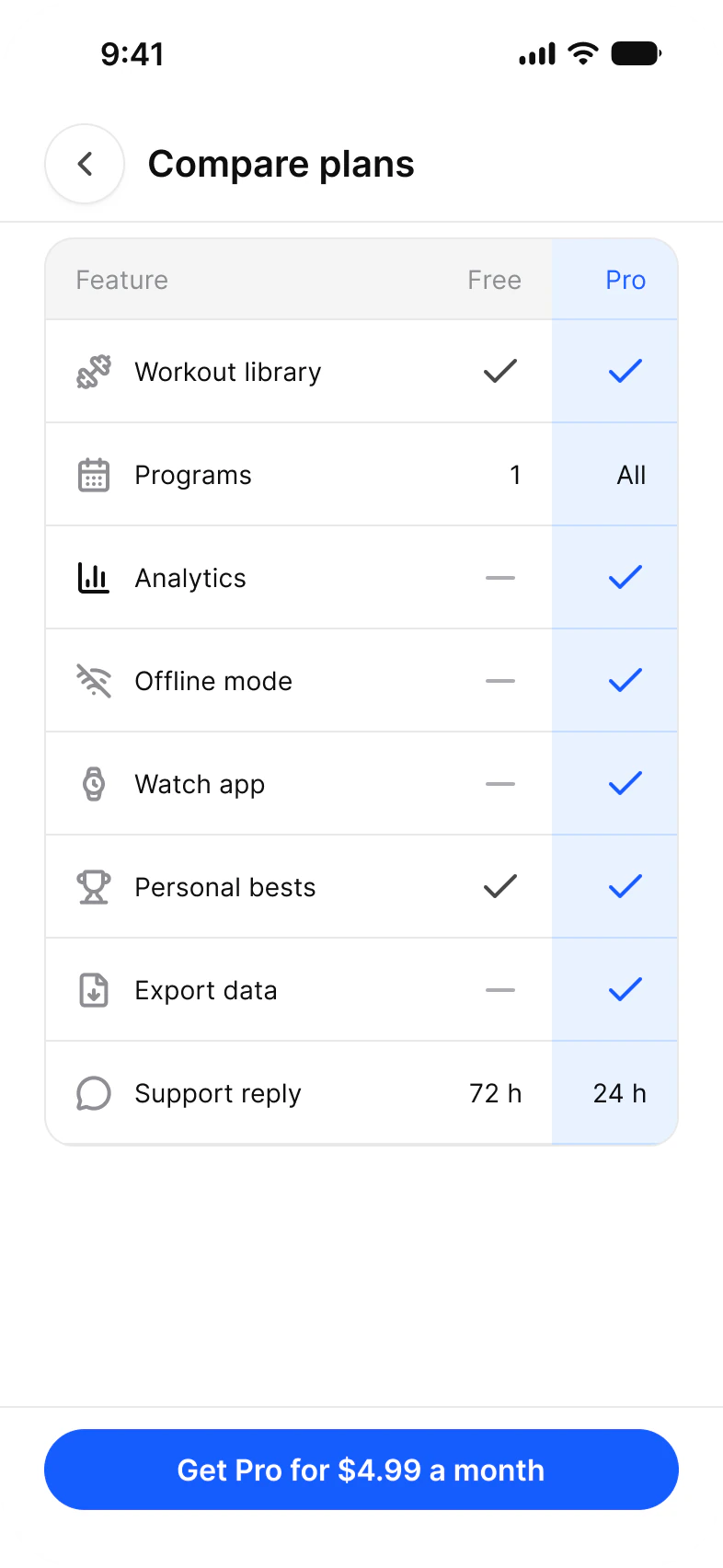
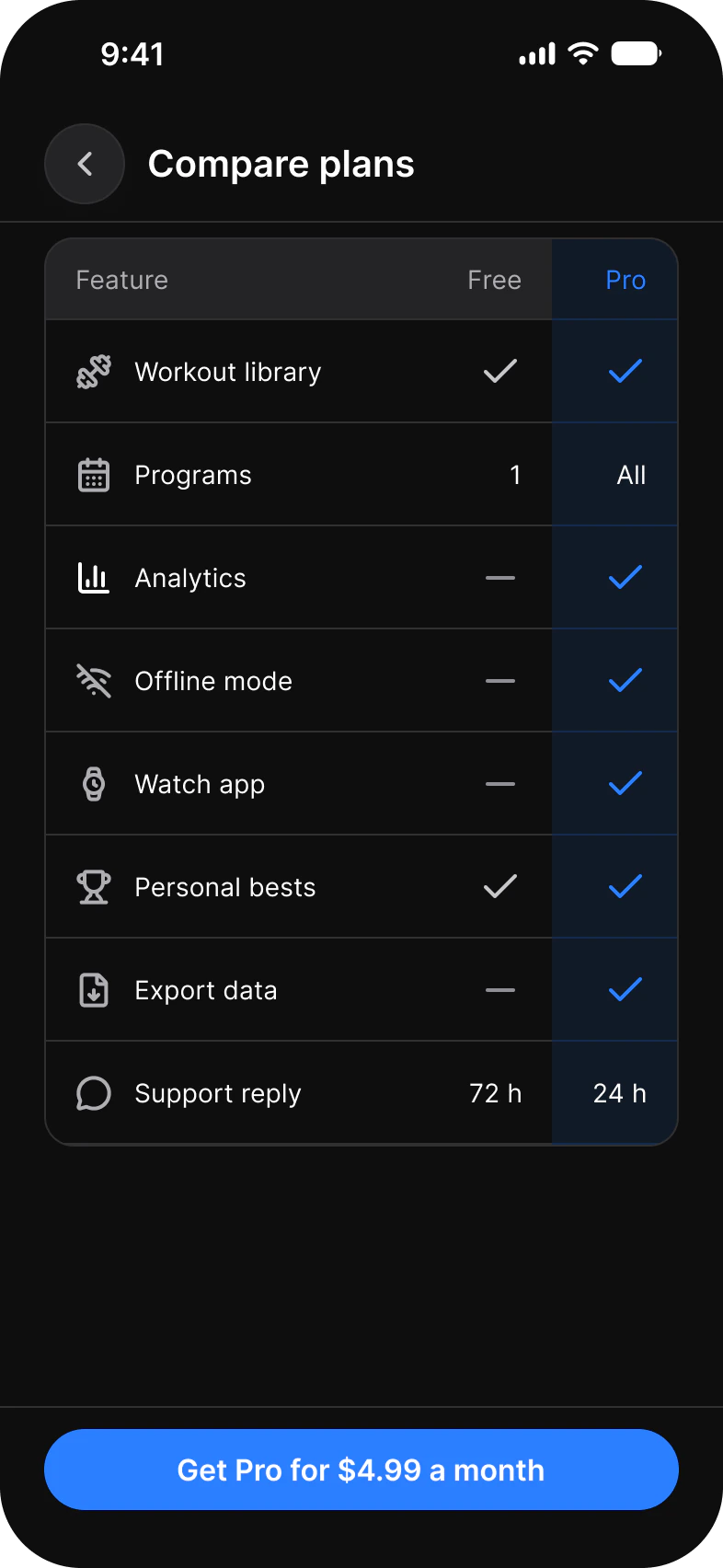
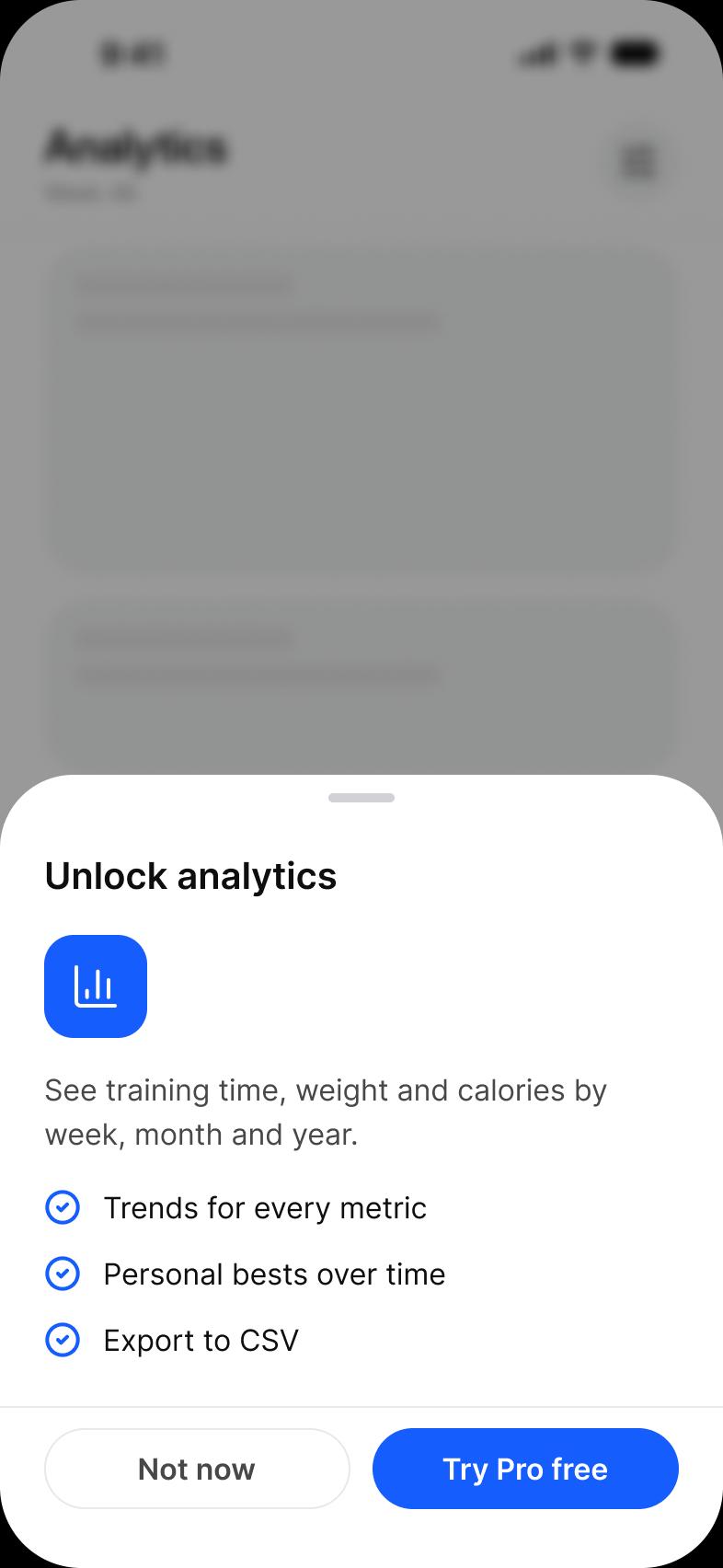
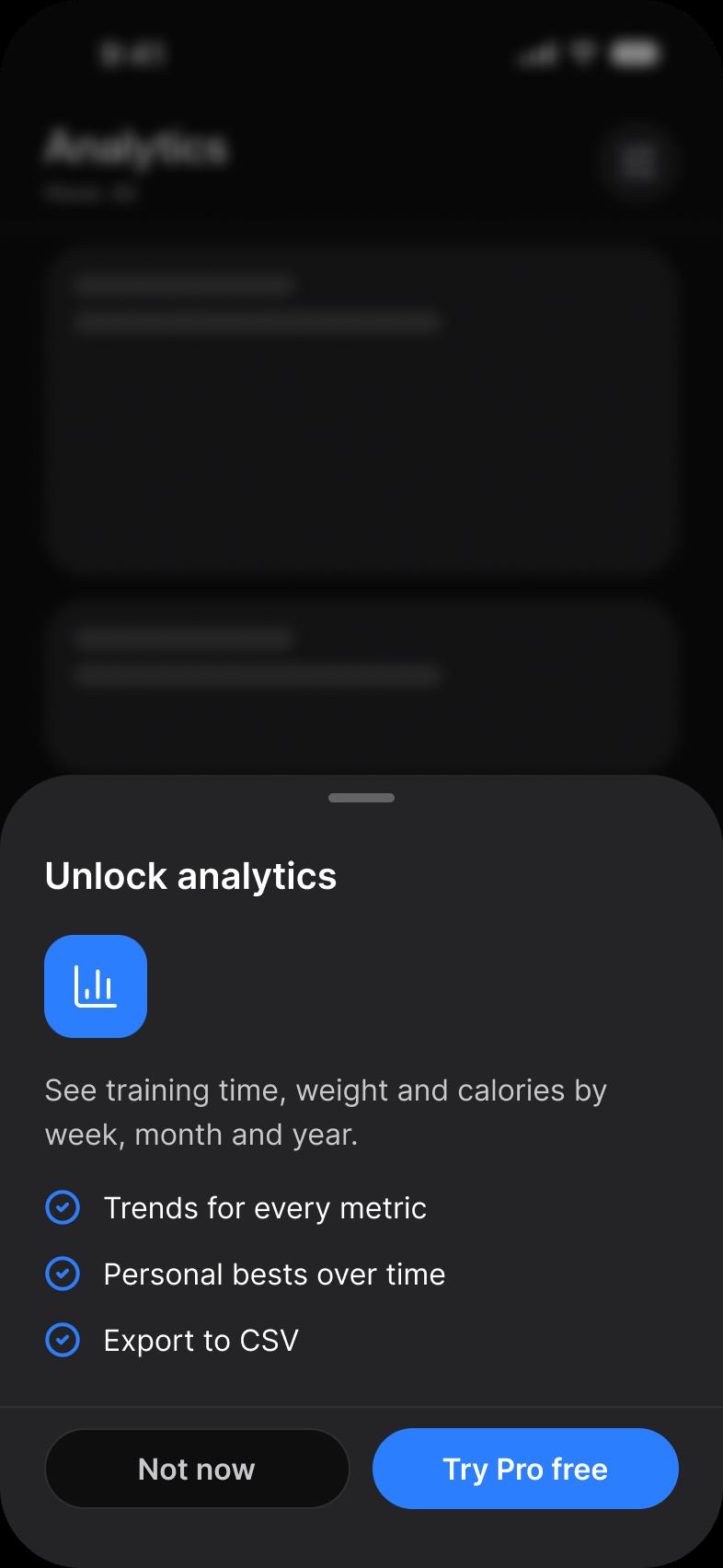
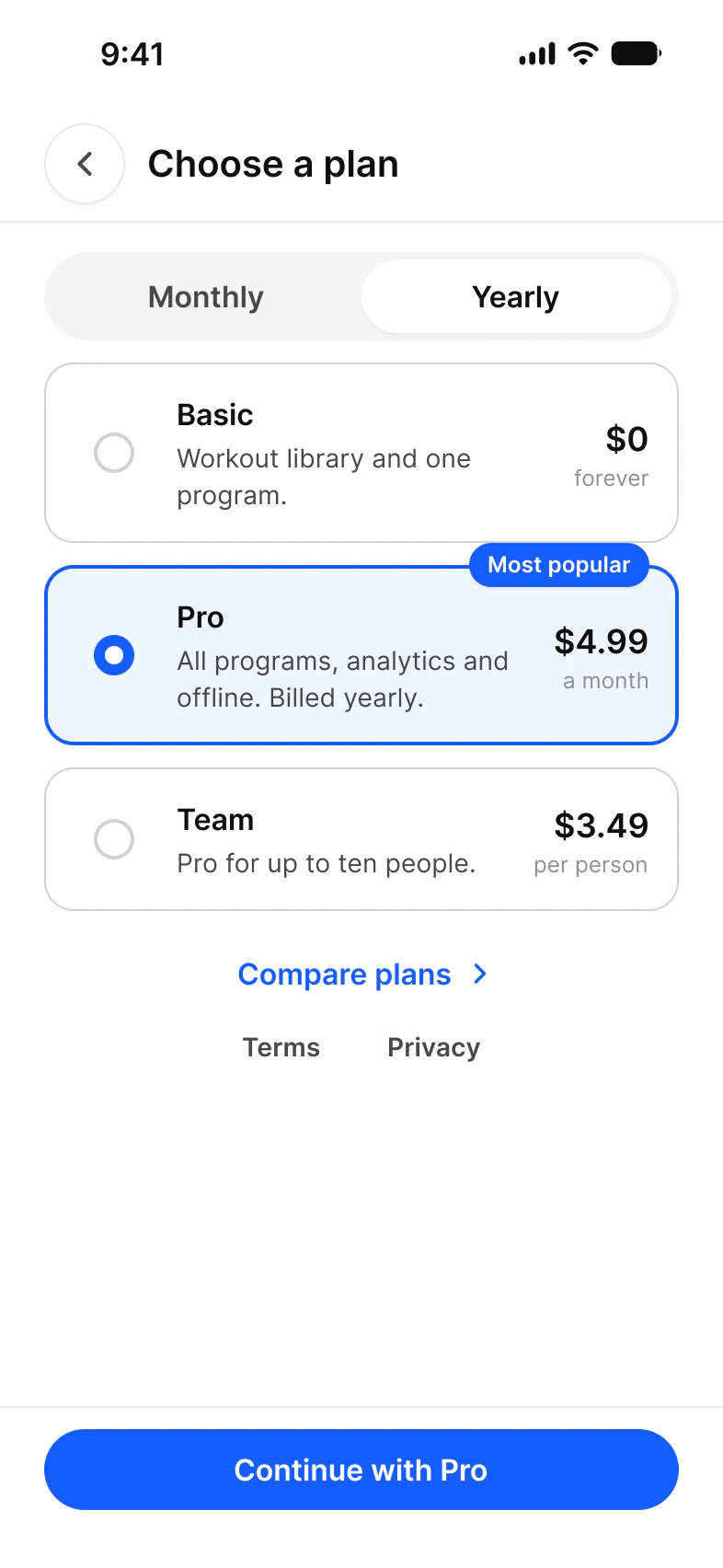
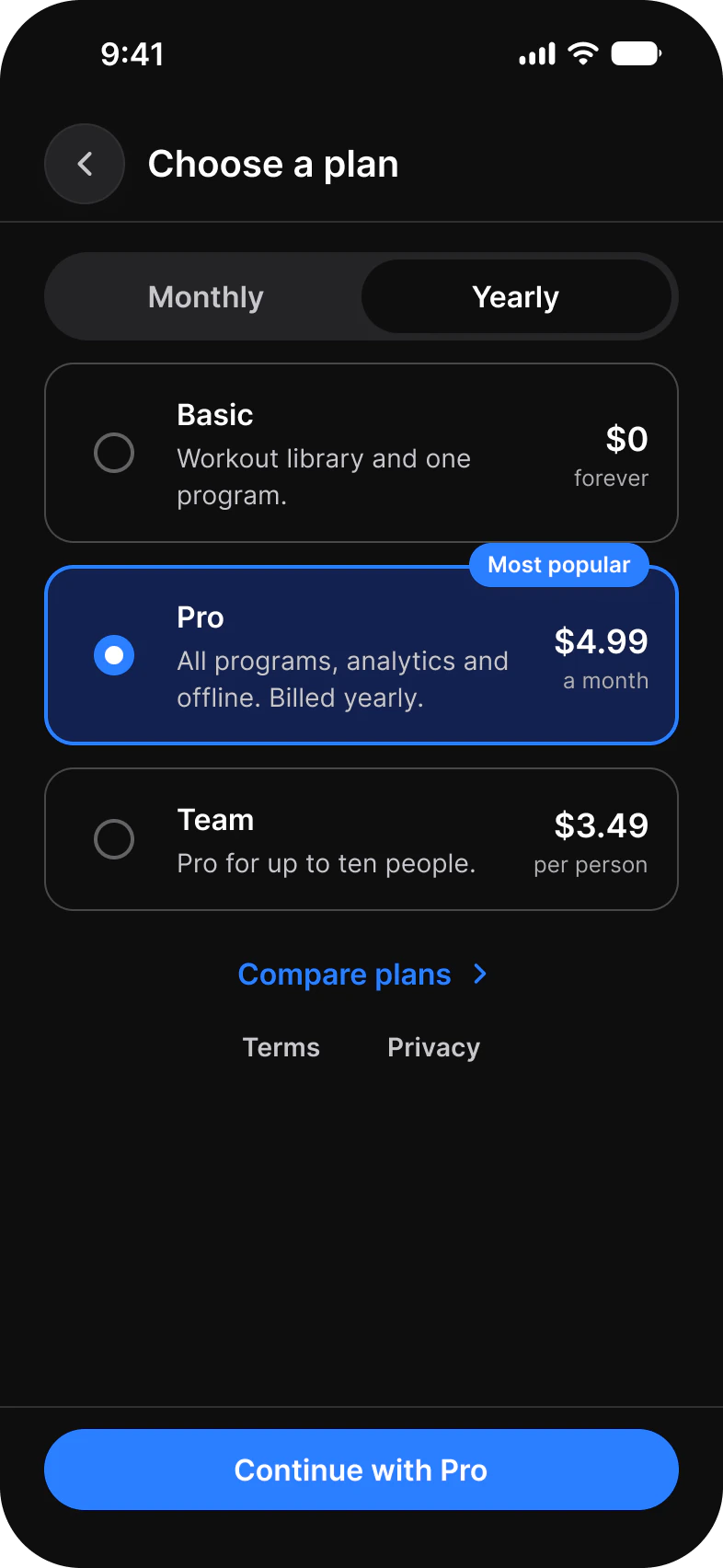
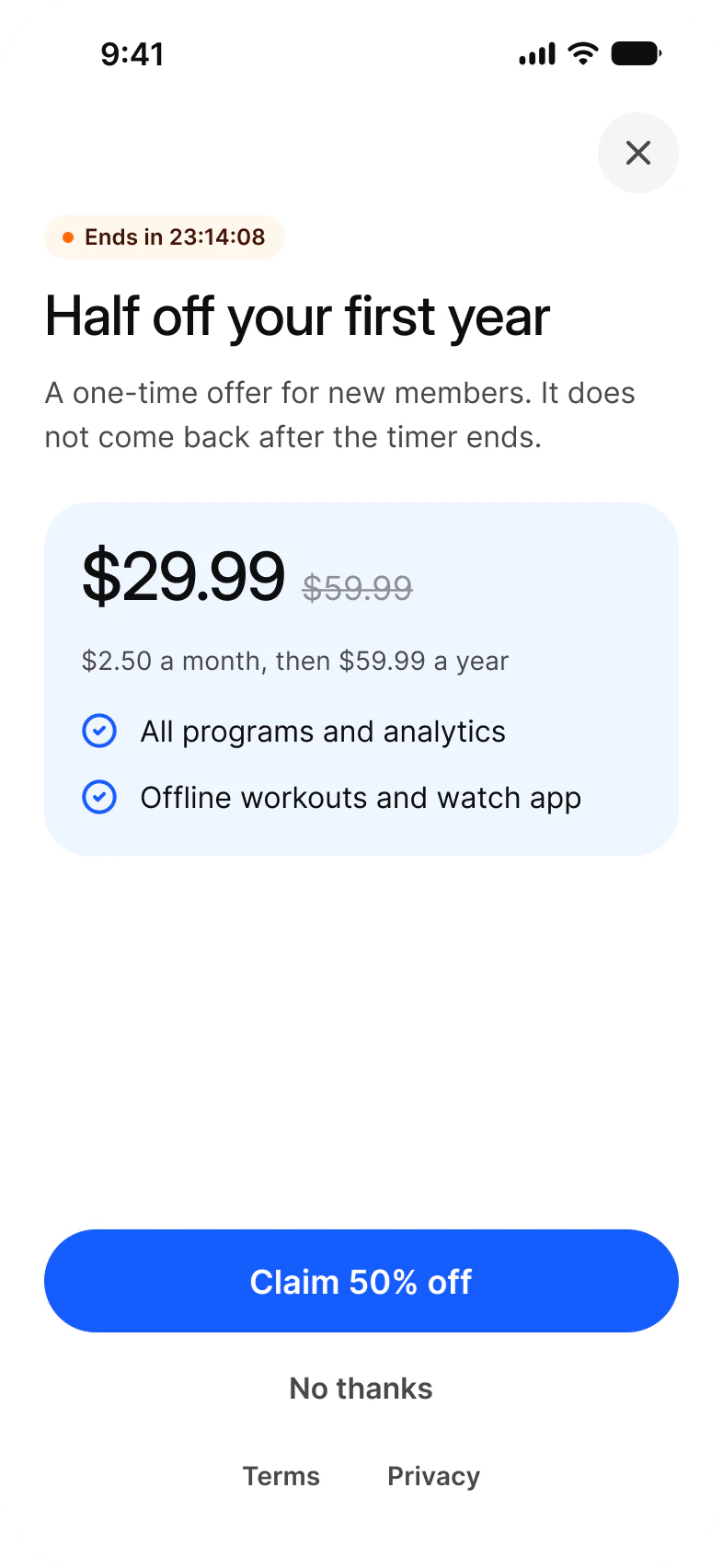
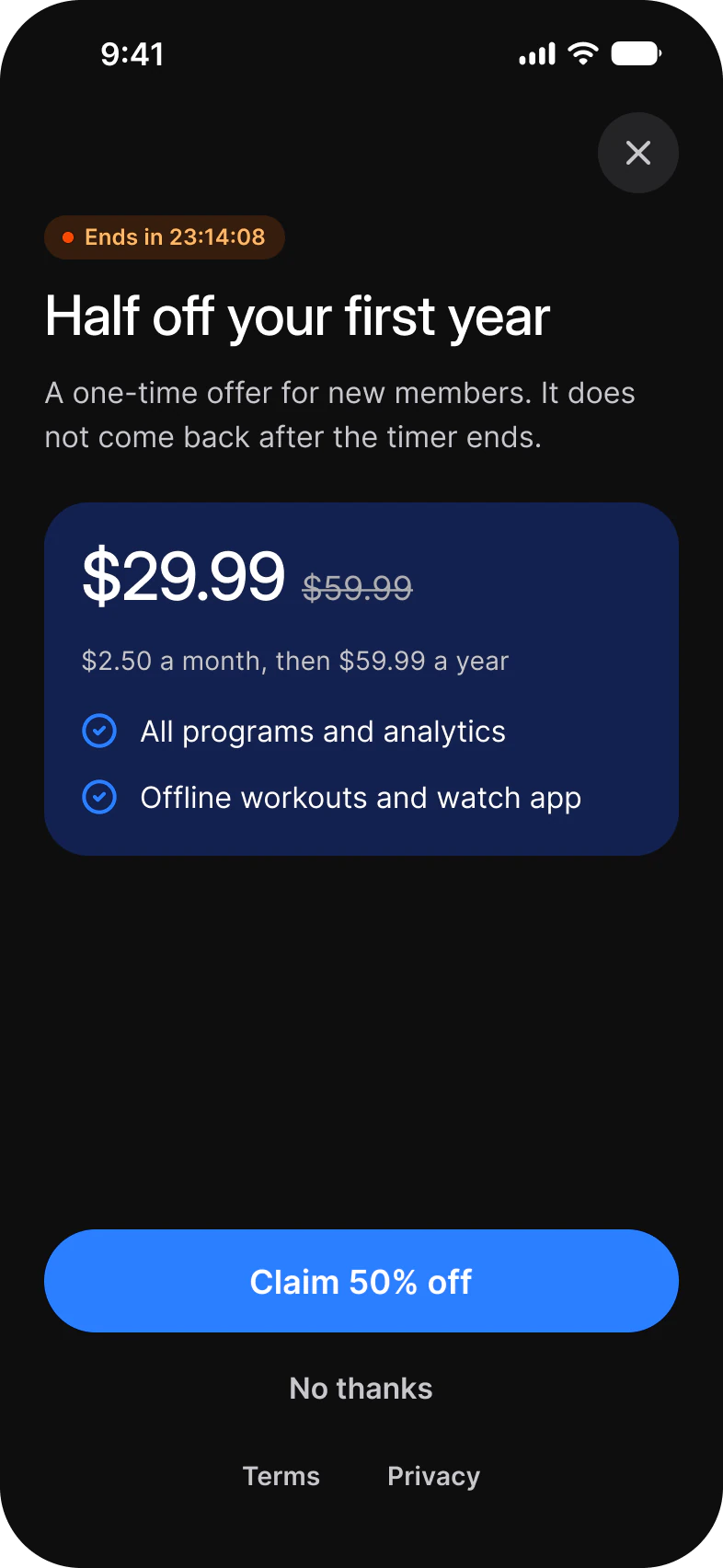
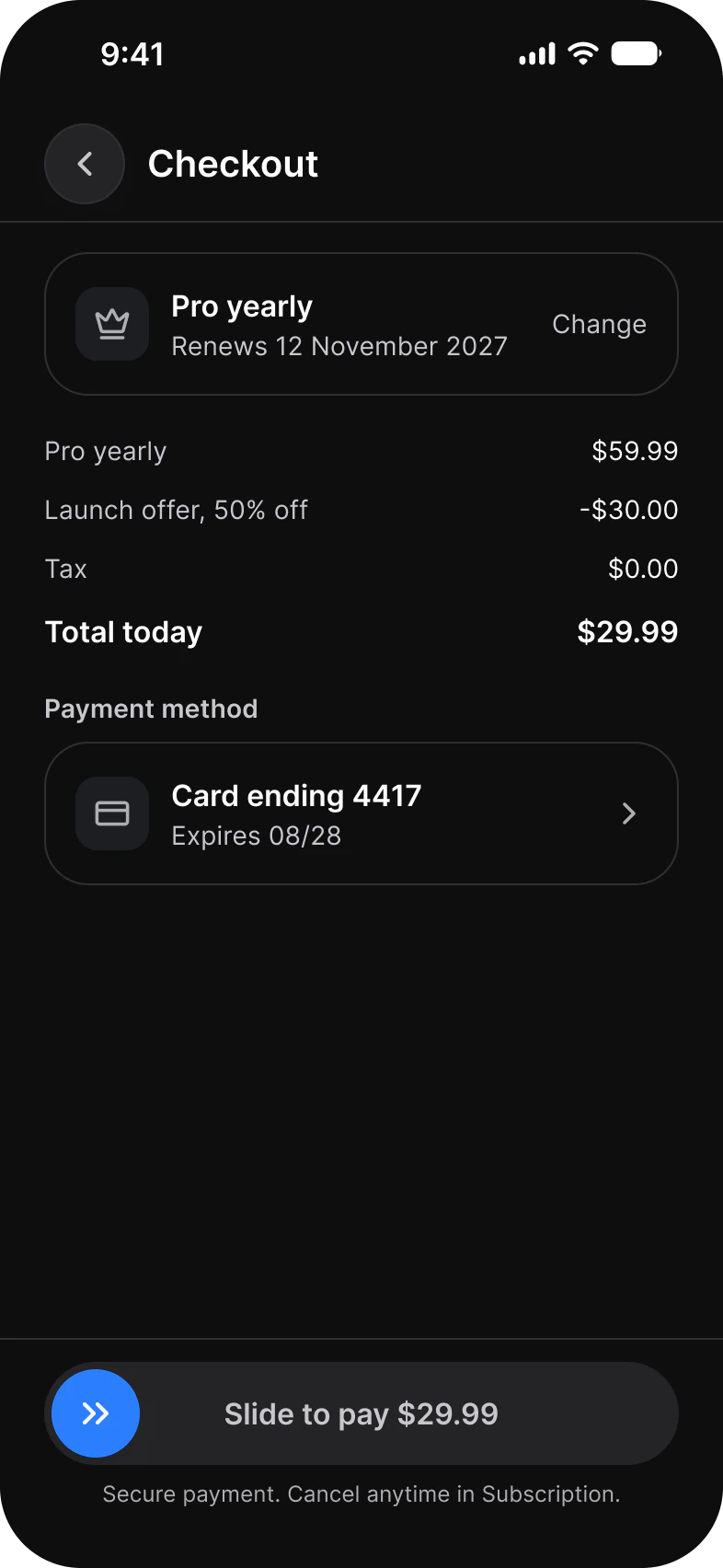
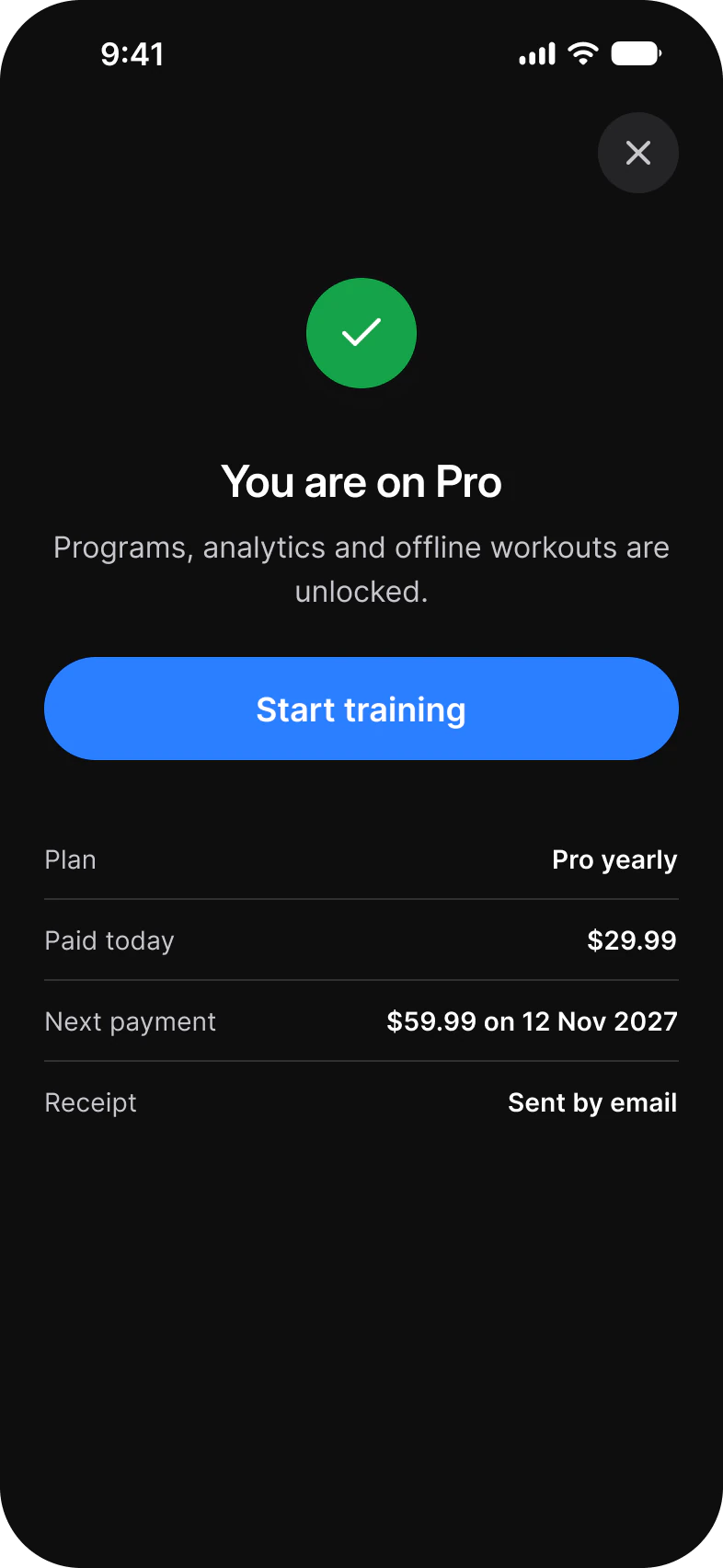
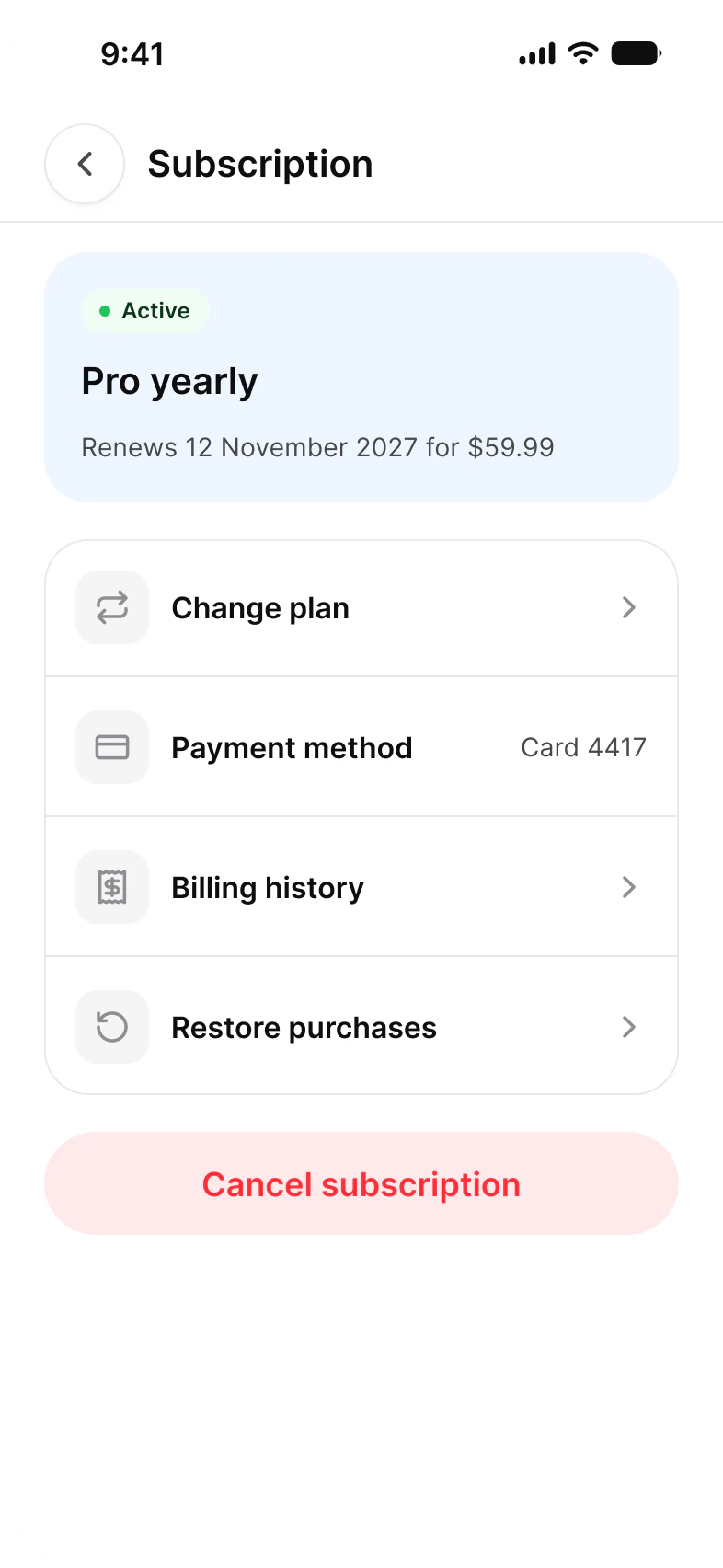
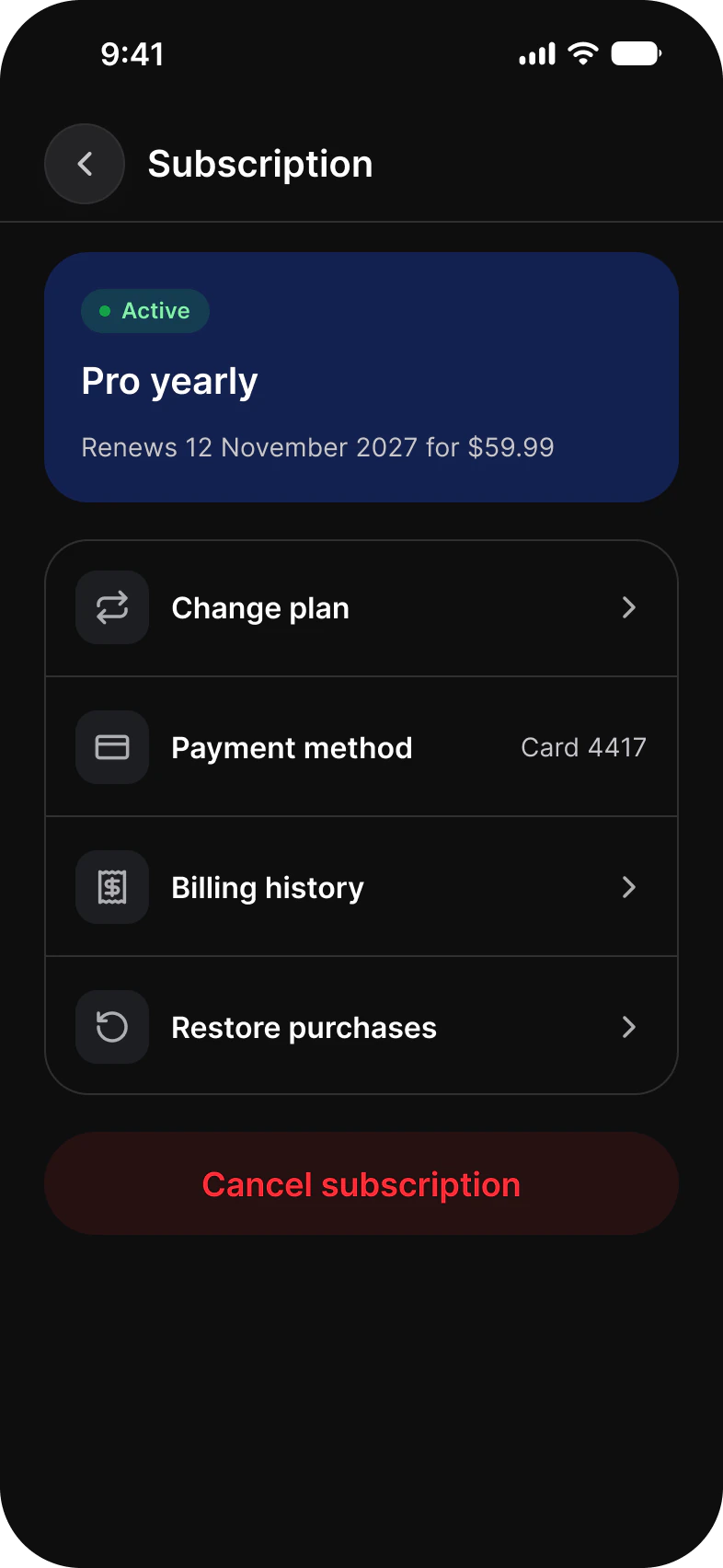
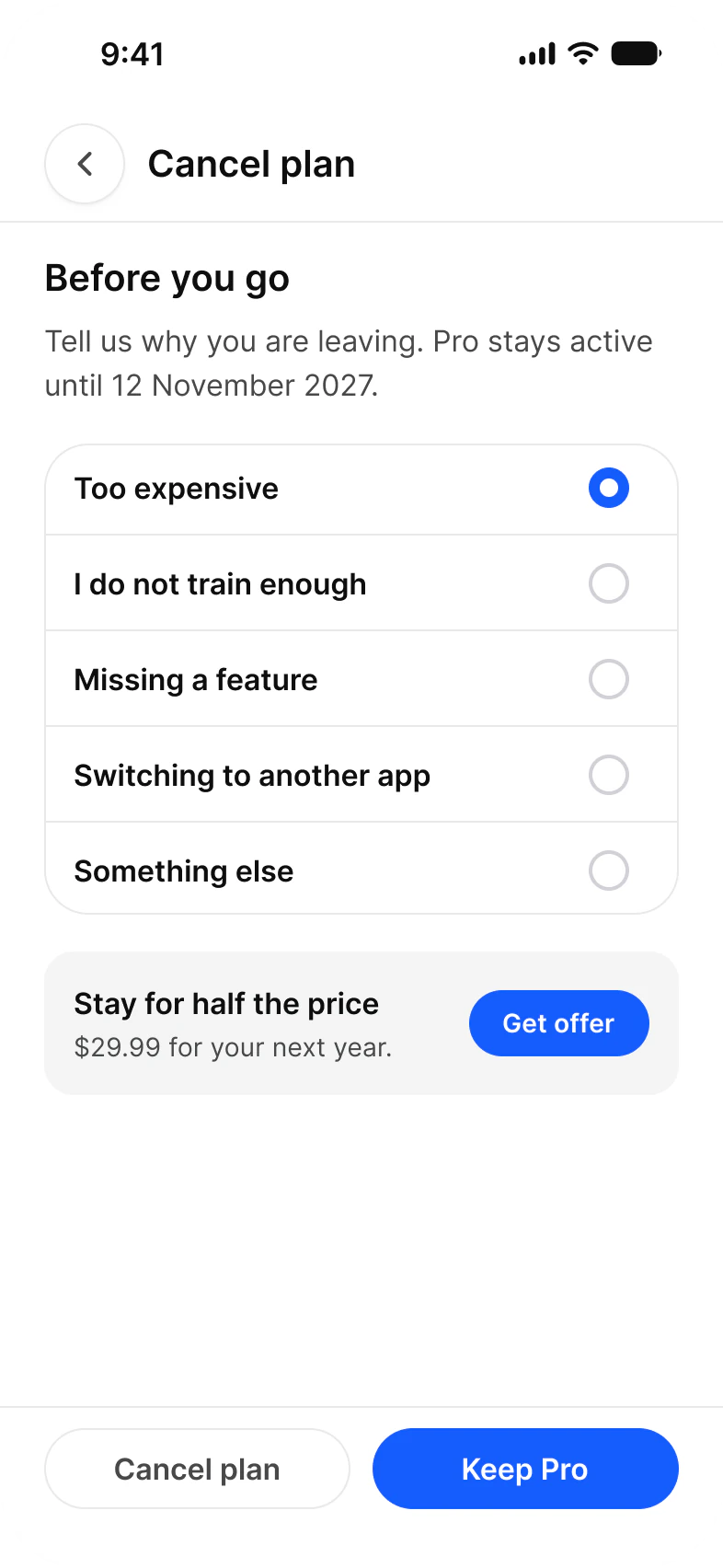
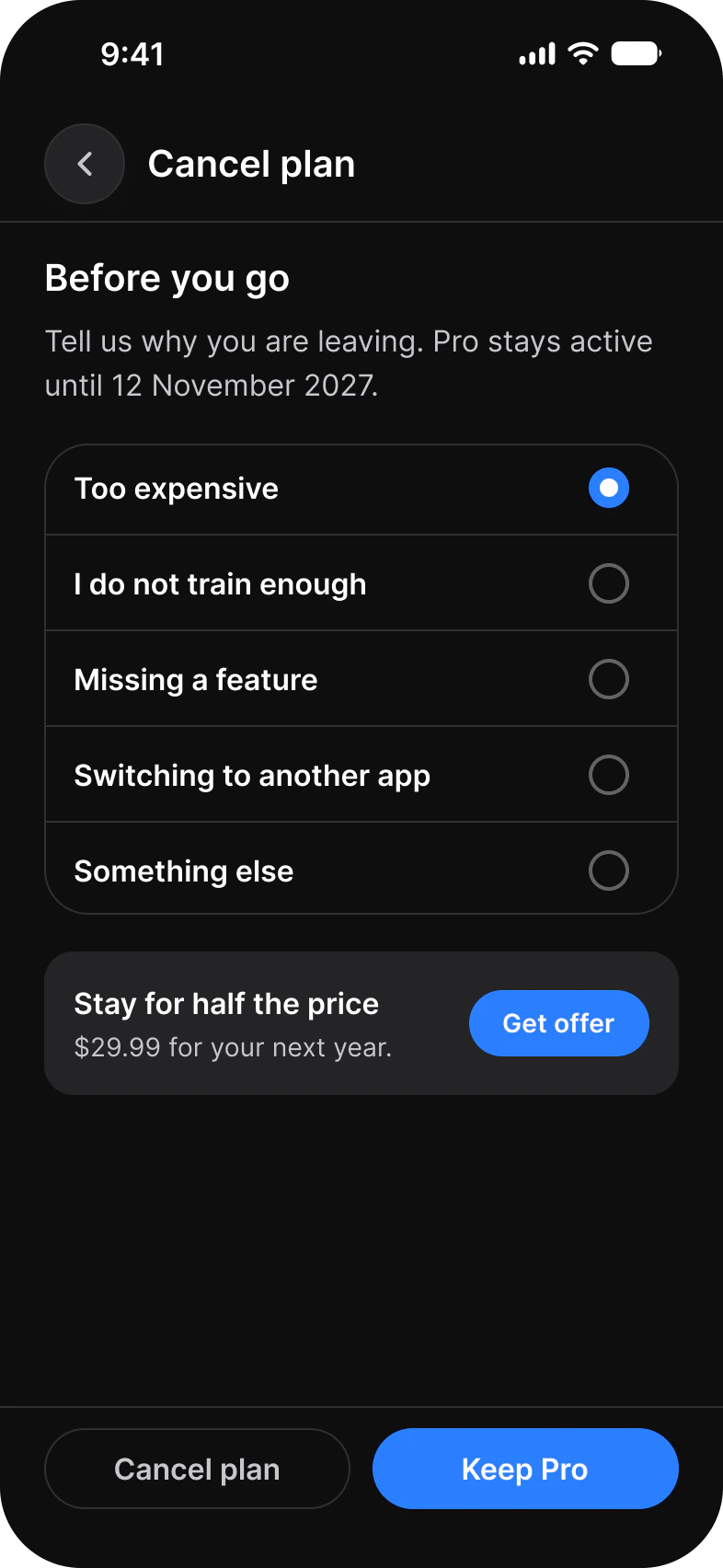
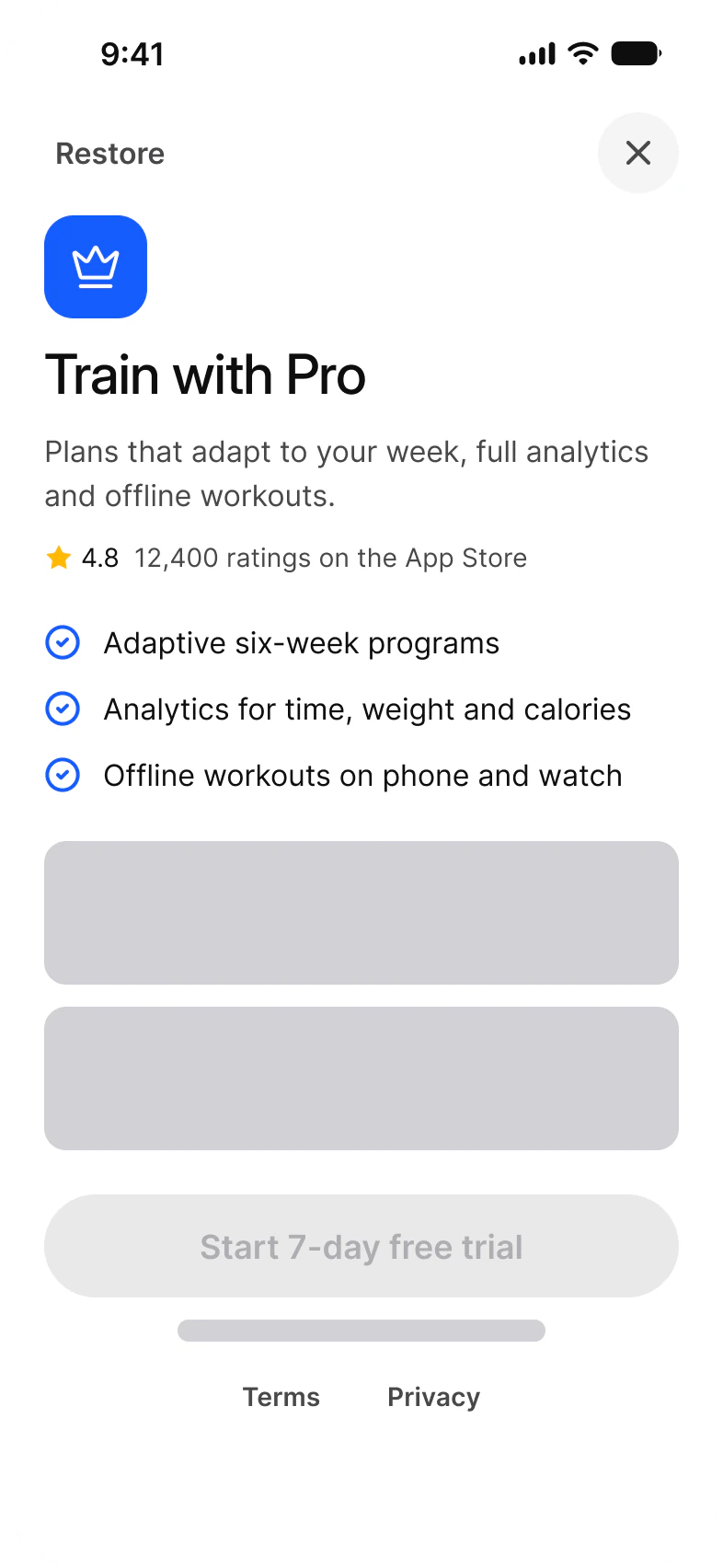
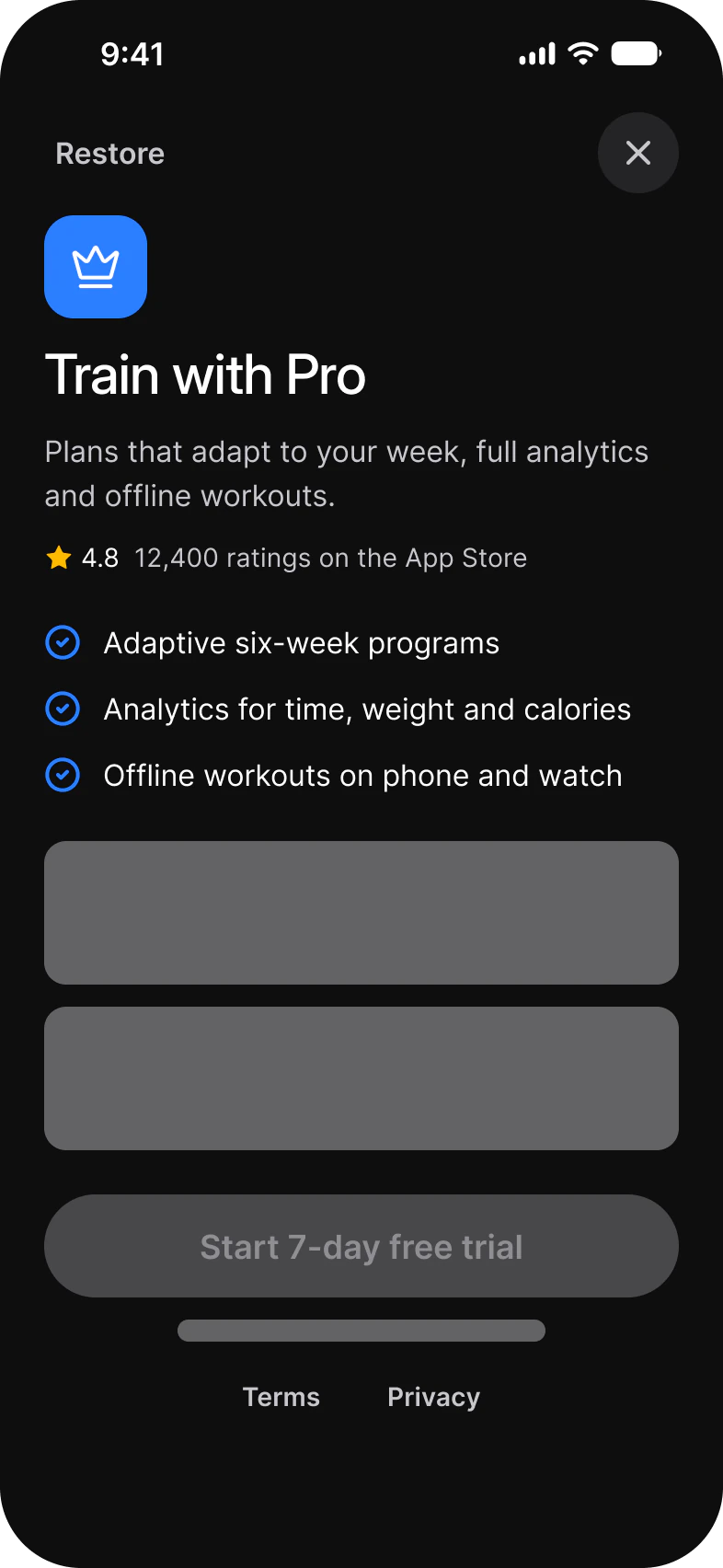
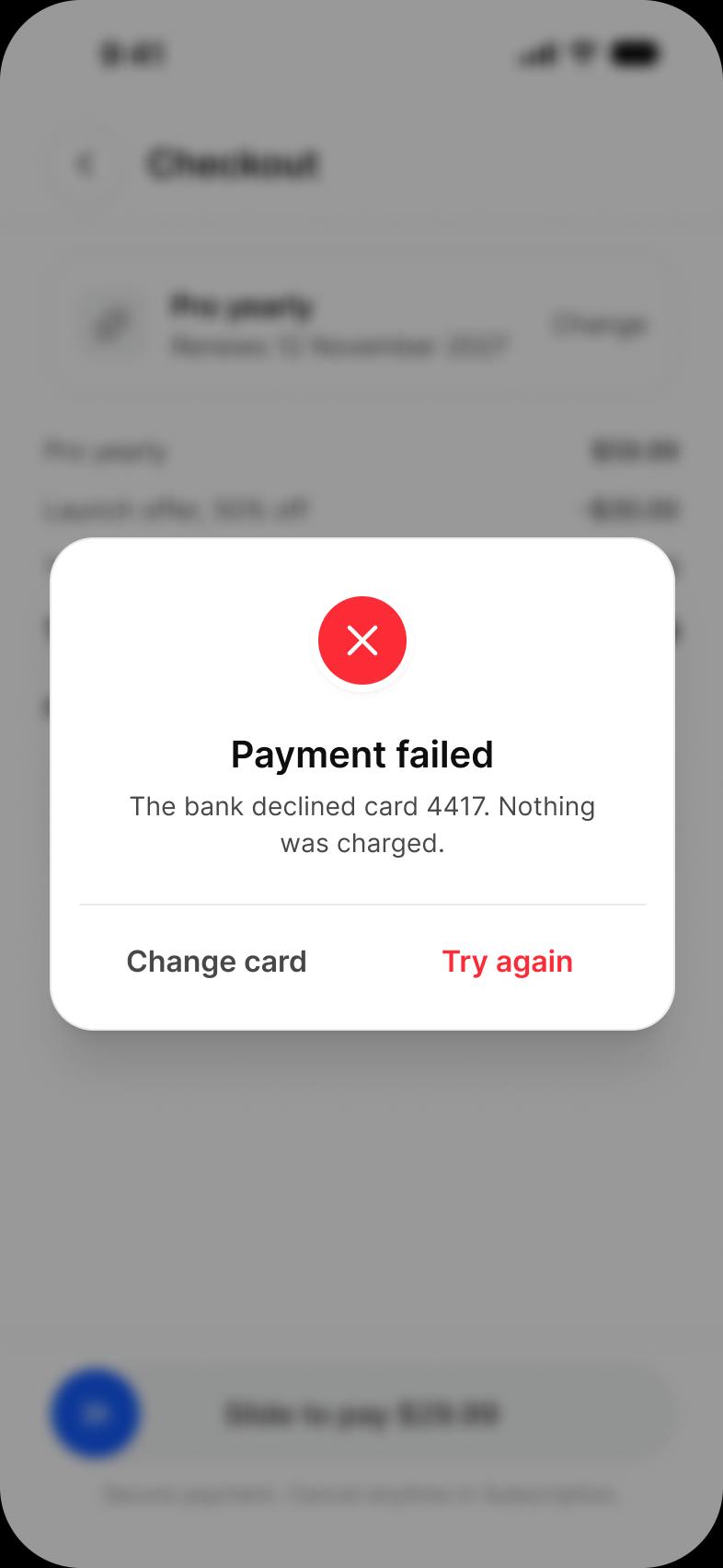
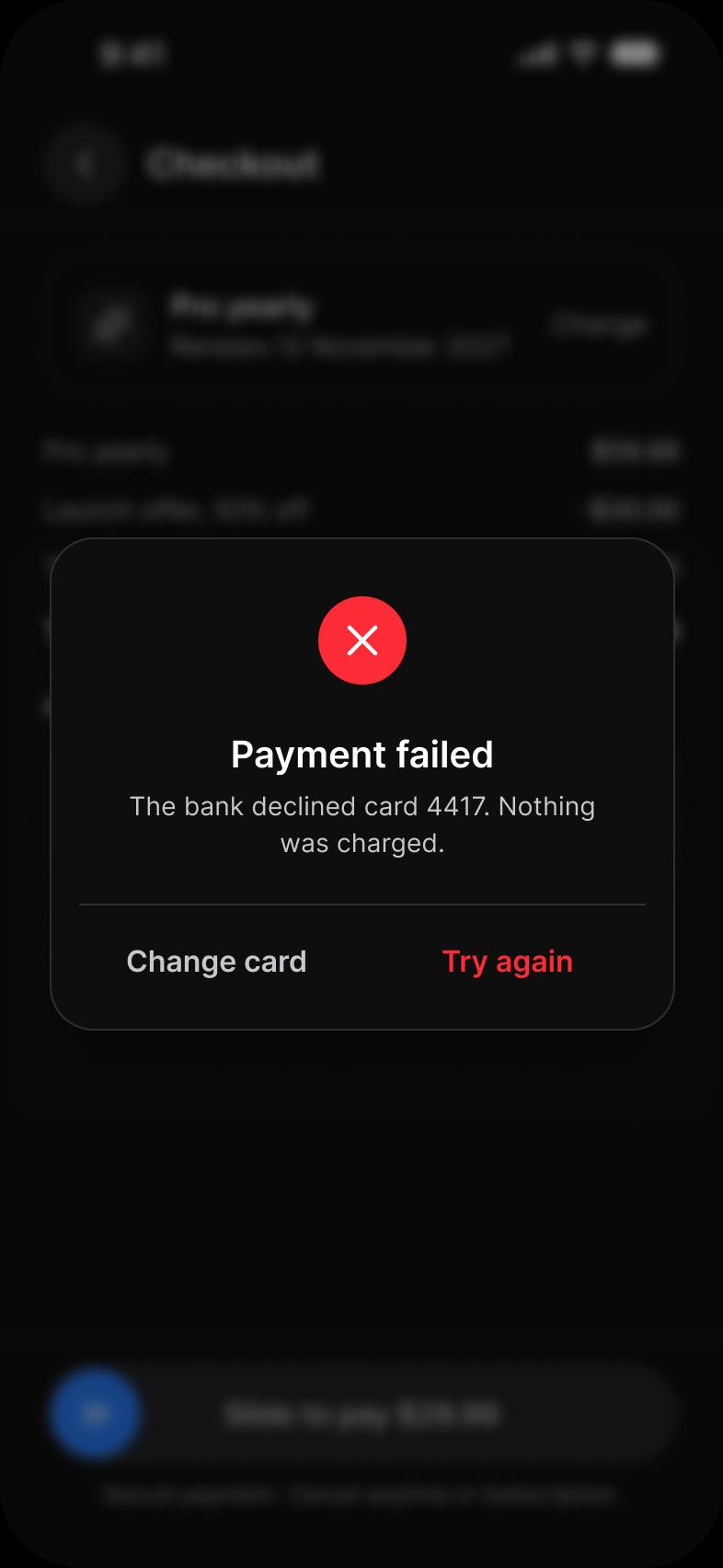
12 screens for the subscription of one fitness app. Plans, Trial, Compare, Tiers, Feature gate and Offer sell the upgrade, Loading, Checkout, Payment failed and Success buy it, and Subscription and Cancel manage it. Each screen is drawn in Light and in Dark.
| Screen | What it shows | Built from |
|---|---|---|
| Plans | What Pro adds and two plan cards to pick from | Icon Tile, Rating, Plan Card, Button |
| Trial | What happens on each day of the free trial | Timeline Step, Button |
| Compare | Free and Pro side by side, feature by feature | Table, Top Bars, Button |
| Feature gate | A sheet that stops a free user at a Pro feature | Icon Tile, Top Bars, Button |
| Tiers | Three plans with a Monthly and Yearly switch | Segmented Control, Plan Card, Button |
| Offer | A time-limited discount | Badge, Button |
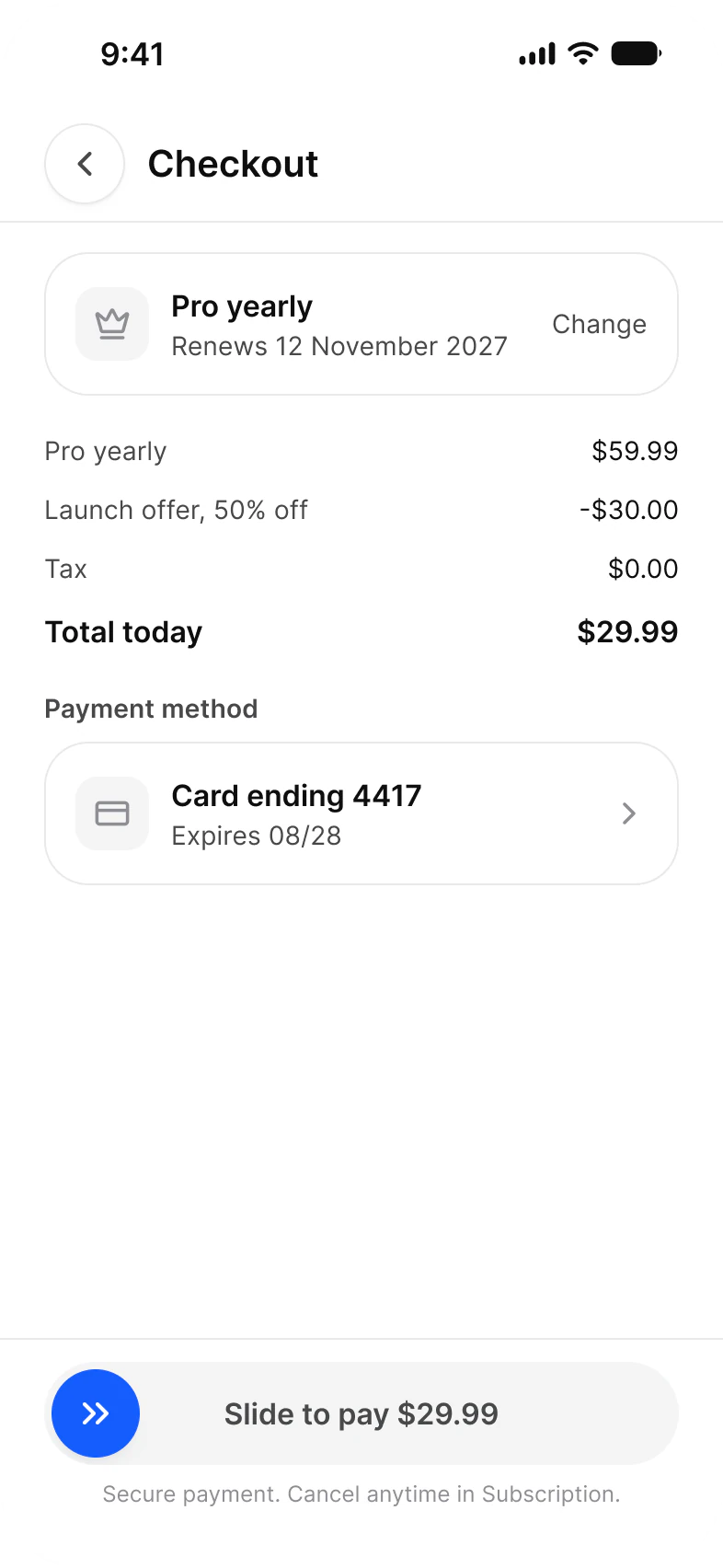
| Checkout | The order, the price rows, the card and a slide to pay | Top Bars, Price Row, List, Slide Button |
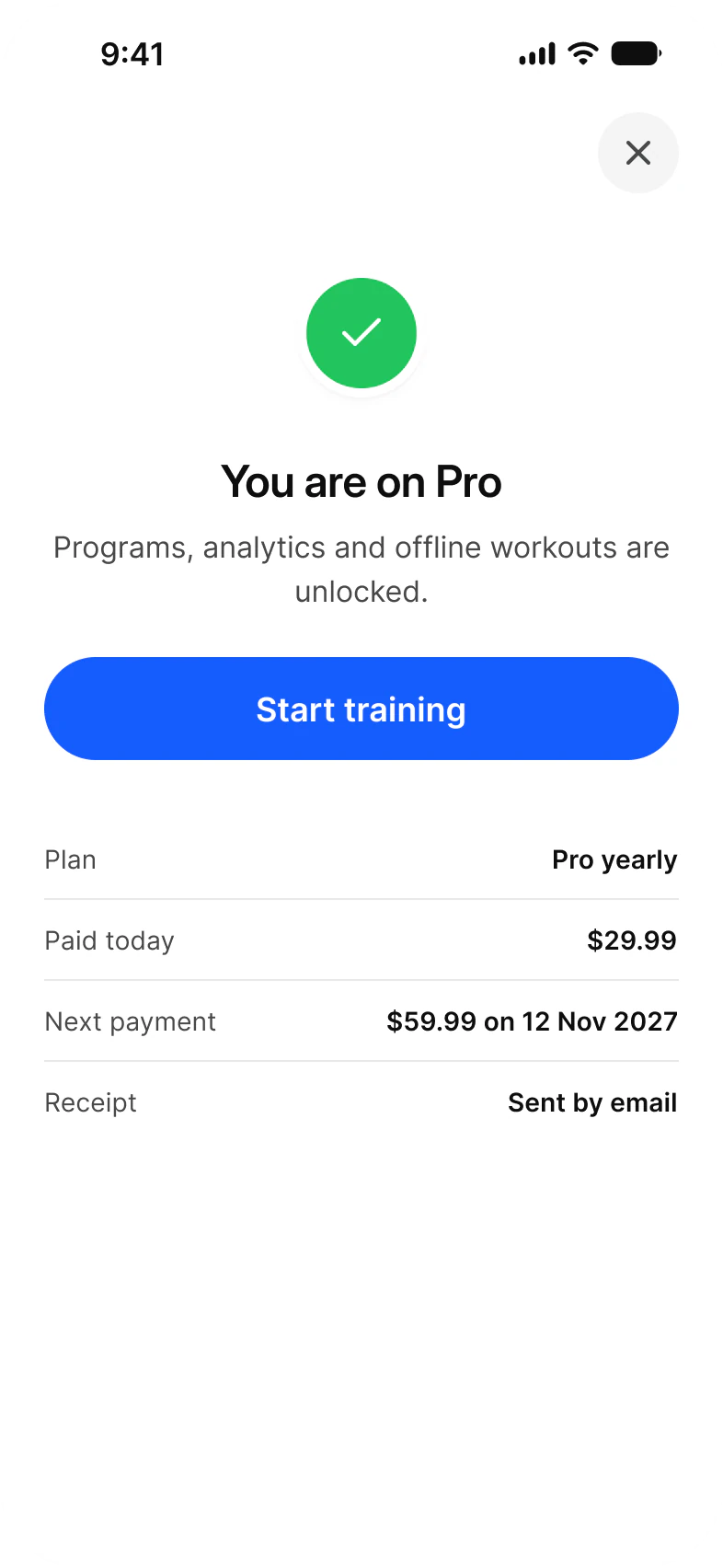
| Success | Confirmation and the receipt | Empty State, Key Value Row, Button |
| Subscription | The active plan and what can be changed | Top Bars, Badge, List, Divider, Button |
| Cancel | Reasons to leave and an offer to stay | Top Bars, List, Divider, Button |
| Loading | Plans while the store prices load | Skeleton, Icon Tile, Rating, Button |
| Payment failed | An alert over Checkout when the card is declined | Alert, Price Row, List, Slide Button |
What does a paywall flow need from a component library?
A plan card to choose with, a way to explain the trial and compare plans, a deliberate payment control, and states for waiting, failing and leaving.
A paywall needs a selectable plan card, proof of value such as a rating and a feature list, a comparison, a trial explained day by day, a payment control that is hard to trigger by accident, and states for loading prices, a declined card and a cancellation. In this set the plan is the Plan Card, the trial is three Timeline Steps, the comparison is the Table, and payment is the Slide Button.
| Need | Component | Where it appears |
|---|---|---|
| Pick a plan | Plan Card, Segmented Control | Plans, Tiers |
| Show what Pro adds | Icon Tile, Rating, check mark icons | Plans, Feature gate, Loading |
| Compare plans | Table | Compare |
| Explain the trial | Timeline Step | Trial |
| Stop at a Pro feature | A sheet with Icon Tile and Button | Feature gate |
| Total the order | Price Row, List | Checkout, Payment failed |
| Confirm a payment | Slide Button | Checkout, Payment failed |
| Wait for prices | Skeleton | Loading |
| Report a declined card | Alert | Payment failed |
| Confirm and give a receipt | Empty State, Key Value Row | Success |
| Manage or leave | List, Divider, Button | Subscription, Cancel |
How do the screens split before and after checkout?
Six screens sell the upgrade, four carry the payment through, and two manage the plan once it is bought.
Plans and Loading are the same screen: Loading keeps the header, the rating and the features and draws the two plan cards as Skeleton blocks with the trial button disabled until the store answers. Checkout and Payment failed are the same screen too, with an Alert over the second. Cancel ends on an offer to stay at half the price, which is the Offer screen's discount brought into the cancel flow.
| Stage | Screens | What they carry |
|---|---|---|
| Sell | Plans, Trial, Compare, Feature gate, Tiers, Offer | Plan Card 5, Timeline Step 3, the comparison table, Icon Tile 2, Badge 1 |
| Buy | Loading, Checkout, Payment failed, Success | Skeleton 3, Price Row 8, Slide Button 2, Alert 1, Key Value Row 4 |
| Manage | Subscription, Cancel | List 9, Divider 7, Button 4 |
What are the Paywall screens built from?
Every instance placed directly on the light frames, counted by the component it comes from. The dark row holds the same instances.
The light row holds 145 placed instances and 107 more nested inside them. A component is counted by its set name, so every Button variant is a Button, and an icon is any instance named in lowercase. The comparison table is placed as its header cells and cells.
| Component | Placed | Where |
|---|---|---|
| Button | 33 | Plans 5, Trial 5, Offer 5, Loading 5, Tiers 4, Feature gate 3, Cancel 3, Compare, Success and Subscription 1 each |
| Table cells and header cells | 27 | Compare, 24 cells and 3 header cells |
| List | 13 | Checkout 2, Subscription 4, Cancel 5, Payment failed 2 |
| Status Bar | 12 | Every screen |
| Lucide icons | 11 | Plans 3, Feature gate 3, Offer 2, Loading 3 |
| Price Row | 8 | Checkout 4, Payment failed 4 |
| Top Bars | 7 | Compare, Feature gate, Tiers, Checkout, Subscription, Cancel, Payment failed |
| Divider | 7 | Subscription 3, Cancel 4 |
| Plan Card | 5 | Plans 2, Tiers 3 |
| Key Value Row | 4 | Success |
| Icon Tile | 3 | Plans, Feature gate, Loading |
| Timeline Step | 3 | Trial |
| Skeleton | 3 | Loading |
| Rating | 2 | Plans, Loading |
| Badge | 2 | Offer, Subscription |
| Slide Button | 2 | Checkout, Payment failed |
| Segmented Control | 1 | Tiers |
| Empty State | 1 | Success |
| Alert | 1 | Payment failed |
Counted on November 18, 2026 with a read-only Plugin API script over the light frames of the Paywall page in the Appetite UI 2.6 Figma file. Placed counts an instance that is not inside another instance. Hidden layers count. Prices on the screens belong to the example app.
Start from these screens.
Every frame on this page is part of the Appetite UI file, drawn from its components and bound to its variables, so one brand edit moves every screen in light and dark.
The file holds 592 variables in 6 collections and exports its token values to SwiftUI, Jetpack Compose, Flutter and CSS. Solo covers one person and Team up to ten people. You pay once and keep lifetime updates.
The read-only Figma preview opens the whole file, every screen and every variable, before you buy.