Updated
Time Grid
Time Grid is the hour scale behind a day or week view. Calendar Event blocks sit on it, and Now Indicator marks the current minute.
Updated
Preview
Two views of one scale: Day with a single column at 64 per hour, Week with seven columns at 52 per hour and a tinted weekend.
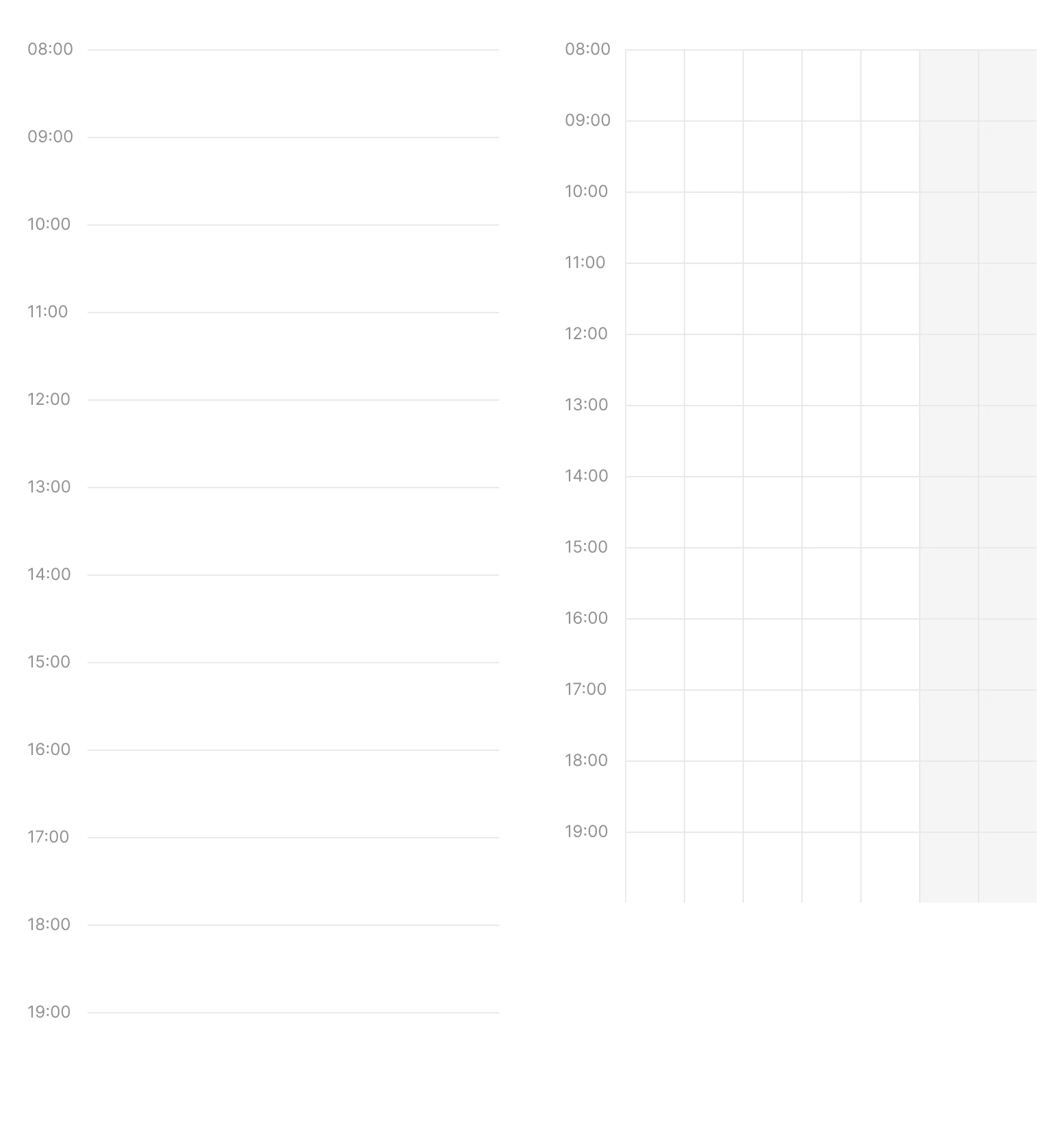
Source: Time Grid on the Calendar page of the Appetite UI Figma file, read on November 18, 2026.
Figma and code
Time Grid is in the Appetite UI Figma library. Appetite UI Code does not have it yet.
Build it from the tokens: every stack of Appetite UI Code ships them with the names and values of the Figma file. Add your stack's package first: Install the code.
How do you build a day or week view on Time Grid?
Put Calendar Event instances in an Events frame over the grid with Left and Right constraints, so the blocks follow the columns at any width. Add Now Indicator at the current minute.
The grid is the bottom layer and carries no events of its own. Rename the hour labels per row when the day starts at another hour. A Week Strip above a Week grid lines up with its seven columns.
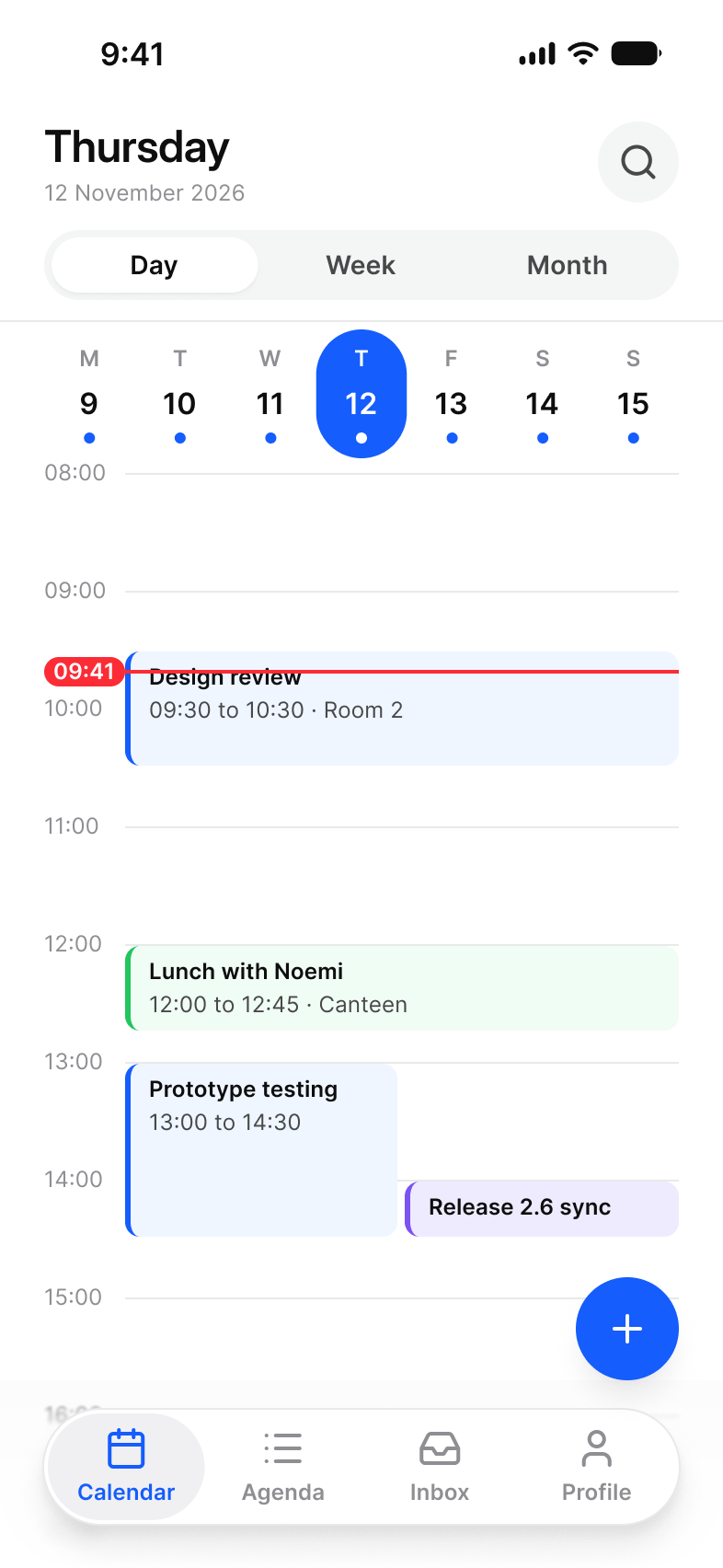
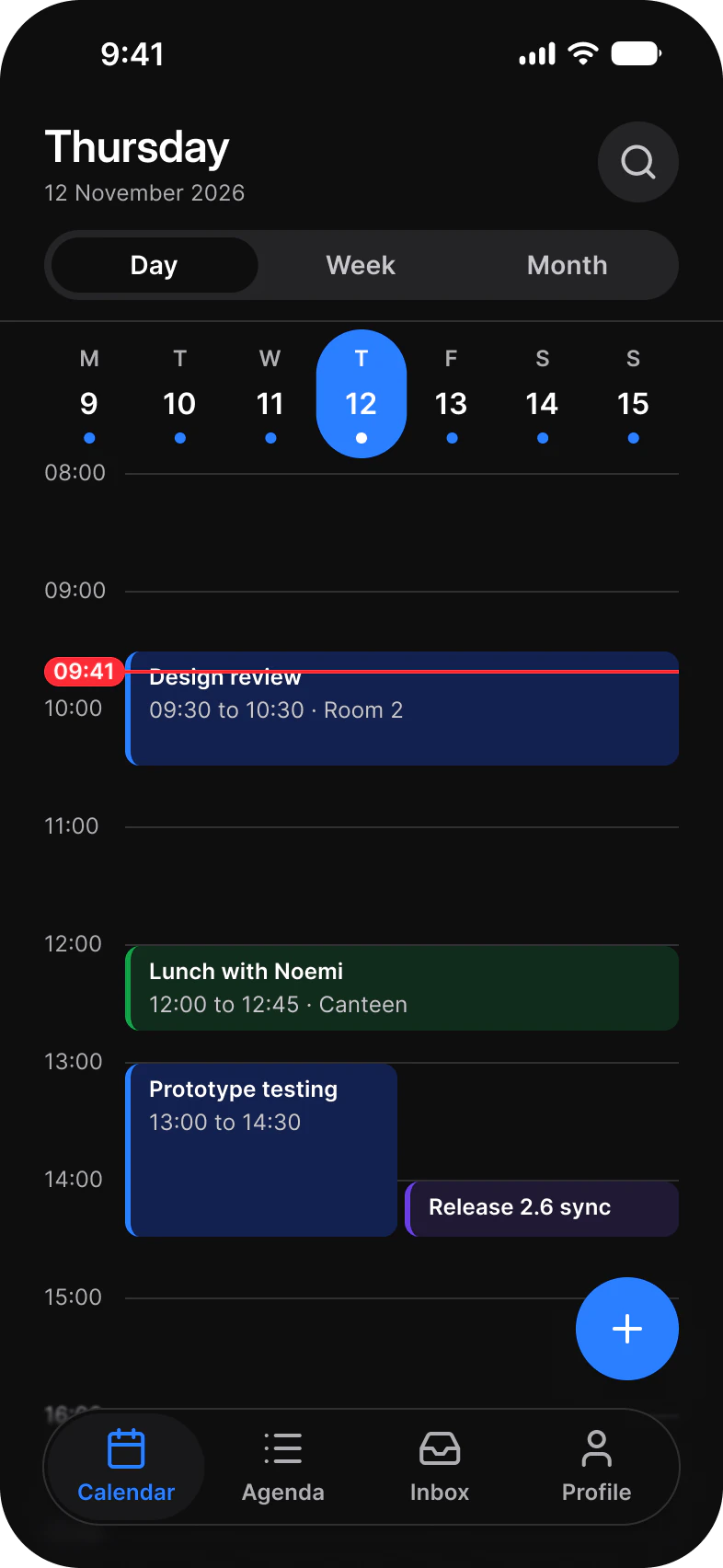
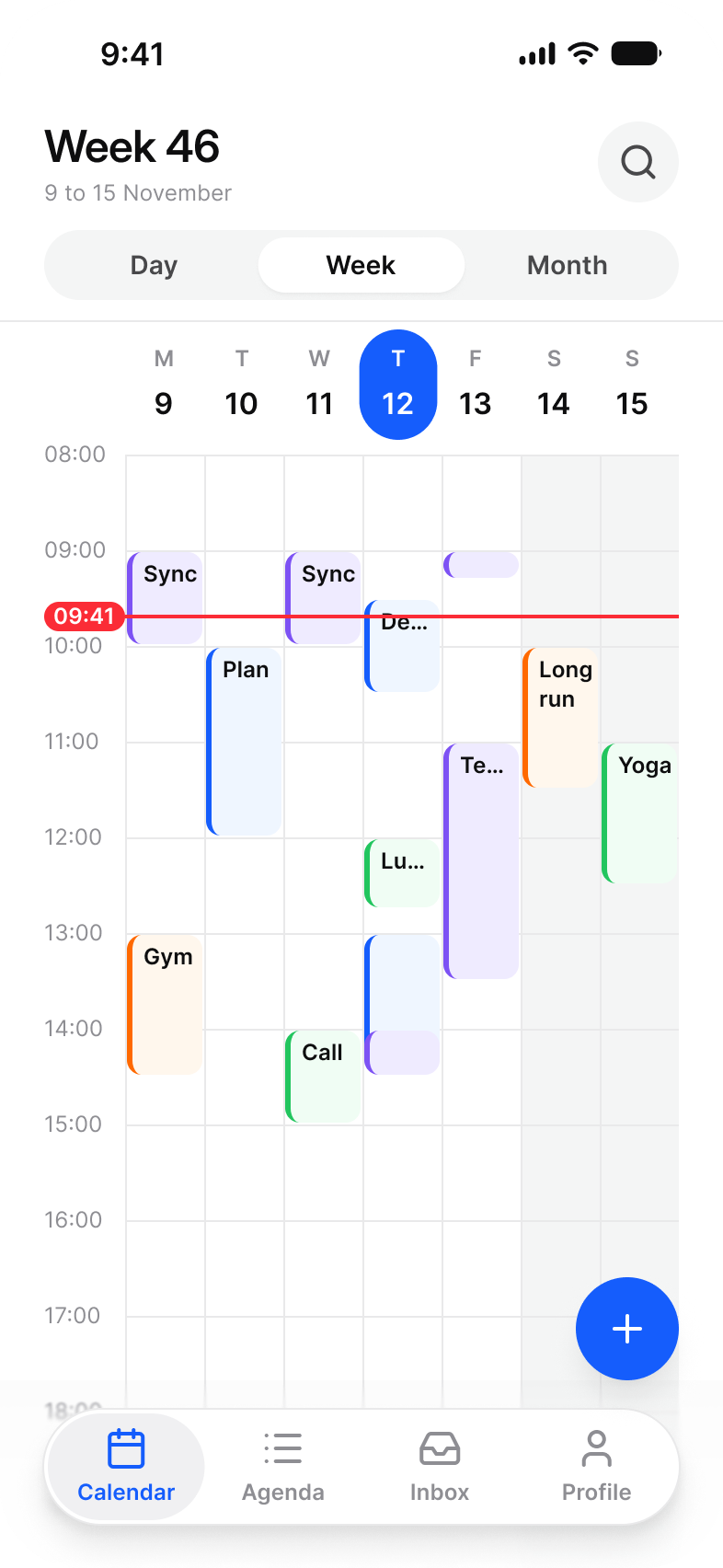
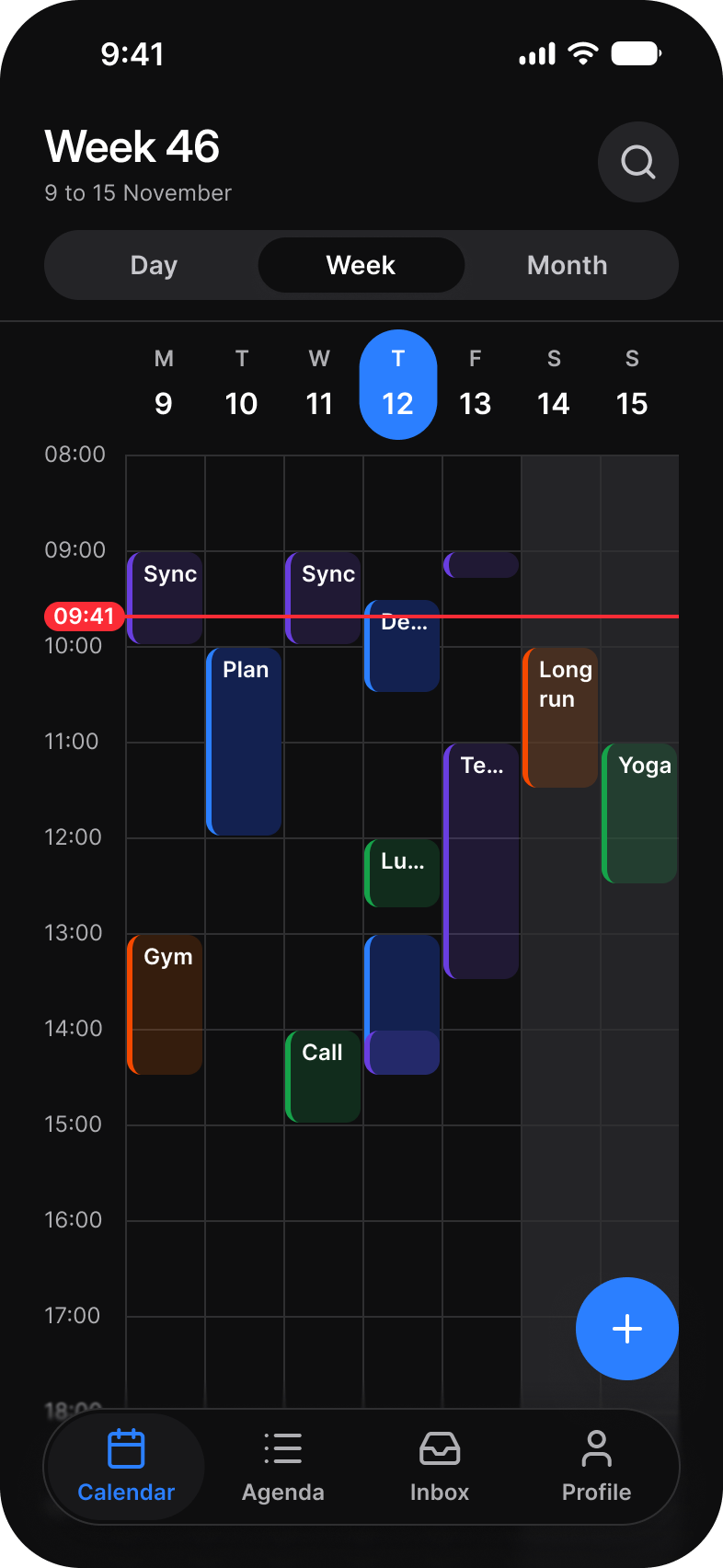
The layering is the same on both screens: Time Grid, then Calendar Event blocks, then Now Indicator.
Properties
One axis. Each hour is a nested _Time Row whose label is a text property.
| Property | Type | Default |
|---|---|---|
View | Day, Week | Day |
Time, on each _Time Row | Text | 08:00 |
| Set | Variants | Size |
|---|---|---|
Time Grid | 2, Day and Week | Day 345 x 776, Week 345 x 632 |
_Time Row | 2, Day and Week | Day 345 x 64, Week 345 x 52 |
Dimensions
Twelve rows from 08:00. The label sits on the top hairline of its hour.
| Part | Value |
|---|---|
| Hour row, Day | 64 |
| Hour row, Week | 52, seven columns, weekend tinted |
| Label gutter | 48 |
| Rows | Twelve, from 08:00 |
Is there a native time grid on iOS or Android?
No. Neither platform ships a day or week grid, so Time Grid is a custom view.
| Platform | Counterpart | What to build |
|---|---|---|
| iOS | None in SwiftUI or UIKit. | A scroll view with one row per hour and events laid out by start and end. |
| Android | None in Material 3. | A scrollable column with one row per hour and events placed by start and end. |
The kit has no prototype interaction on Time Grid.
See Time Grid in the kit.
The read-only Figma preview opens the Appetite UI file on Time Grid, so you can check it before you buy.
The file holds 592 variables in 6 collections and exports its token values to SwiftUI, Jetpack Compose, Flutter and CSS. Solo covers one person and Team up to ten people. You pay once and keep lifetime updates.