Updated
App Store and Google Play
The Appetite UI Figma file has a Stores section with one page for the App Store and one for Google Play. Each page holds the app icon, the screenshots and an upload checklist, drawn with the kit components and tokens in light and dark, and every frame carries the export setting that writes the size the store asks for.
Updated
What is on the App Store and Google Play pages?
Two pages under Stores. Each one holds the app icon, the screenshot sets in light and dark and an upload checklist. The screenshots show a fitness app built from the kit's own components, so they are live layers rather than flat pictures.
| Page | Asset | Frames | Frame size | Export | File size |
|---|---|---|---|---|---|
| App Store | App icon | 6, App Icon / Default to App Icon / Tinted Dark | 256 x 256 | PNG 4x | 1024 x 1024 |
| App Store | iPhone 6.9 screenshots | 6 light and 6 dark, iPhone 6.9 / Light / 01 to 06 | 440 x 956 | JPG 3x | 1320 x 2868 |
| App Store | iPhone Duo outer display | 1 light and 1 dark, iPhone Duo / Outer / Light and Dark | 466 x 678 | JPG 3x | 1398 x 2034 |
| App Store | iPhone Duo inner display | 1 light and 1 dark, iPhone Duo / Inner / Light and Dark | 951 x 669 | JPG 3x | 2853 x 2007 |
| Google Play | Store icon | 1, Play Store Icon | 256 x 256 | PNG 2x | 512 x 512 |
| Google Play | Adaptive icon layers | 3, Adaptive / Background, Foreground, Monochrome | 108 x 108 dp | PNG 1x to 4x, 5 densities | 108 to 432 |
| Google Play | Feature graphic | 1, Feature Graphic | 1024 x 500 | JPG 1x | 1024 x 500 |
| Google Play | Phone screenshots | 6 light and 6 dark, Phone / Light / 01 to 06 | 360 x 640 | JPG 3x | 1080 x 1920 |
The light screenshots sit on the brand background and the dark ones on a neutral background, the row labels on both pages say so: Light, Brand background and Dark, Neutral background. The captions are one headline and one line under it, the same six on both stores: Training that adapts, Every win, kept, Every rep, counted, See what is working, Plans for your week and Beat last week.
Read from the App Store and Google Play pages of the Appetite UI Figma file on November 18, 2026.
What does the App Store page hold?
The app icon in six appearances, six iPhone 6.9 screenshots per mode and one iPhone Duo pair per mode. The first iPhone frame sells the app, the next five sell one feature each.

The icon is 1024 x 1024, a PNG without alpha with square corners; the store rounds it. The six appearances are Default, Dark, Clear and Tinted, the last two each in light and dark. Remove the alpha channel before upload: the store icon must be opaque.
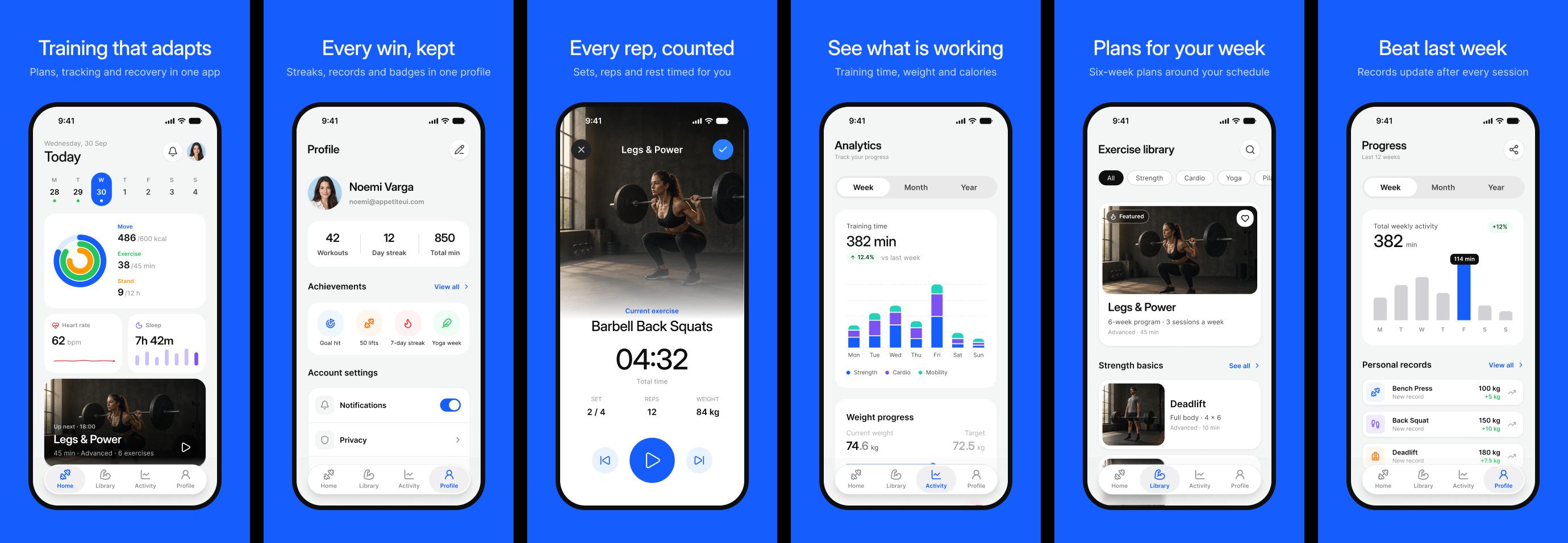
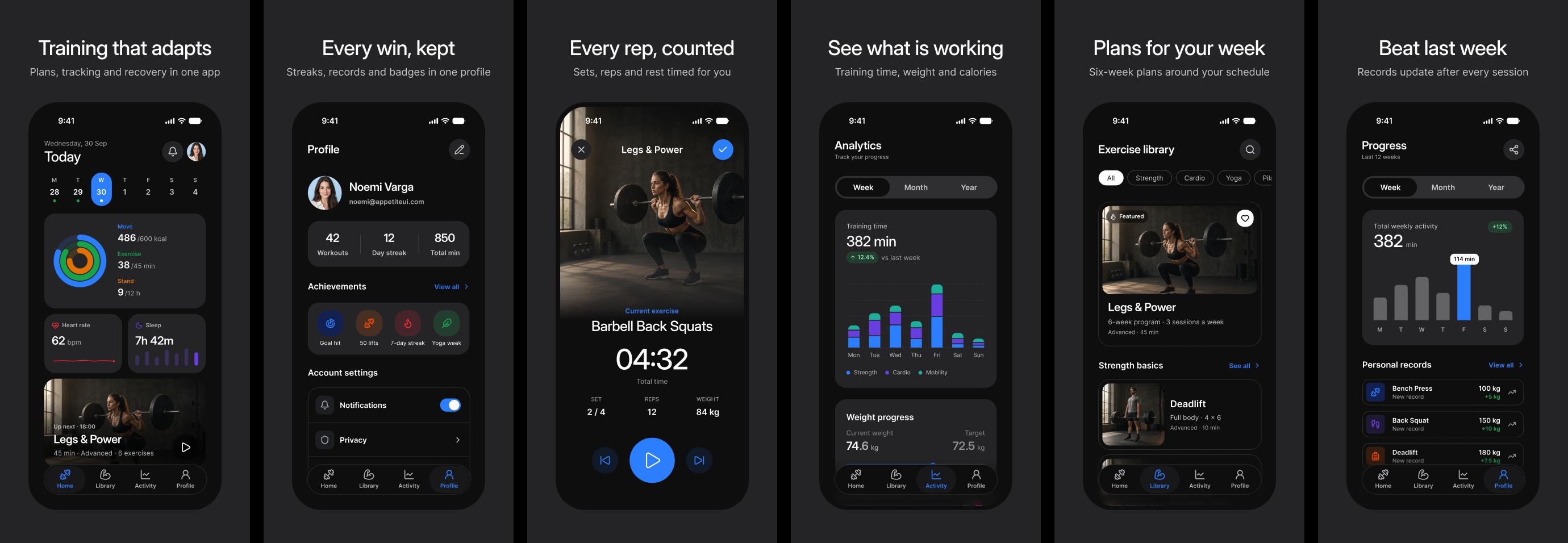
The iPhone 6.9 screenshots are 1320 x 2868, the size App Store Connect takes for the largest iPhone, with 1 to 10 per language. The frames are 440 x 956 and export at 3x.
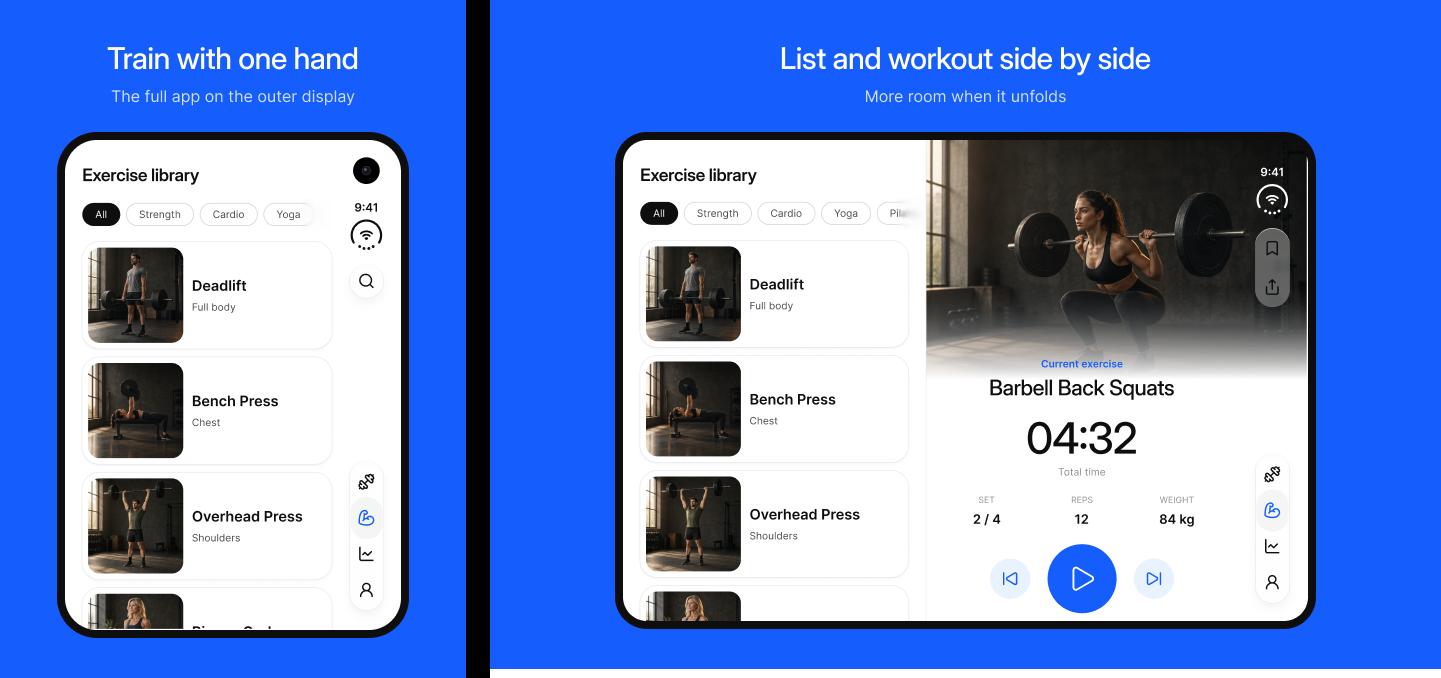
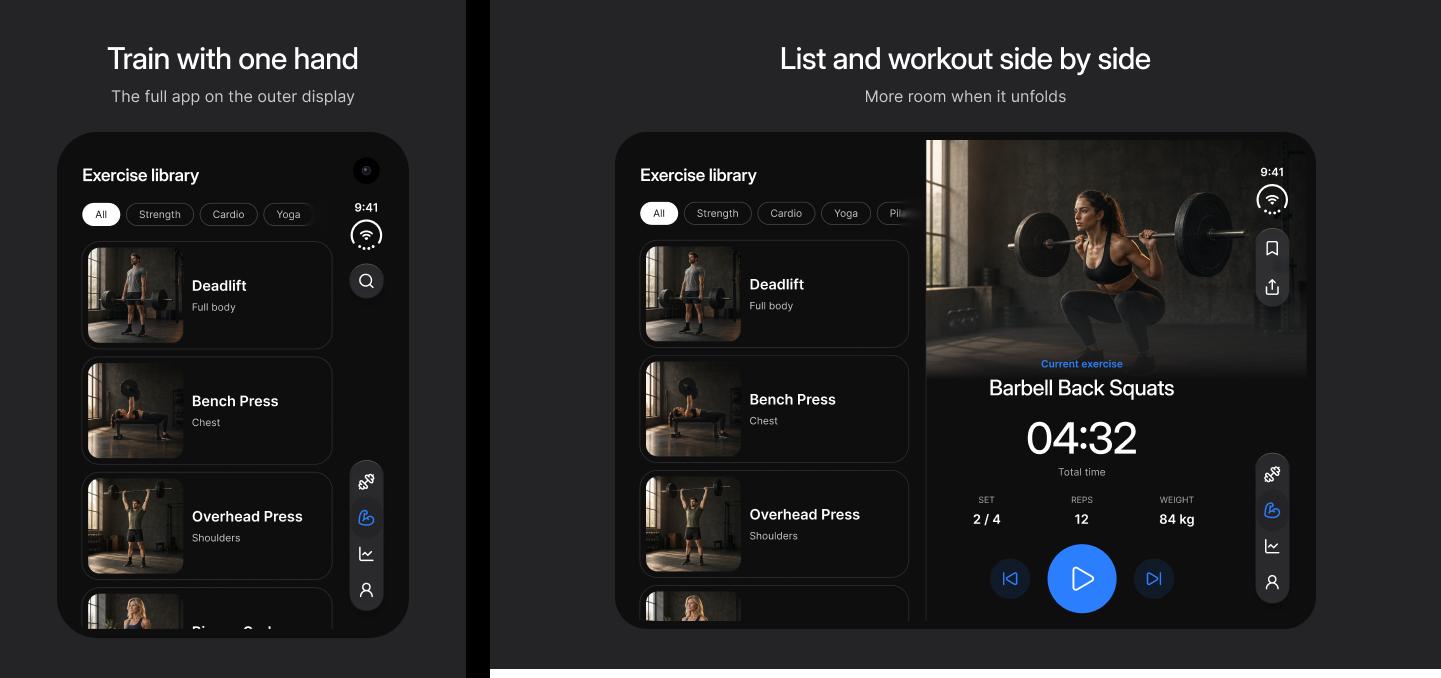
iPhone Duo takes its own screenshots, one size per display: 1398 x 2034 for the outer display and 2853 x 2007 for the inner display. The file notes them as optional now and required from April 2027 for apps built with the iOS 27.1 SDK. The frames are 466 x 678 and 951 x 669, the two displays of the iPhone Duo screens, and export at 3x.
Read from the App Store page (18097:50) of the Appetite UI Figma file on November 18, 2026.
What does the Google Play page hold?
The store icon, the adaptive icon layers with launcher previews, the feature graphic and six phone screenshots per mode.
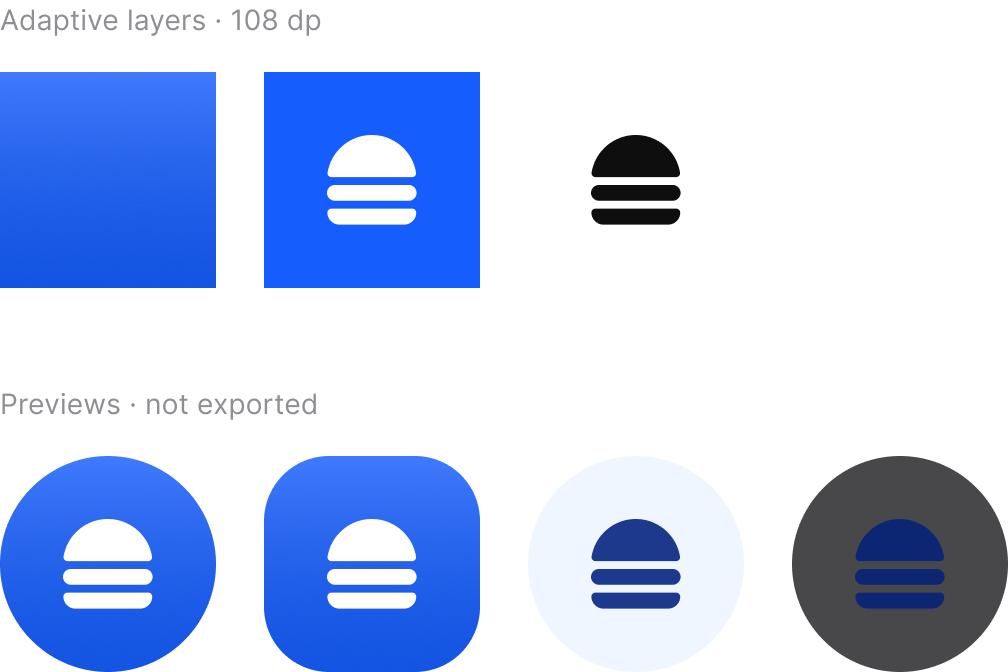
The store icon is 512 x 512, a 32-bit PNG; alpha is allowed here. The adaptive layers are 108 dp with a 66 dp safe zone and export for mdpi to xxxhdpi. The previews show the launcher masks and the themed icon and are not exported.
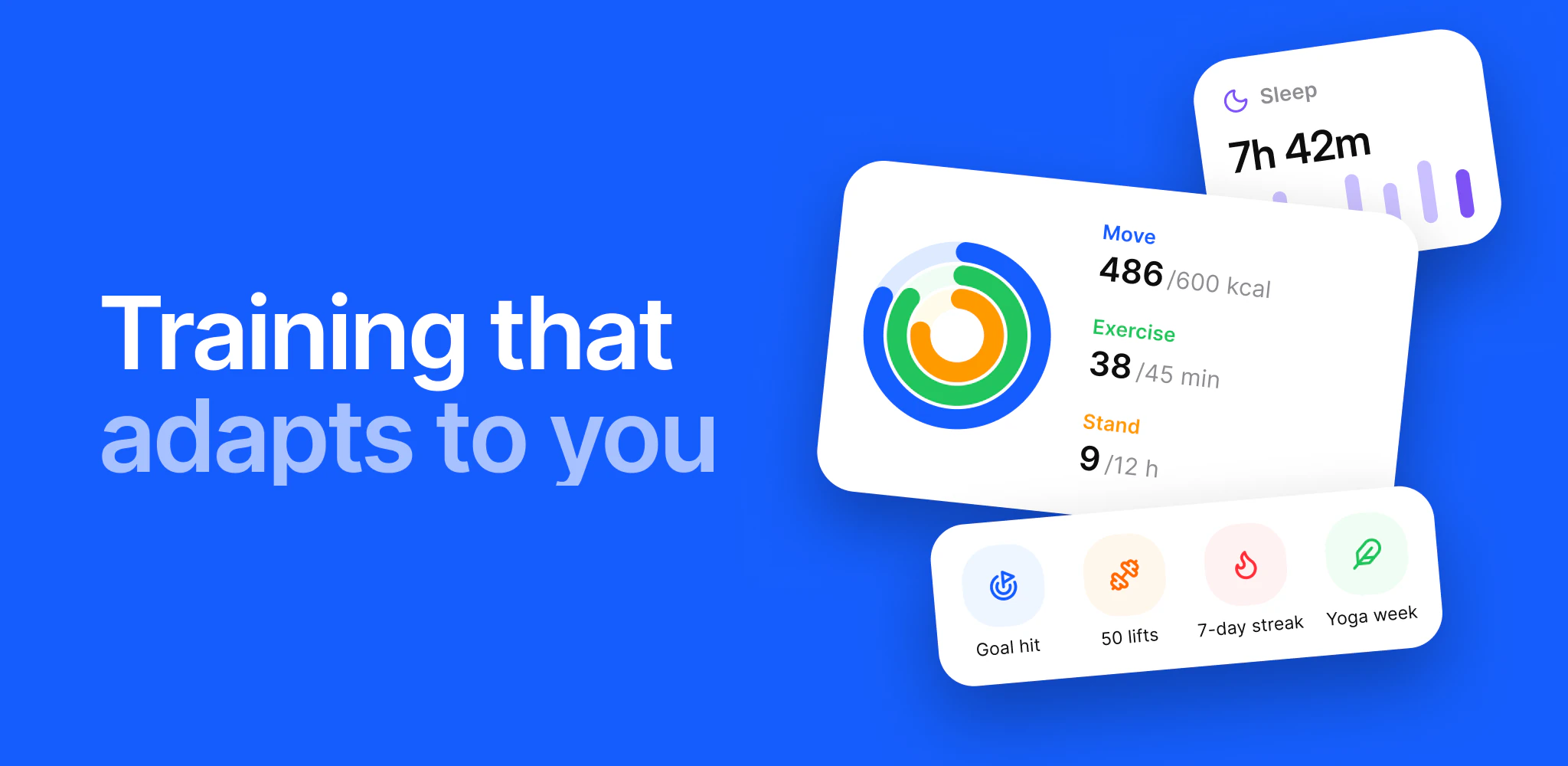
The feature graphic is 1024 x 500, a JPEG or 24-bit PNG without alpha. It is required, and it doubles as the cover of the preview video. It shows no device, and its focal point sits near the centre.
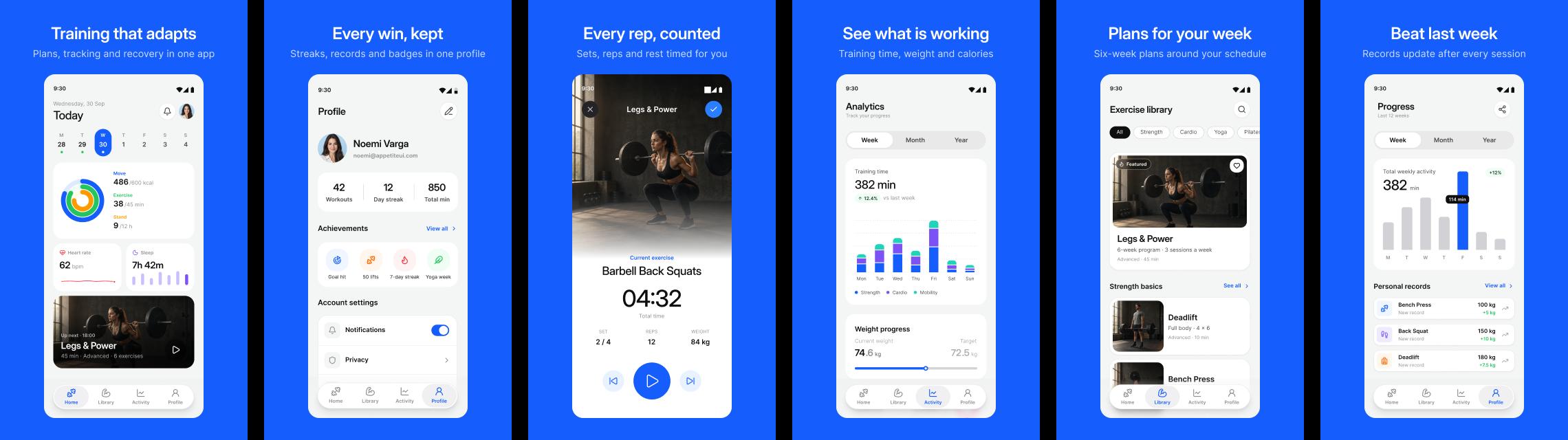
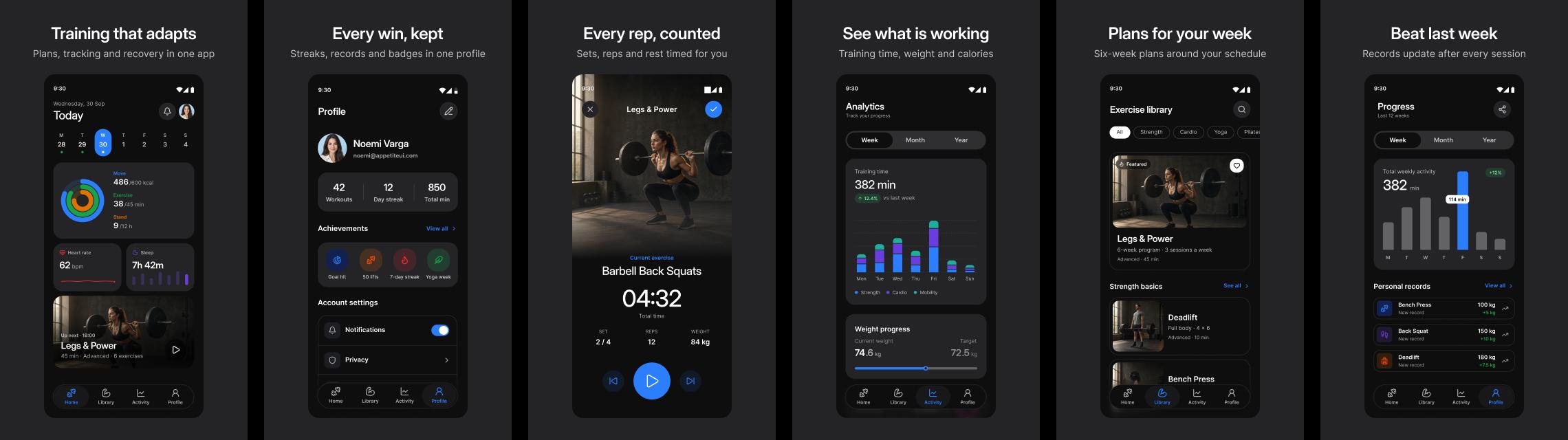
The phone set is 1080 x 1920, 2 to 8 per device type, and 4 or more to qualify for promotion. The screens are frameless with the Material status bar, and the captions stay under 20 percent of the image. The frames are 360 x 640 and export at 3x.
Read from the Google Play page (18097:51) of the Appetite UI Figma file on November 18, 2026.
How do I export the store assets?
Every frame on both pages already carries its export setting, so Export in Figma writes the size the store asks for. Nothing needs scaling by hand.
Change the screens first. The screens on the store frames are built from instances of the kit's components, so a change to a component reaches them. Each frame pins Color Tokens to Light or Dark, and the Google Play frames also pin Platform to android; switch the mode on a frame to move it between light and dark.
Select the frames of one set by name, for example every
iPhone 6.9 / Light / 0*frame, and export them. The App Store frames write JPG at 3x, the icons PNG at 4x.On Google Play, the
Adaptive / Background,Adaptive / ForegroundandAdaptive / Monochromeframes each write 5 files, one per density with its suffix, ready for themipmapfolders.Check each file against the checklist below before you upload: the size, the alpha channel and the count per language or device type.
| Frame | Setting | Files it writes |
|---|---|---|
App Icon / Default and the other five | PNG 4x | 1024 x 1024 |
iPhone 6.9 / Light / 01 to Dark / 06 | JPG 3x | 1320 x 2868 |
iPhone Duo / Outer / Light and Dark | JPG 3x | 1398 x 2034 |
iPhone Duo / Inner / Light and Dark | JPG 3x | 2853 x 2007 |
Play Store Icon | PNG 2x | 512 x 512 |
Adaptive / Background, Foreground, Monochrome | PNG 1x -mdpi, 1.5x -hdpi, 2x -xhdpi, 3x -xxhdpi, 4x -xxxhdpi | 108, 162, 216, 324 and 432 square |
Feature Graphic | JPG 1x | 1024 x 500 |
Phone / Light / 01 to Dark / 06 | JPG 3x | 1080 x 1920 |
The App Store icon exports as a PNG, and the store wants it without alpha. Flatten it before upload if your export keeps a transparent channel.
Export settings read from every frame on both store pages on November 18, 2026.
What does each store need at upload?
Both pages end on an upload checklist: what the page holds, and what App Store Connect or Play Console needs from elsewhere. Ready means the file draws it; Not in file means you bring it.
| Asset | Size | Status | Note |
|---|---|---|---|
| App icon | 1024 x 1024 px | Ready | 6 appearances. Remove the alpha channel before upload, the store icon must be opaque. |
| iPhone 6.9 | 1320 x 2868 px | Ready | 6 light and 6 dark |
| iPhone Duo | 1398 x 2034 and 2853 x 2007 px | Ready | 2 light and 2 dark |
| App preview video | 15 to 30 s | Not in file | |
| Apple Watch, Mac, Apple TV, Vision Pro | Per platform | Not in file | Only when the app ships there. |
| Asset | Size | Status | Note |
|---|---|---|---|
| Store icon | 512 x 512 px | Ready | PNG, 32-bit with alpha is allowed here. |
| Adaptive icon | 108 dp layers with monochrome | Ready | |
| Feature graphic | 1024 x 500 px | Ready | |
| Phone | 1080 x 1920 px | Ready | 6 light and 6 dark |
| Preview video | YouTube URL | Not in file | |
| Alt text | 140 characters or fewer per image | Not in file | Write it in Play Console. |
| Wear OS, Android TV, Automotive, XR | Per platform | Not in file | Only when the app ships there. |
The pages draw phones and iPhone Duo. For the screens behind the screenshots see the Fitness screens and the iPhone Duo screens; for the store badges that link to a listing see Assets.
Both checklists read from the App Store and Google Play pages of the Appetite UI Figma file on November 18, 2026, Status from each row's badge.
See the store pages in the kit.
The read-only Figma preview opens the Appetite UI file on the store pages, so you can check it before you buy.
The file holds 592 variables in 6 collections and exports its token values to SwiftUI, Jetpack Compose, Flutter and CSS. Solo covers one person and Team up to ten people. You pay once and keep lifetime updates.