By Bob Poláček, updated
Google Play
Appetite UI's Google Play page in Figma holds the store icon, the adaptive icon layers with a monochrome layer for themed icons, the feature graphic and 6 phone screenshots per mode in light and dark, each exported at the size Play Console takes. This page adds Google's rules for each asset and the listing text.
By Bob Poláček, updated
On this page
What does the Google Play page of the kit hold?
The Google Play page sits in the Stores section of the Appetite UI Figma file. It holds the store icon, the adaptive icon layers, the feature graphic, the phone screenshot sets in light and dark and an upload checklist, and every frame carries the export setting that writes the size Play Console takes.
| Asset | Store size | Format | In the kit | Where in the file |
|---|---|---|---|---|
| Store icon | 512 x 512 px, up to 1024 KB | 32-bit PNG, alpha allowed | Ready | Play Store Icon, 256 x 256, PNG 2x |
| Adaptive icon | 108 x 108 dp per layer | PNG per density, or vector in the app | 3 layers at 5 densities | Adaptive / Background, Foreground, Monochrome, 108 x 108 |
| Feature graphic | 1024 x 500 px | JPEG or 24-bit PNG, no alpha | Ready | Feature Graphic, 1024 x 500, JPG 1x |
| Phone screenshots | 1080 x 1920 px | JPEG or 24-bit PNG, no alpha, up to 8 MB | 6 light and 6 dark | Phone / Light / 01 to Phone / Dark / 06, 360 x 640, JPG 3x |
| Tablet, Chromebook, Wear OS, TV, Automotive, XR | Per device type | JPEG or 24-bit PNG | Not in the file | Only when the app ships there |
| Preview video | A YouTube URL | Public or unlisted video | Not in the file | Added in Play Console |
| Listing text | Name 30 characters, short description 80, full description 4000 | Plain text | Not in the file | Written in Play Console |
The screenshots show the same fitness app as the App Store page, in the kit's Android mode, so they are live layers rather than flat pictures: change a token or swap a screen and the store set follows. Light frames sit on the brand background and dark frames on a neutral one. The brand marks, flags and store badges are on Assets. The Stores pages are part of the Appetite UI Figma file; pricing shows which plans include it.
Read from the Google Play page of the Appetite UI 2.6 Figma file and from Google's Play Console Help on November 19, 2026.
What size is the Google Play store icon?
512 x 512 pixels, a 32-bit PNG in sRGB of at most 1024 KB. Upload it as a full square: Google Play applies the rounded corners itself.
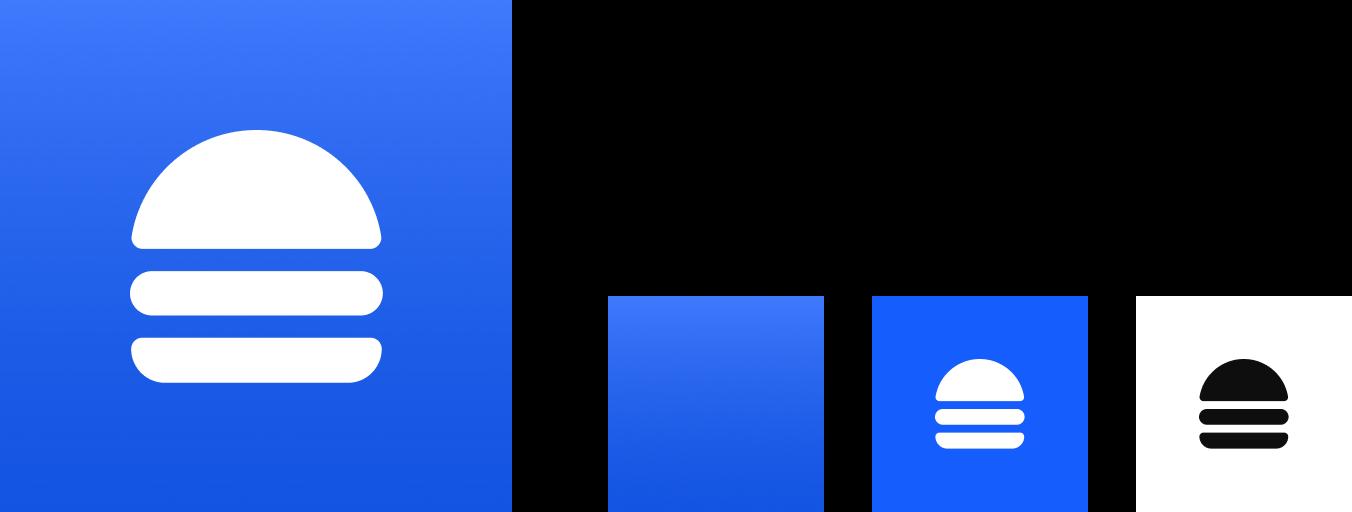
Google's icon design specifications ask for a 512 x 512 px, 32-bit PNG in the sRGB colour space, at most 1024 KB. Google Play masks the full square with a corner radius of 30% of the icon size, so the file carries no rounded corners and no shadow of its own. The store icon may not carry text about ranking, prices or deals, nor badges that could mislead.
The kit draws it as Play Store Icon, a 256 x 256 frame on brand/base that exports at 2x for 512 x 512. The file's checklist notes that a 32-bit PNG with alpha is allowed here, unlike the App Store icon. This is the icon of the listing; the icon on the phone is the adaptive icon below.
From Google's Icon design specifications and Add preview assets to showcase your app, read November 19, 2026, and the Play Store Icon frame of the Figma file the same day.
How does the adaptive icon work?
The launcher icon is two layers of 108 x 108 dp, a background and a foreground, with an optional monochrome layer for themed icons. The device masks them to its own shape, and only the inner 66 x 66 dp is never clipped.
Android 8.0 (API level 26) introduced adaptive icons, which the app declares in res/mipmap-anydpi-v26/ic_launcher.xml with a background, a foreground and, optionally, a monochrome layer. The Android Developers guide to adaptive icons sets the geometry:
| Rule | Value |
|---|---|
| Every layer | 108 x 108 dp |
| Safe zone, never clipped by a mask | The inner 66 x 66 dp |
| Logo | At least 48 x 48 dp, at most 66 x 66 dp |
| Outer edge | 18 dp per side, kept for masks and visual effects |
| Layers | No masks and no shadows of your own |
| Monochrome layer | Optional; used for themed icons from Android 13 (API level 33) |
The kit draws the three layers as Adaptive / Background on brand/base, Adaptive / Foreground and Adaptive / Monochrome, each 108 x 108. The foreground sits in a frame named Foreground on brand · backing not exported, so the canvas shows it on brand blue while the export stays transparent. The monochrome layer is a single colour mark on a transparent ground, which the system tints for themed icons. From Android 16 QPR 2 the system can theme an app without one, so drawing it keeps the mark yours.
Google prefers vector layers. The kit's PNG exports cover the densities a raster icon needs.
From the Adaptive icons guide on Android Developers, read November 19, 2026, and the adaptive layers of the Figma file the same day.
What size is the Google Play feature graphic?
1024 x 500 pixels, a JPEG or a 24-bit PNG without alpha. Play Console needs it to publish the app.
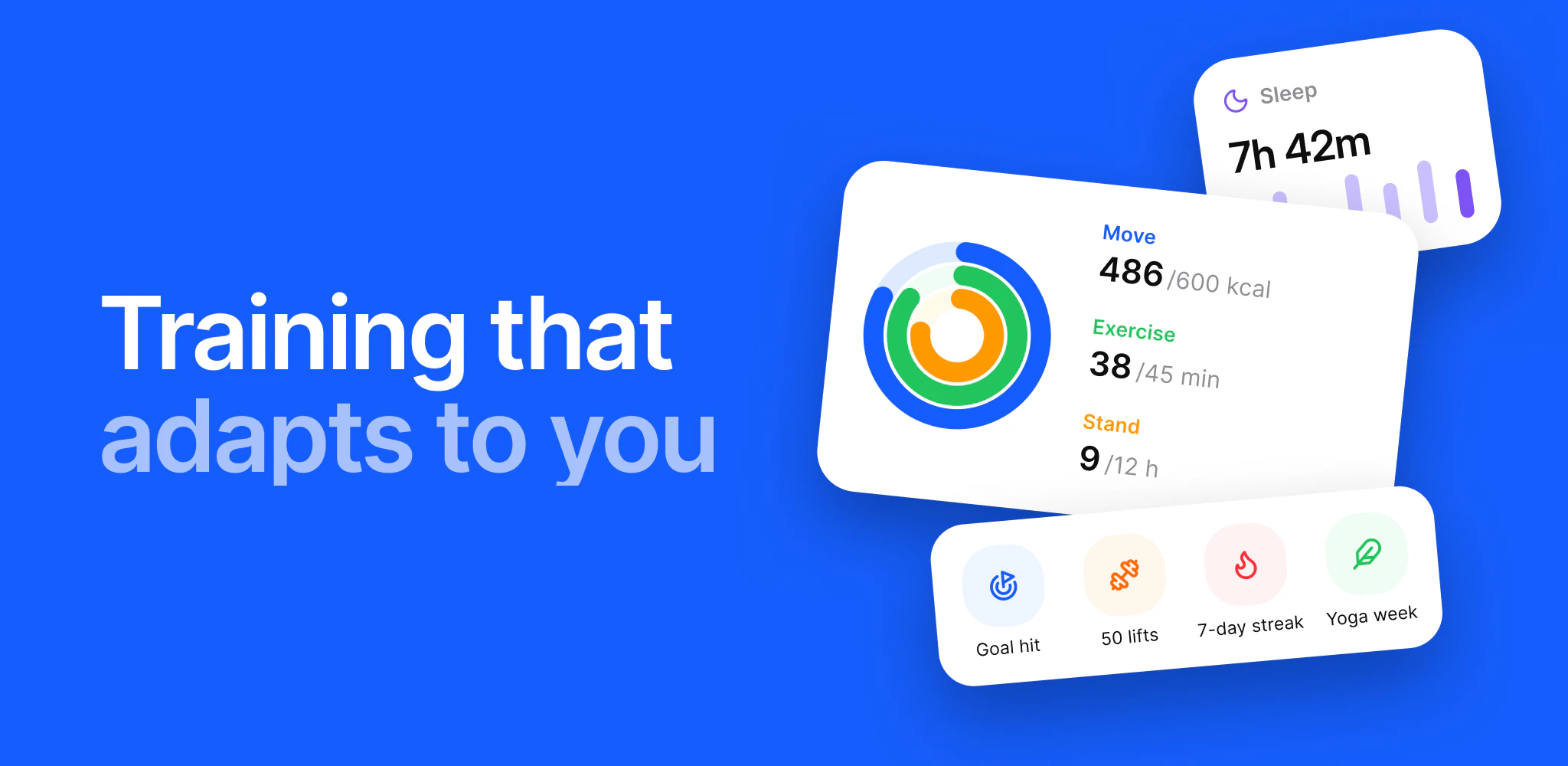
Google's guidance for the feature graphic, from the Play Console page on preview assets:
- Keep the focal point toward the centre and out of the edges, where some placements crop it.
- Run background elements to the edges of the frame.
- Avoid fine detail.
- Localize it when the listing is localized, and write alt text for it.
The kit's Feature Graphic is 1024 x 500 and exports at 1x. It pins Color Tokens to Light and the Platform collection to android, puts the headline Training that adapts to you on the left and three of the app's own cards on the right, activity rings, sleep and achievements, with no device around them.
From Google's Add preview assets to showcase your app, read November 19, 2026, and the Feature Graphic frame of the Figma file the same day.
What screenshot sizes does Google Play accept?
Each side between 320 and 3840 pixels, the long side at most 2.3 times the short one, in JPEG or 24-bit PNG without alpha. Phones take 2 to 8 images. The kit's frames export 1080 x 1920, which also meets the 1080 pixel minimum for promotion.
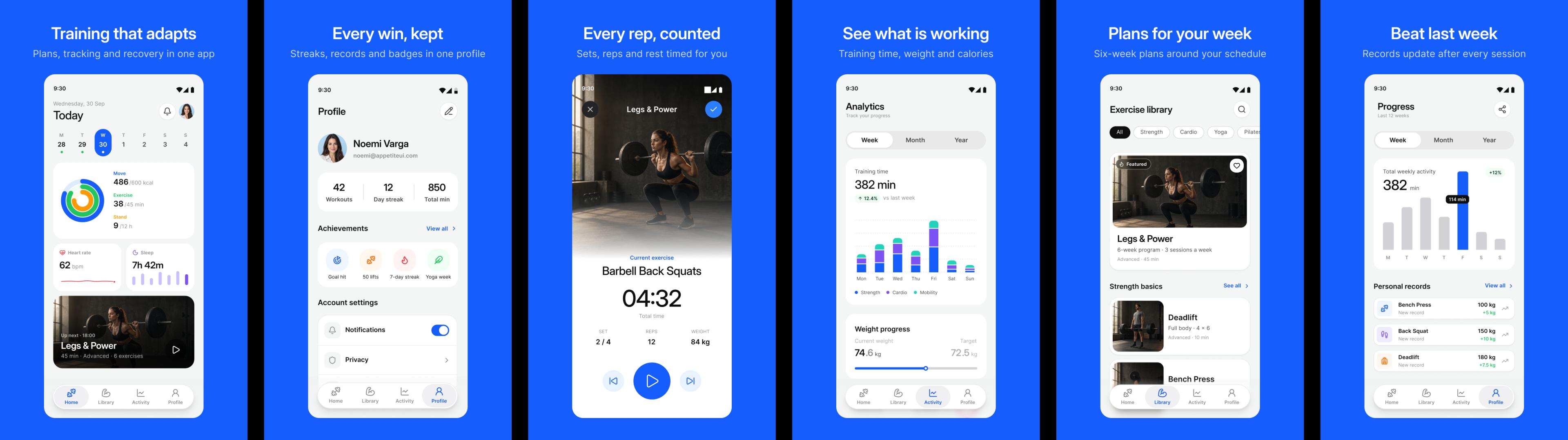
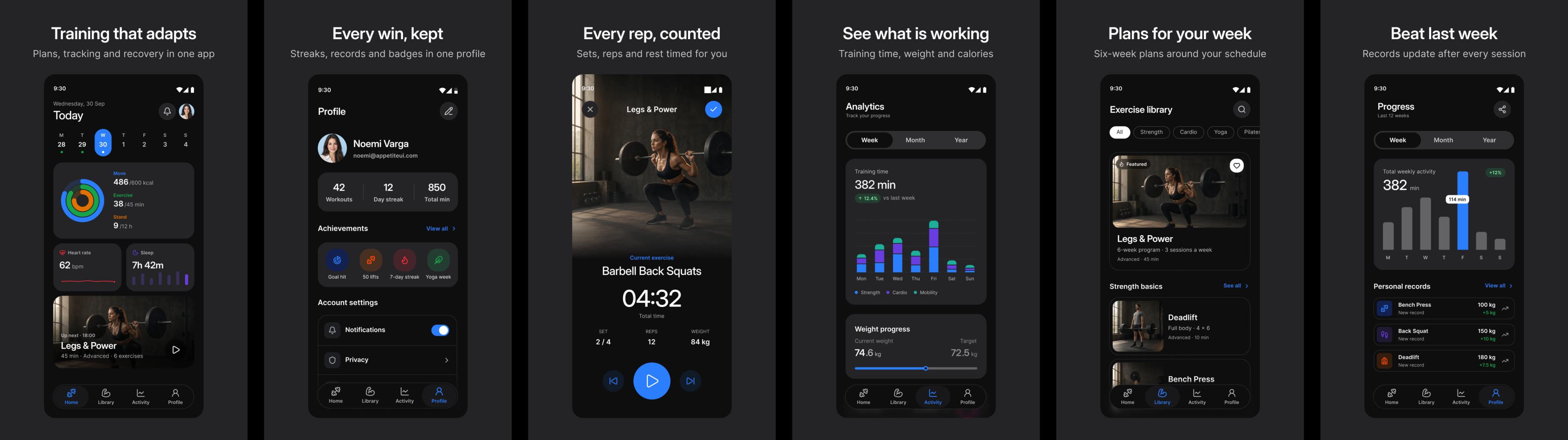
Play Console takes up to eight screenshots per device type and needs at least two across device types to publish. For phones the rule is 2 to 8 images, PNG or JPEG up to 8 MB each, in 9:16 portrait or 16:9 landscape. To be eligible for promotion, an app needs at least four screenshots of at least 1080 pixels, 1080 x 1920 in portrait. The kit's six frames at 1080 x 1920 meet both.
| Rule | Value |
|---|---|
| Count | 2 to 8 for phones, up to 8 per device type |
| Side length | 320 to 3840 px, the long side at most 2.3 times the short side |
| Format | JPEG or 24-bit PNG, no alpha, up to 8 MB |
| Aspect | 9:16 portrait or 16:9 landscape |
| Promotion | At least four at 1080 px or more, 1080 x 1920 in portrait |
| Captions and taglines | No more than 20% of the image |
| Alt text | 140 characters or fewer per image |
Each frame is 360 x 640 and exports at 3x. A Headline on 2xl/emphasized and a Caption on sm/default, 312 wide, sit over the screen, 232 x 500, with the Material status bar and no device frame. The two lines stay under a fifth of the image. The captions are the same six as on the App Store, so one translation covers both stores. The screens come from the kit's Fitness flow.
Tablets, Chromebooks, foldables, Wear OS, Android TV, Android Automotive and XR each take their own set with their own sizes; the screenshot size tool lists them with the frame to draw.
Rules from Google's Add preview assets to showcase your app, read November 19, 2026. Frames, captions and styles from the Google Play page of the Figma file the same day.
What does Google Play need for a preview video?
A YouTube URL, not a file. The video is optional, has to be public or unlisted with ads off, and only its first 30 seconds play automatically in the listing.
| Rule | Value |
|---|---|
| Source | The URL of one YouTube video, not a playlist or a channel, without a timecode |
| Visibility | Public or unlisted, embeddable, not age-restricted |
| Ads | Turned off |
| Autoplay | The first 30 seconds |
| Orientation | Landscape or portrait |
| Required | No |
Google recommends captions in the video. The kit holds no video; record it from the app.
From Google's Add preview assets to showcase your app, read November 19, 2026.
How long can the app name and descriptions be?
The app name is 30 characters, the short description 80 and the full description 4000. Full-width and half-width characters count the same.
| Field | Limit |
|---|---|
| App name | 30 characters |
| Short description | 80 characters |
| Full description | 4000 characters |
The kit's captions are a useful start for the short description: each one is a single claim about a feature, and the six together outline the full description.
From Google's Create and set up your app, read November 19, 2026.
How do you localize the Google Play listing?
Add a translation per language in Play Console with its own name, descriptions and graphics. In the kit, duplicate the screenshot and feature graphic frames per language and translate the Headline and Caption layers.
Play Console keeps one app name per language and lets you add your own translations of the listing, with screenshots and a feature graphic in that language. Where you add no translation, people can see an automated translation from Google Translate. Google asks that the text inside the graphics is localized too.
In the file, each frame's copy is two text layers, Headline and Caption, in a block 312 wide that wraps, so a longer language grows down rather than out. Duplicate the Screenshots row, translate the two layers, and add the language to the frame names so the exports do not overwrite each other. The feature graphic's headline translates the same way.
From Google's Create and set up your app and Add preview assets to showcase your app, read November 19, 2026.
How do you edit the Google Play templates in Figma?
Change the tokens, not the frames. The backgrounds, captions, icon layers and screens read the kit's variables, so a brand change in Color Tokens reaches every Play frame, and a screen from any flow drops into the frame.
Set your brand. The light frames, the store icon, the adaptive background and the feature graphic read
brand/base, and the dark framesbg/weak-50. Change the brand in the Color Tokens collection, as Colors describes. Through Platform Bridge in its default Brand mode the Material 3 color roles of the screens read the same tokens.Pick the mode per frame. Every screenshot frame pins Color Tokens to Light or Dark and the Platform collection to
android; switch the Color Tokens mode to move a frame between the sets.Write the captions. Edit the
HeadlineandCaptionlayers; the text styles and the white ink stay bound.Swap a screen. Copy a screen from any flow, for example Onboarding or Paywall, paste it into the frame, scale it with the Scale tool (K) to 232 wide, the width of the screen it replaces, and delete the old one. Set the Platform mode of the pasted screen to
android, as on the screen it replaces.Replace the icon. Put your mark in
Play Store Icon,Adaptive / ForegroundandAdaptive / Monochrome, inside the 66 dp safe zone of the two adaptive layers. A glyph from the kit's icon set stands in while the logo is not ready.
Bindings, modes and layer names read from the Google Play page of the Figma file on November 19, 2026.
How do you export the Google Play assets at store size?
Every frame already carries its export setting. The store icon, feature graphic and screenshots write the Play Console sizes, and each adaptive layer writes one file per density for the app's mipmap folders.
| Frame | Setting | Files it writes |
|---|---|---|
Play Store Icon | PNG 2x | 512 x 512 |
Adaptive / Background, Foreground, Monochrome | PNG 1x -mdpi, 1.5x -hdpi, 2x -xhdpi, 3x -xxhdpi, 4x -xxxhdpi | 108, 162, 216, 324 and 432 square |
Feature Graphic | JPG 1x | 1024 x 500 |
Phone / Light / 01 to Phone / Dark / 06 | JPG 3x | 1080 x 1920 |
Select the frames of one set by name, for example every Phone / Light frame, and press Export in the right panel; each frame writes its own file. Upload the screenshots in the order of their numbers. Each adaptive layer writes 5 files with the density in the name, one for each mipmap folder of the app. The store icon, feature graphic and screenshots go to Play Console, the adaptive layers into the app.
Export settings read from every frame of the Google Play page on November 19, 2026.
What should you check before you publish?
The file ends on an upload checklist of what it holds and what Play Console needs from elsewhere. This list adds Google's rule to each line.
| Check | Google's rule | In the kit |
|---|---|---|
| Store icon | 512 x 512, 32-bit PNG, up to 1024 KB, full square | Ready |
| Adaptive icon | 108 dp layers, logo inside the 66 dp safe zone, optional monochrome | Ready, with monochrome |
| Feature graphic | 1024 x 500, JPEG or 24-bit PNG, required to publish | Ready |
| Phone screenshots | 2 to 8, 1080 x 1920 or larger for promotion | Ready, 6 light and 6 dark |
| Captions | No more than 20% of the image | Two lines per frame |
| Alt text | 140 characters or fewer per image | Write it in Play Console |
| Tablets, 7 and 10 inch | Their own set, only when the app runs on tablets | Not in the file |
| Chromebook | Its own set | Not in the file |
| Preview video | A YouTube URL, optional | Not in the file |
| Listing text | Name 30, short description 80, full description 4000 | Not in the file |
| Wear OS, Android TV, Automotive, XR | Their own sizes, only when the app ships there | Not in the file |
The file's checklist read from the Google Play page, Google's rules from the pages named above, all on November 19, 2026.
What do people ask about Google Play assets?
Short answers, each from Google's pages read on November 19, 2026.
What size is the Google Play feature graphic?
1024 x 500 pixels, as a JPEG or a 24-bit PNG without alpha. It is required to publish, and the kit's Feature Graphic frame exports it at that size.
What size should Google Play phone screenshots be?
Any size from 320 to 3840 pixels per side with the long side at most 2.3 times the short one, and 1080 x 1920 or larger to be eligible for promotion. The kit's phone frames export 1080 x 1920; the size tool covers the other device types.
How many screenshots does Google Play need?
At least two to publish, and two to eight for phones. Four or more at 1080 pixels or larger make the app eligible for promotion.
Is the store icon the same file as the launcher icon?
No. The store icon is a 512 x 512 PNG uploaded to Play Console, and the launcher icon is the adaptive icon inside the app, built from 108 dp layers. The kit draws both.
Do you need a monochrome icon layer?
No, it is optional. With it, Android 13 and later can show a themed icon; without it, Android 16 QPR 2 and later can theme the icon automatically.
Can Google Play screenshots have captions?
Yes, as long as the text takes no more than 20% of the image. The kit's two-line captions stay under that, and Google asks that the text is localized with the listing.